Imagine your phone slips into a lake, is stolen on a bus, or simply stops working one morning. What would you lose? For most of us, the phone itself can be replaced, but years of family photos, hundreds of contacts and important WhatsApp chats cannot, unless they were backed up. A backup is simply a second copy kept somewhere else. This is Part 34 of our Tech for Beginners series. Today we will turn on photo backup with Google Photos and iCloud Photos, make sure your contacts are synced, back up WhatsApp chats, restore everything on a new phone, and learn the "3-2-1" backup idea in plain words.
Most backups go to the cloud, which we explained in Part 33. Backups need free space on your phone too, so the tips in Part 6 on phone storage help. Your photos come from the camera we explored in Part 8. When you set up a new phone, the restore steps fit into the setup guides for Android (Part 2) and iPhone (Part 3).
A note on changes: backup menus differ between phone brands and change with updates. Storage limits and app features can also change. Use these steps as a guide and follow your phone's on-screen options.
What should you back up?
- Photos and videos: usually the most precious and the largest.
- Contacts: phone numbers you would struggle to find again.
- WhatsApp chats and media: family conversations, voice notes and shared documents.
- Phone settings, SMS, call history and app data: handy when moving to a new phone.
- Important documents: keep these in DigiLocker (Part 31) or your cloud drive.
Step 1: Back up your photos
Android: Google Photos
- Open the Google Photos app (install it from the Play Store if needed) and sign in with your Google account.
- Tap your profile picture at the top right.
- Tap Turn on backup, or open Photos settings > Backup and switch it on.
- Choose a backup quality: Original quality keeps full detail; Storage saver slightly reduces quality to save space. Both count towards your Google storage.
- Choose whether to back up using mobile data or only on Wi-Fi. Wi-Fi only is safer for your data pack.
- Check Back up device folders to include WhatsApp images, screenshots or downloads if you want them.
Once backup is complete, you can use Free up space in Google Photos to remove backed-up copies from your phone. Do this only after checking that the photos appear at photos.google.com.
iPhone: iCloud Photos
- Open Settings and tap your name.
- Tap iCloud, then Photos.
- Turn on Sync this iPhone (called iCloud Photos on older versions).
- Choose Optimise iPhone Storage to keep smaller versions on the phone and full versions in iCloud.
Remember that free iCloud storage is 5 GB, which fills quickly with photos. You may need a paid plan, or you can use Google Photos on iPhone instead.
Step 2: Make sure your contacts are synced
Contacts saved only on the SIM card or "on the phone" can be lost. Save them to your account instead.
Android
- Open the Contacts app and look at the settings for where new contacts are saved. Choose your Google account.
- To move old SIM or phone contacts, look for Import/Export or Move contacts in the Contacts app settings, and move them to your Google account.
- Check Settings > Google > Settings for Google apps > Google Contacts sync (names vary) and make sure sync is on.
- Visit contacts.google.com on a computer to confirm your contacts are there.
iPhone
- Open Settings > [your name] > iCloud.
- Turn on Contacts.
Step 3: Back up the whole phone
Android
- Open Settings and search for Backup, or go to Settings > Google > Backup (the path varies by brand).
- Turn on Backup by Google One (or Back up to Google Drive).
- Tap Back up now.
According to Google, this backs up items such as apps and app data, call history, contacts, device settings and SMS. It uses your Google storage. Use a PIN, pattern or password screen lock, as Google uses it to protect part of the backup.
iPhone
- Open Settings > [your name] > iCloud > iCloud Backup.
- Turn on Back Up This iPhone and tap Back Up Now while on Wi-Fi.
Step 4: Back up WhatsApp chats
Android
- Open WhatsApp and tap the three dots, then Settings > Chats > Chat backup.
- Tap Google Account and choose the account to back up to.
- Set Back up to Google Account frequency, for example Daily.
- Decide whether to include videos; they take a lot of space.
- Tap Back up to make a backup now, preferably on Wi-Fi.
WhatsApp backups on Android count towards your Google storage, so keep an eye on space.
iPhone
- Make sure iCloud Drive is on (Settings > [your name] > iCloud).
- In WhatsApp, go to Settings > Chats > Chat Backup.
- Tap Back Up Now and set Auto Backup.
End-to-end encrypted backup
For extra privacy, WhatsApp offers an end-to-end encrypted backup option in the same Chat backup menu. You protect it with a password, a 64-digit key or, in newer versions, a passkey. Write down your password or key safely. If you lose it, WhatsApp cannot recover your backup.
Step 5: Restore everything on a new phone
- Before you switch, make fresh backups of photos, the phone and WhatsApp on the old phone.
- On the new phone, during setup, sign in with the same Google account (Android) or Apple Account (iPhone).
- When asked, choose to restore from a backup or copy data from your old phone (many phones can transfer with a cable or wirelessly).
- Open Google Photos or check iCloud Photos; your photos should appear once you sign in.
- Check that your contacts appear.
- Install WhatsApp, verify the same phone number, and tap Restore when it finds your backup. Enter your encryption password or key if you used one.
- For moving WhatsApp between Android phones without the cloud, WhatsApp also offers a direct chat transfer option. Moving between Android and iPhone is possible using WhatsApp's official transfer methods; check WhatsApp's help pages for the current steps.
Only wipe or sell the old phone after you have checked that everything is on the new one.
The 3-2-1 backup idea in plain words
Experts suggest a simple rule for really important files, such as wedding photos, children's videos or business records:
- 3 copies of your important data: the original plus two backups.
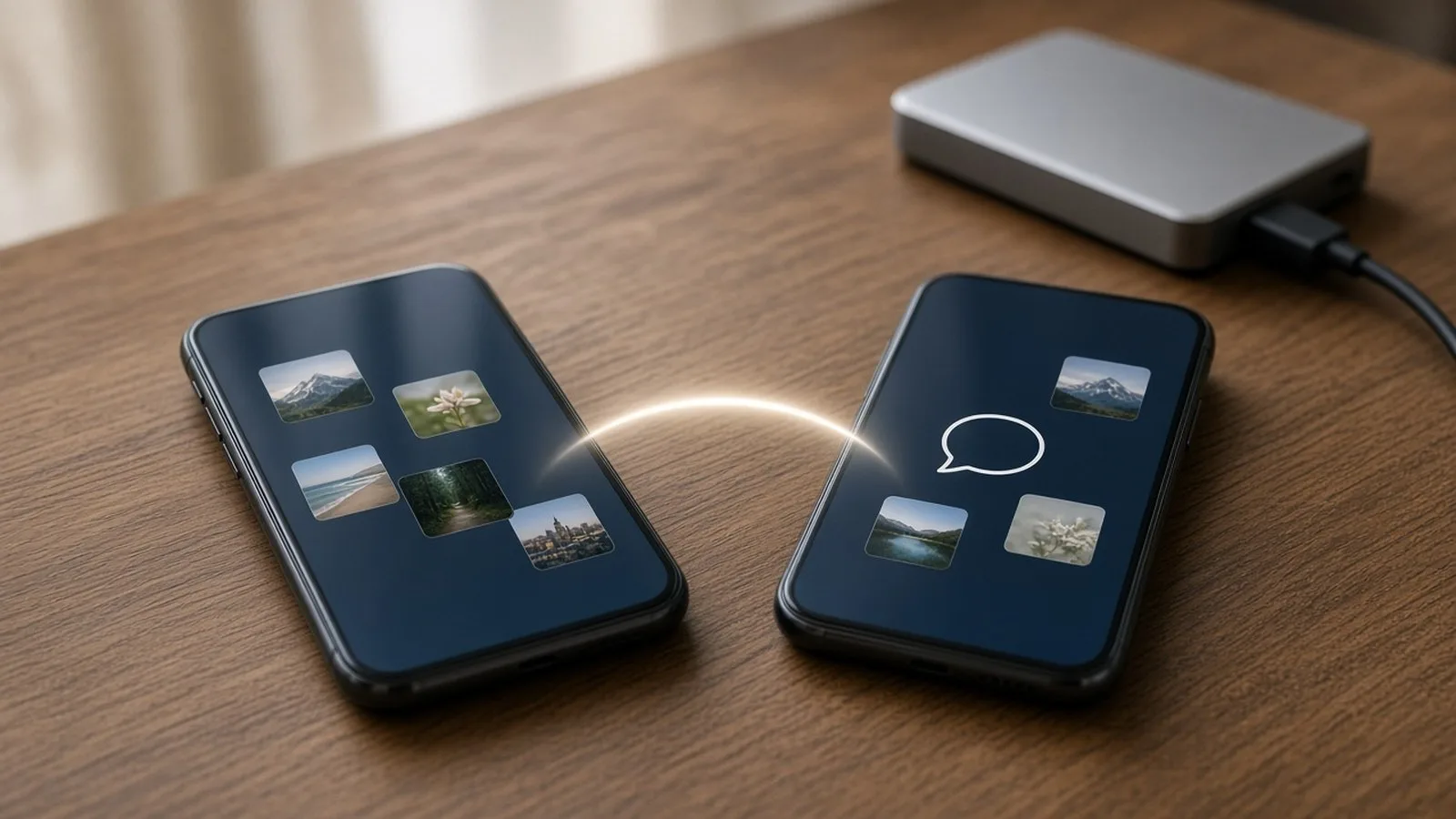
- 2 different types of storage, for example your phone and a cloud service, or a cloud service and an external hard disk or pen drive.
- 1 copy kept somewhere else, away from your home, such as in the cloud, so that a fire, flood or theft at home does not destroy everything.
An easy 3-2-1 setup for a family
- Photos on your phone (copy 1).
- Automatic backup to Google Photos or iCloud (copy 2, in another place).
- Every few months, copy your photos to an external hard disk or a computer at home (copy 3, a different type of storage). Keep the disk in a safe, dry place.
Set up backups for parents and grandparents
Older family members often have years of photos and voice notes on phones that have never been backed up. Spend twenty minutes with them:
- Check that their phone is signed in to a Google account or Apple Account they can access, with a recovery phone number.
- Turn on photo backup on Wi-Fi only, so it does not eat their data pack.
- Turn on WhatsApp chat backup and set it to daily or weekly.
- Write the account email and where the password is kept (for example, in your family password manager) in a safe place.
- Check again after a week that the backups really ran.
Check your backups
- Once a month, open your backup app and check the last backup date.
- Open a few old photos at photos.google.com or icloud.com to make sure they are really there.
- If your cloud storage is nearly full, backups may stop silently. Clean up or upgrade.
Frequently asked questions
Does WhatsApp backup include photos and videos?
It includes chats and, depending on your settings, media. Videos are optional because they are large. Photos you saved to your gallery are also covered by Google Photos or iCloud Photos if those are on.
I deleted a photo by mistake. Can I get it back?
Check the Bin or Trash in Google Photos, or Recently Deleted on iPhone. Deleted items stay there for a limited time before being removed permanently.
Is a pen drive enough as a backup?
It is a useful extra copy, but pen drives can be lost or fail. Keep at least one copy in the cloud too.
What is next
Try this today: check when your photos, phone and WhatsApp were last backed up, and turn on any backup that is off. In the next part of Tech for Beginners, we will cover WhatsApp basics: chats, groups, calls and Status.