
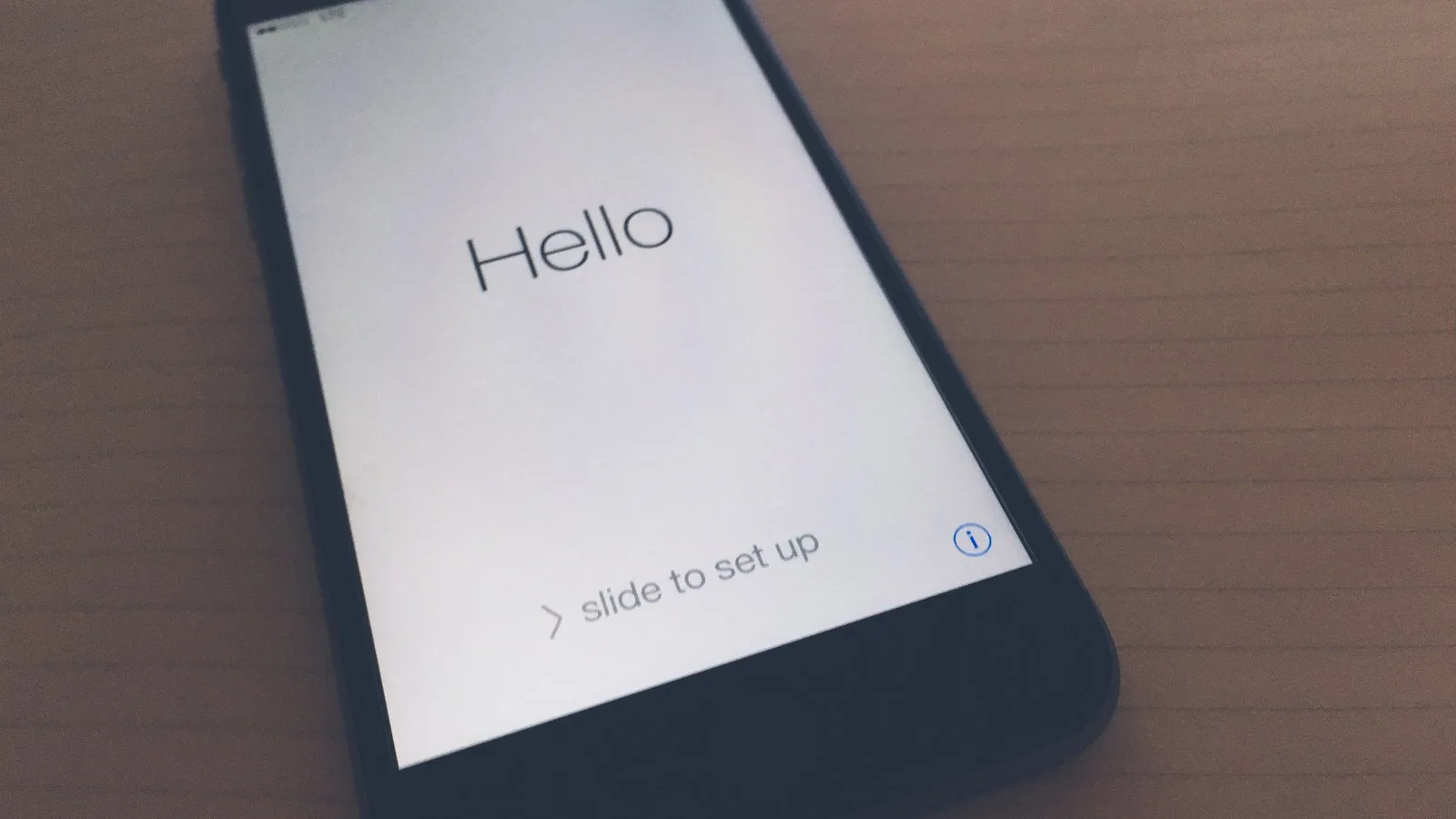
You have a new iPhone, the box is open, and a bright "Hello" is waving at you in many languages. Now what? This is Part 3 of our Tech for Beginners series, and we will walk through the whole iPhone setup calmly, from the first screen to your home screen. We will also cover moving your data from an old phone, including Android, and the settings to check afterwards.
If you are new to smartphones in general, start with Part 1: Your First Smartphone, Parts, Buttons and Key Terms Explained. If you bought an Android phone instead, Part 2: How to Set Up a New Android Phone is the guide for you.
A quick note: Apple tweaks the setup screens with each version of iOS (the iPhone's software), so the exact steps and button names on your iPhone may differ slightly, but the ideas stay the same.
Before you switch on: a 5-minute checklist
- Charge the iPhone. Aim for at least 50% battery, or keep it on the charger during setup, especially if you plan to copy data from an old phone.
- Your SIM card or eSIM. Use the small pin from the box to pop out the SIM tray and insert your SIM (Jio, Airtel, Vi or BSNL). Some iPhone models have no SIM tray at all and work only with an eSIM, a digital SIM your operator activates for you. Check your model, and ask your operator for eSIM help if you need it.
- Your Wi-Fi name and password. Setup downloads settings, and copying data is much faster on Wi-Fi.
- Your Apple Account details, if you have one. Apple used to call this an "Apple ID"; newer software calls it an Apple Account. It is the email address and password you use for the App Store and iCloud. If you have never had one, you can create one during setup for free.
- Your old phone, charged, unlocked and on the same Wi-Fi, if you want to copy things across.
Step-by-step: setting up your new iPhone
Step 1: Turn it on and pick your language
- Press and hold the side button (on the right edge) until the Apple logo appears.
- When you see "Hello", swipe up from the bottom of the screen (or press the Home button on older models with one).
- Choose your language. English is there, and recent iOS versions also offer Hindi and other languages. The list depends on your iOS version.
- Choose India as your country or region, which sets the right time zone and rupee currency.
Tip: If the text looks too small, tap the small accessibility icon (a person inside a circle) on these early screens. You can turn on Zoom or larger text straight away.
Step 2: Quick Start or set up manually
Next you will see a Quick Start screen. What you do here depends on your old phone:
- Coming from an old iPhone? Use Quick Start. It is the easiest way, and we explain it in the next section.
- Coming from Android, or this is your first smartphone? Tap Set Up Without Another Device (it may say "Set Up Manually").
Step 3: Connect to Wi-Fi and activate
- Pick your home Wi-Fi network and type the password carefully. Capital and small letters matter.
- The iPhone now "activates" with Apple and your mobile operator. This can take a minute or two. If it says activation failed, check that your SIM is inserted properly and that the Wi-Fi works, then try again.
Step 4: Face ID or Touch ID
Most recent iPhones use Face ID, which unlocks the phone by looking at your face. iPhone SE models use Touch ID, a fingerprint sensor in the Home button.
- For Face ID, hold the iPhone at arm's length, about 25 to 50 cm away, and slowly move your head in a circle as the screen asks. You do this twice.
- For Touch ID, rest your finger on the Home button again and again until the fingerprint on screen fills in. Then adjust your grip to capture the edges.
You can tap Set Up Later, but Face ID or Touch ID makes the phone safer and quicker to use.
Step 5: Create a passcode
The passcode is the number you type when Face ID or Touch ID can't recognise you, and after every restart. The iPhone asks for six digits by default.
- Type six digits you will remember but others can't guess. Avoid 123456, 000000, your birth year or your mobile number's last digits.
- Type them again to confirm.
- Write the passcode down and keep it somewhere safe at home, not in your wallet with the phone. If you forget it, you may have to erase the iPhone to get back in.
Step 6: Apps & Data
Now the iPhone asks where your apps and data should come from. Typical choices are restoring from an iCloud backup, transferring from a Mac or PC, moving data from Android, or starting fresh with no apps and data. If this is your first phone, choose the "don't transfer" option. Android users, see the section below.
Step 7: Sign in with your Apple Account
- Type your Apple Account email (or phone number) and password.
- Apple uses two-factor authentication: it may send a six-digit code to your other Apple device or as an SMS to your phone number. Type that code in. Never share this code with anyone who calls you.
- No account? Tap Forgot password or don't have an Apple Account? and follow the steps to create one. Use an email address you check regularly and a strong password.
Your Apple Account is how you download apps from the App Store, back up to iCloud (5 GB of storage is free, with more available for a monthly fee) and find a lost phone.
Step 8: Terms, settings and extras
The last screens ask you to agree to Apple's terms and then offer a few features. Here is a simple guide:
- Express Settings or Customise Settings: Express turns on location services, crash reports and similar defaults. Choose Customise if you want to decide each one yourself.
- Software updates: Say yes to automatic updates. They fix security holes.
- Location Services: Turn it on. Maps, weather and Find My need it, and you can limit it app by app later.
- Siri and Screen Time: Both optional. Siri is the voice assistant; Screen Time helps parents set limits on a child's phone.
- Apple Pay: Apple's tap-to-pay wallet. At the time of writing it is not widely available in India, so you can skip it. UPI apps work normally on iPhone.
- Appearance and Display Zoom: Pick Light or Dark mode, and choose Larger Text if you want bigger buttons and letters.
Tap Get Started and you will land on your home screen. Well done!
Moving from an old iPhone with Quick Start
- Switch on the new iPhone and place it next to your old iPhone. Make sure Bluetooth is on in the old one.
- On the old iPhone, a "Set Up New iPhone" card appears. Tap Continue.
- A swirling blue pattern appears on the new iPhone. Hold the old iPhone over it so the camera can see the pattern.
- Type your old iPhone's passcode on the new one, then set up Face ID or Touch ID.
- Choose Transfer from iPhone. Keep both phones close together and on charge until it finishes. With lots of photos, this can take an hour or more.
Moving from Android with the Move to iOS app
Apple makes a free Android app called Move to iOS that copies your contacts, messages, photos and videos, calendars, mail accounts and web bookmarks to the new iPhone. It can also move your WhatsApp chats, if you choose that option. Free apps you had on Android are suggested for download if they exist on the App Store. Paid apps and PDFs or music stored in some apps may not move.
- On the Android phone, install Move to iOS from the Google Play Store. Make sure it is the app published by Apple.
- On the new iPhone, at the Apps & Data step, choose From Android (it may say "Move Data from Android").
- The iPhone shows a one-time code of six or ten digits. Open Move to iOS on Android, agree to the terms, and type that code.
- The iPhone creates a temporary Wi-Fi network. Let the Android phone join it.
- Pick what to transfer, such as contacts, messages, photos and WhatsApp, and tap Continue.
- Leave both phones alone, plugged in and close together until the bar on the iPhone finishes. Don't use the Android phone during the transfer; switching apps can stop it.
- If you chose WhatsApp, install WhatsApp on the iPhone, sign in with the same phone number, and accept the prompt to restore your chats.
Tip: Before you start, free up some space on the new iPhone if it is a small-storage model. Our guide on how to free up storage on Android and iPhone helps.
Six settings to check right after setup
Menu names can differ slightly between iOS versions, but these are the usual paths.
- Find My is on. Settings, then tap your name at the top, then Find My. Make sure Find My iPhone is on. This lets you locate, lock or erase a lost phone from another device.
- iCloud Backup is on. Settings, your name, iCloud, iCloud Backup. When on, the iPhone backs up while charging, locked and on Wi-Fi.
- Software is up to date. Settings, General, Software Update. Install anything waiting.
- Stolen Device Protection. On recent iOS versions, go to Settings, Face ID & Passcode, and turn on Stolen Device Protection. It asks for Face ID or Touch ID (not just the passcode) for sensitive changes when you are away from familiar places like home.
- Medical ID and Emergency SOS. Open the Health app and fill in your Medical ID (blood group, allergies, an emergency contact). Then check Settings, Emergency SOS, so you know how to call for help quickly.
- Text size and battery percentage. Settings, Display & Brightness, Text Size makes reading easier. Settings, Battery, Battery Percentage shows the exact charge left.
Common mistakes to avoid
- Using someone else's Apple Account. A shop or relative may offer to "set it up with their ID". Always use your own. Otherwise they control your backups and Find My.
- Sharing codes. Apple, banks and operators will never call you to ask for a verification code or OTP. Learn the common tricks in our guide to common online scams in India and how to spot them.
- Erasing the old phone too early. Wait a few days, check that your contacts, photos and chats are all on the new iPhone, and only then reset the old phone.
Frequently asked questions
Do I need an Apple Account to use an iPhone?
You can skip it during setup and still make calls, send SMS and use the camera. But you need an Apple Account to download apps from the App Store, use iCloud backup and turn on Find My, so most people should create one.
Is an Apple Account the same as an Apple ID?
Yes. Apple renamed Apple ID to Apple Account in recent software. Your existing email and password still work.
Can I move WhatsApp chats from Android to iPhone?
Yes, usually. Select WhatsApp in the Move to iOS app during setup, then sign in to WhatsApp on the iPhone with the same number. Do this during the first setup; if you have already finished, you may need to reset the iPhone and start again to use Move to iOS.
What if I forget my passcode?
After too many wrong tries the iPhone locks. Recovering usually means erasing it and restoring from a backup, which is why iCloud Backup and a written-down passcode matter. Apple's official support site explains the current steps.
That's it: your iPhone is ready. In Part 4 we will learn to find our way around the home screen, notifications and quick settings, on both Android and iPhone.
Featured image: "Hello - iPhone 6 Setup screen" by Tony Webster, via Wikimedia Commons, licensed under CC BY-SA 2.0.



.jpg)