A phone that runs out of space or battery by lunchtime is frustrating, and a swollen battery or cheap charger can even be dangerous. The good news is that a few simple habits keep most phones healthy for years. This is Part 6 of our Tech for Beginners series, and today we will learn how to check and free up storage, what "battery health" means, how to charge safely, and what really drains your battery.
If you have not read it yet, Part 1: Smartphone Basics, Parts and Key Terms explains words like storage, RAM and GB. In Part 4 we learned how to search Settings, which is handy for everything below.
As always, menu names differ between Samsung, Xiaomi, Vivo, Oppo, Realme, OnePlus, Motorola and iPhone, and they change with updates. If you cannot find an option, open Settings and search for "storage" or "battery".
Part one: storage
Storage is not the same as RAM
Storage is where your photos, videos, apps and WhatsApp files are kept, like a cupboard. It is measured in GB, commonly 64 GB, 128 GB or 256 GB on today's phones. RAM is short-term working memory the phone uses while apps are open, like the top of a desk. When people say "my phone is full", they mean storage.
Check how much storage you have left
- Android: open Settings and tap Storage (on Samsung phones it is under Battery and device care or Device care, then Storage). You will see a bar showing used and free space, split into Images, Videos, Apps and so on.
- iPhone: open Settings, tap General, then iPhone Storage. Wait a few seconds for the coloured bar and the list of apps sorted by size.
Try to keep at least 10 to 15 per cent of your storage free. When a phone is almost full, it can slow down, fail to install updates and even refuse to take new photos.
The biggest space-eaters
- WhatsApp media: forwarded videos, good-morning images and stickers from family groups pile up quietly.
- Videos you recorded: a few minutes of high-quality video can take hundreds of MB.
- Large apps and games.
- Downloads: old PDFs, APK files and bills sitting in the Downloads folder.
Free up space step by step
- Clean up WhatsApp: open WhatsApp, go to Settings, then Storage and data, then Manage storage. You will see large files and the chats using the most space. Select and delete what you do not need.
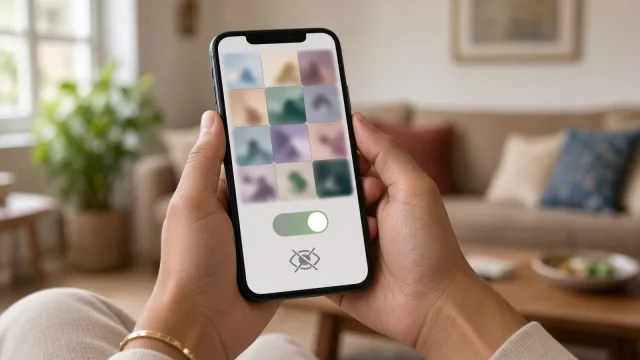
- Stop WhatsApp saving every photo: in the same Storage and data menu, set Media auto-download so that videos download only on Wi-Fi, or not at all. In each busy group, you can also turn off Media visibility so forwards do not appear in your gallery.
- Back up photos, then remove them from the phone: Google Photos and iCloud Photos can store copies online. Free space on these services is limited (Google accounts share 15 GB at the time of writing, and iCloud gives 5 GB free), so check before you rely on them. Once you are sure photos are backed up, Google Photos has a Free up space option, and iPhone has Optimise iPhone Storage under Settings, your name, iCloud, Photos.
- Delete apps you do not use, as we covered in Part 5. On iPhone, Offload Unused Apps in iPhone Storage can do this automatically while keeping your data.
- Clear the Downloads folder: on Android, open the Files app (often "Files by Google" or "My Files" on Samsung) and look at Downloads. Files by Google also suggests junk files, duplicates and large files to remove.
- Empty the bin: deleted photos usually sit in a "Recently deleted" or "Bin" album for about 30 days. Empty it if you need space now.
Our separate guide on how to free up storage on Android and iPhone goes into even more detail.
What about memory cards?
Some Android phones have a microSD card slot (often sharing the SIM tray). A memory card is a cheap way to store photos and videos, but it is slower than the phone's own storage and not ideal for apps. iPhones do not take memory cards.
Part two: battery health
Why batteries wear out
Phones use lithium-ion batteries. Every battery slowly loses some of its capacity as it goes through charge cycles. A "charge cycle" means using a total of 100 per cent of the battery's capacity, which can be spread over several days (for example 50 per cent today and 50 per cent tomorrow). Apple says batteries in iPhone 14 models and earlier are designed to keep 80 per cent of their original capacity at 500 complete charge cycles under ideal conditions, and iPhone 15 models and later at 1,000 cycles. Android batteries age in a similar way. So after two or three years, it is normal for your phone to last noticeably less on a full charge.
Check battery health
- iPhone: open Settings, tap Battery, then Battery Health (or Battery Health & Charging on older models). You will see "Maximum Capacity". On recent models, you can also see the cycle count.
- Android: this varies by brand. Some phones show battery health under Settings, Battery or Battery and device care, and Samsung's Samsung Members app has a diagnostics test for the battery. If your phone does not show it, watch for warning signs instead.
Warning signs that need attention
- The phone shuts down suddenly even when it shows battery left.
- The battery drains in a few hours with light use.
- The phone gets very hot while charging or doing simple tasks.
- The back cover or screen is bulging or lifting. This may be a swollen battery. Stop charging it, do not press or puncture it, and take it to an authorised service centre.
Battery replacement should be done by the brand's authorised service centre or a trusted repairer using a genuine part. Cheap replacement batteries can be unsafe.
Part three: charging safely
Use a safe charger and cable
- Best choice: the charger that came with your phone, or one from the same brand. Many new phones no longer include a charger in the box, so you may need to buy one.
- Buying another brand: choose a reputable brand and check that the output matches what your phone supports. Fast charging only works when the phone and charger support the same standard.
- Check the BIS mark: chargers sold in India must be registered with the Bureau of Indian Standards. Look for the Standard Mark with a registration number starting with "R-". You can verify it with the free BIS Care app using the "Verify R-Number under CRS" option.
- Avoid very cheap, unbranded chargers and cables from roadside stalls. They may not have proper protection against overheating or power surges.
- Replace frayed or damaged cables. Do not tape them up.
Good charging habits
- Charge when convenient. You do not need to run the battery to zero before charging. Small top-ups are fine for modern batteries.
- Avoid heat. Heat is a battery's worst enemy. Do not charge under a pillow, on a bed, in direct sun or on a car dashboard. Apple advises avoiding using or charging the iPhone in temperatures above 35 degrees Celsius, as this can permanently reduce battery life.
- Remove a thick case if the phone gets warm while charging.
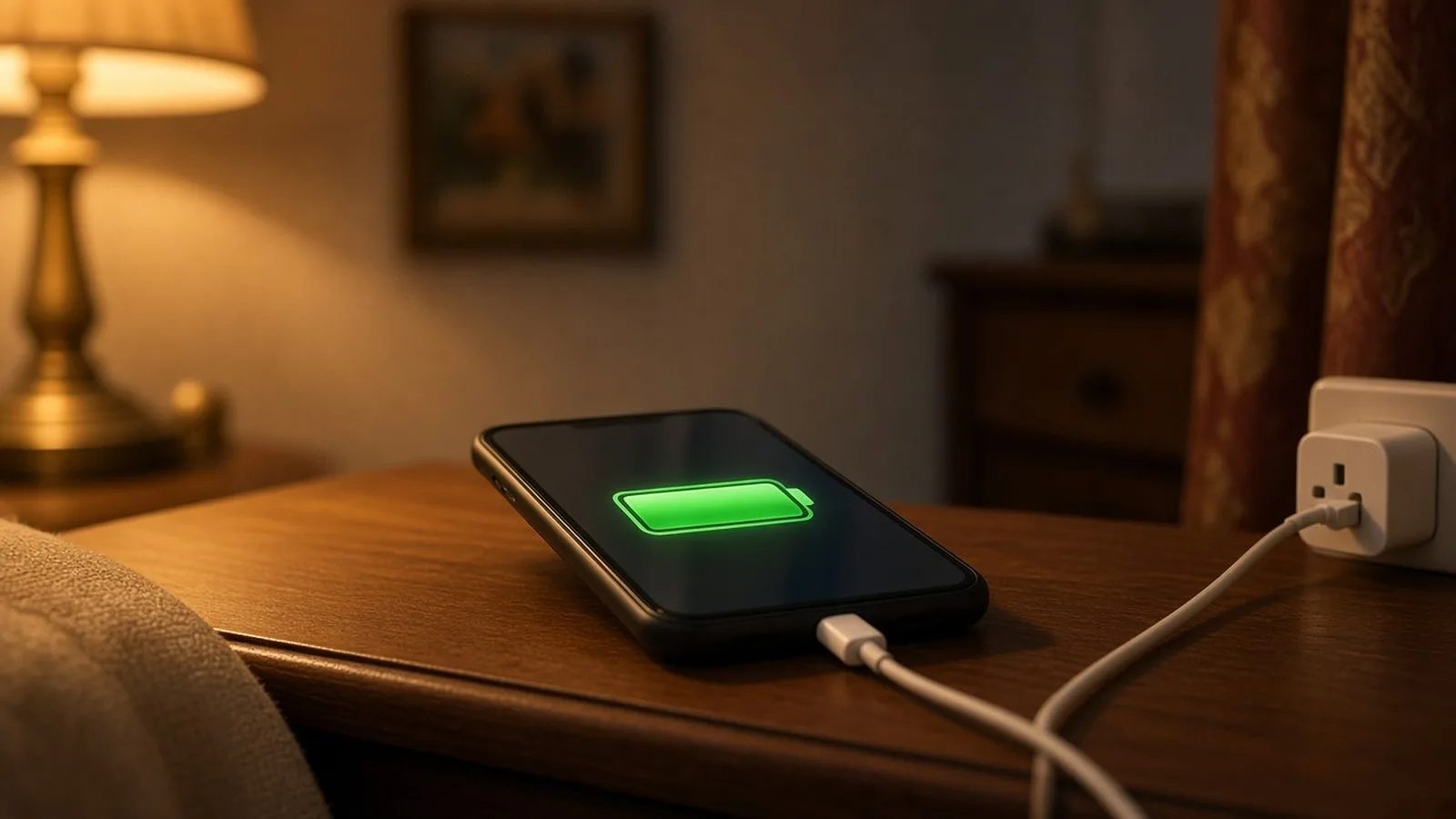
- Overnight charging is generally fine on modern phones, which stop charging when full. Turning on the battery-protecting options below helps further.
- Keep it dry. Never charge a phone that has got wet, even if it is water-resistant, until the port is completely dry.
Turn on battery protection features
- iPhone: Optimised Battery Charging is on by default. It learns your routine and may hold the charge at 80 per cent overnight, finishing just before you usually unplug. On iPhone 15 and later, Settings, Battery, Charging also lets you set a charge limit between 80 and 100 per cent.
- Android: many phones offer a similar option, called something like Adaptive charging, Protect battery, Battery protection or Optimised charging, which may limit charging to 80 to 85 per cent or slow it down overnight. Search Settings for "charging" or "protect battery".
Part four: what really drains your battery
Find the culprits
- Android: open Settings, tap Battery, then Battery usage. You will see which apps used the most battery since the last full charge.
- iPhone: open Settings, tap Battery and scroll down to see usage by app for the last 24 hours or 10 days.
If an app you hardly use is near the top, restrict it or uninstall it.
The usual battery drainers
- Screen brightness: the screen is often the biggest user. Turn on automatic (adaptive) brightness, and use dark mode if you like it.
- Weak mobile signal: in areas with poor network, your phone works harder to stay connected. Using Wi-Fi where available helps.
- Video streaming and games: watching videos on mobile data for hours uses a lot of power.
- Location and background activity: apps that track location all the time or refresh in the background. Review location permissions as shown in Part 5.
- A long screen timeout: set the screen to turn off after 30 seconds or 1 minute.
Battery saver modes
When the battery is low or you are travelling, turn on Battery Saver (Android) or Low Power Mode (iPhone). These reduce background activity, visual effects and some automatic downloads. You can switch them on from Quick Settings or Control Centre, or under Settings, Battery. Many phones can also turn them on automatically at a level you choose, such as 20 per cent.
Myths you can ignore
- "Close all apps to save battery." Constantly swiping away apps usually does not help much, and reopening them can use more power. Close an app only if it is misbehaving.
- "Let it drain to 0 per cent once a month." This is not needed for modern lithium-ion batteries, and running them completely flat often is not good for them.
- "Any charger is fine if the plug fits." The plug fitting does not mean the charger is safe or suitable.
Frequently asked questions
Is it safe to use my phone while it is charging?
Yes, with a good charger and cable, light use is fine. Heavy gaming while charging makes the phone hot, which is bad for the battery, so avoid that where possible.
Can I use a power bank?
Yes. Choose a reputable brand, check for the BIS registration mark, and do not leave a power bank charging in a hot place. Carry it in your hand luggage on flights and follow airline rules.
My battery health shows 85 per cent. Do I need a new battery?
Not necessarily. Many people use phones happily at that level. Consider a replacement when the phone no longer lasts the day for you or shuts down unexpectedly.
Will deleting photos from my phone delete them from Google Photos or iCloud?
It can, if sync is on. Deleting in the Photos app while backup is on usually deletes the backed-up copy too. Use the special "Free up space" or "Optimise Storage" options instead, which remove only the copy on the phone.
What is next
Try this today: check how much storage you have left, clean up WhatsApp's largest files, and look at which app used the most battery yesterday. In the next part of Tech for Beginners, we will cover calls, SMS, contacts and dual SIM basics, including how to block spam callers.