Your phone's camera is probably the camera you use most: for family functions, festival decorations, your child's school project, a photo of a prescription for the chemist, or a scanned copy of a document for an office form. You do not need to be a photographer to take good pictures. A few simple habits make a big difference. This is Part 8 of our Tech for Beginners series. Today we will cover camera basics, focus and exposure, HDR, portrait and night modes, shooting videos, scanning documents to PDF, and sharing photos without losing quality.
If you are still learning your way around the phone, Part 4: Home Screen, Notifications and Quick Settings will help. And since photos and videos fill up a phone quickly, keep our guide to freeing up storage handy.
Camera apps look different on Samsung, Xiaomi, Vivo, Oppo, Realme, OnePlus, Motorola, Pixel and iPhone, and features depend on your phone model. The names below are the common ones; your phone may use slightly different words.
Opening the camera quickly
Good moments do not wait. Learn the fastest way to open your camera:
- From the lock screen: most phones show a camera icon on the lock screen. On iPhone, swipe left on the lock screen. On many Android phones, swipe up from the camera icon in the corner.
- Double-press shortcut: on many Android phones, pressing the power button twice quickly opens the camera. Look under Settings for "Quick launch camera" or a similar option.
- iPhone Camera Control: recent iPhone models have a Camera Control button on the side that opens the camera with a press.
Six habits for better photos
- Clean the lens. Phones live in pockets and bags, and a fingerprint smudge makes photos hazy. Wipe the lens gently with a soft cloth.
- Find good light. Light is the most important thing. Face your subject towards a window or daylight. Avoid having a bright window or the sun directly behind the person, or their face will be dark.
- Hold steady. Use both hands, keep your elbows close to your body, and gently tap the shutter. For group photos, rest the phone on something.
- Tap to focus. Tap on the screen where your main subject is. The phone focuses there and adjusts brightness.
- Use the grid. Turn on grid lines in camera settings. They help you keep the horizon straight and place your subject a little off-centre, which often looks more natural.
- Move closer rather than zooming. Digital zoom can make photos grainy. If your phone has a telephoto lens (shown as 2x, 3x or 5x buttons), using those buttons is fine.
Focus and brightness, step by step
- Open the camera and point it at your subject.
- Tap on the subject on the screen. A box or circle appears.
- To make the picture brighter or darker, look for a sun icon or slider next to the focus point and slide it up or down. On iPhone, drag the sun icon up or down next to the focus box.
- To lock focus and brightness (useful if people will move into the frame), touch and hold on the subject until you see "AE/AF Lock" or a lock symbol.
- Take the picture.
Camera modes explained
Photo
The normal mode, and the best choice for most situations. Modern phones automatically process each photo to balance light and colour.
HDR (High Dynamic Range)
HDR combines several quick shots at different brightness levels, so that both the bright sky and darker faces show detail. On most recent phones, HDR works automatically. If you see an HDR option, leave it on "Auto".
Portrait
Portrait mode blurs the background to make a person, pet or object stand out. It works best when your subject is a short distance away (usually one to two metres) and the background is further back. Some phones let you change the blur strength after taking the photo.
Night mode
For dark scenes such as Diwali lights or a dimly lit room, night mode takes a longer exposure or combines several frames. Keep the phone very still for the few seconds it takes. On iPhone, night mode turns on automatically in low light and shows a moon icon with a number of seconds.
Wide and ultra-wide
Many phones have a 0.5x or 0.6x button for an ultra-wide lens. It fits more into the frame, which is perfect for a big family group, a temple courtyard or a small room. Note that people at the edges of an ultra-wide photo can look stretched.
Pro or Manual
Some Android phones offer a Pro mode where you control settings like ISO and shutter speed yourself. As a beginner, you can safely ignore this.
Shooting good videos
- Swipe to Video mode in the camera app.
- Hold the phone sideways (landscape) for videos you will watch on a TV or laptop. Vertical is fine for WhatsApp status and short reels.
- Tap the red record button. Move slowly and smoothly. Avoid quick pans and constant zooming.
- Get close to the person speaking, because the phone's microphone picks up nearby sound best.
- Tap the button again to stop.
Resolution and storage: higher settings such as 4K at 60 frames per second look sharper but use much more storage. For family videos, 1080p (Full HD) at 30 frames per second is a good balance. You can change this in camera settings or by tapping the resolution label on the video screen.
Scanning documents to PDF
You no longer need a photocopy shop for a quick scan. Your phone can create a clean, cropped PDF of a form, certificate or bill, which you can email or upload.
On Android with Google Drive
- Open the Google Drive app (install it from the Play Store if needed).
- Tap the Camera icon at the bottom right. On some versions, tap the plus (+) button and choose Scan.
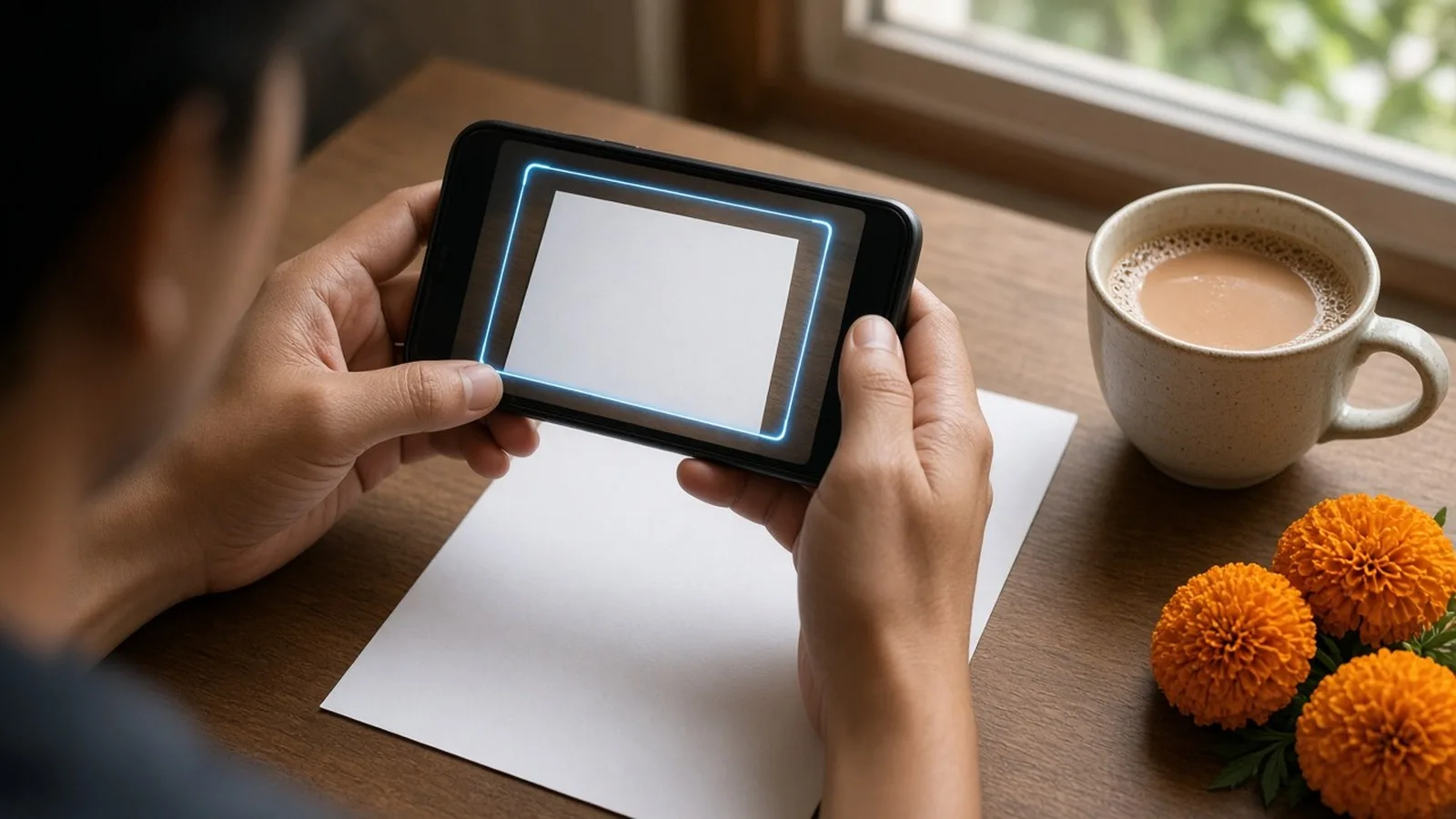
- Place the document on a plain, dark surface in good light and point the phone at it. A blue outline shows where the page will be cropped.
- Take the photo, or let auto capture take it.
- Adjust if needed: Crop & Rotate, Filter (for black-and-white or colour), or Clean to remove marks.
- Tap Add to scan more pages into the same file.
- Tap Done, give the file a name, choose PDF, and tap Save.
Some Android phones, including Pixel and Samsung models, can also spot documents directly in the camera app and show a scan button. Look for it when you point the camera at a page.
On iPhone with Notes
- Open the Notes app and create a new note.
- Tap the attachment (paper clip) or camera button, then tap Scan Documents.
- Hold the iPhone over the page. In Auto mode, it captures the page by itself. In manual mode, tap the shutter button and drag the corners to fit the page, then tap Keep Scan.
- Scan more pages if you need to, then tap Save or Done.
The scan is saved as a PDF in the note. To share it, open the scan, tap the share icon and choose WhatsApp, Mail or Save to Files. You can also scan from the Files app using the More (three dots) button and Scan Documents.
Tips for clear scans
- Use daylight and avoid your own shadow falling on the page.
- Keep the phone parallel to the page, not at an angle.
- For official uploads, check the file size limit. Many government and job portals limit PDFs to a few hundred KB or a couple of MB.
- Be careful scanning sensitive documents such as Aadhaar, PAN or bank statements. Store them in a secure place, delete old copies you no longer need, and share them only with trusted, official recipients. When sharing your Aadhaar for KYC, a masked Aadhaar (which hides the first eight digits) can be downloaded from UIDAI where accepted.
Sharing photos without losing quality
When you send a photo on WhatsApp as a normal image, it is compressed to save data, so it looks less sharp on a big screen.
- WhatsApp HD option: after selecting a photo to send, look for an HD button at the top of the screen and tap it before sending. This sends a higher-quality version.
- Send as a document: in WhatsApp, tap the attachment (paper clip) icon, choose Document, then pick the photo from your gallery or files. The original file is sent with no compression.
- Use a shared link: for many photos, such as a wedding album, create a shared album in Google Photos or iCloud and send the link instead.
- Nearby sharing: to send to a phone next to you, Android's Quick Share and iPhone's AirDrop send full-quality files without using mobile data.
Before posting photos publicly, think about privacy: photos can reveal your home, your children's school uniform or your location.
Frequently asked questions
Why are my night photos blurry?
The phone needs to stay very still in night mode. Hold it with both hands, brace your arms, or rest it on a table. Also clean the lens, as smudges cause glow around lights.
Why do I see more than one camera on the back of my phone?
Each camera usually has a different lens: main, ultra-wide, telephoto, or a small one for depth or macro. The camera app switches between them when you tap 0.5x, 1x, 2x and so on.
Is a scanned PDF from my phone accepted for official work?
Many organisations accept clear phone scans, but rules vary. Check the instructions of the office or portal, especially for format and file size.
Where do my photos go after I take them?
They go to your Gallery or Photos app. If backup is on, a copy also goes to Google Photos or iCloud. Check backup settings so you do not lose memories if the phone is lost.
What is next
Try this today: clean your lens, turn on the grid, take one photo of a family member near a window using portrait mode, and scan any one document to PDF. In the next part of Tech for Beginners, we will learn how to use your phone in your own language, with voice typing and accessibility features that make phones easier for elders.