You pick up your phone to check one message, and forty minutes later you are still scrolling through reels. You wake up and reach for the phone before brushing your teeth. Notifications buzz all day: WhatsApp groups, shopping offers, news alerts, games. Many of us feel tired, distracted and short on sleep without realising how much our phones contribute. This is Part 57 of our Tech for Beginners series. Today we will learn how to see your screen time, set app timers, use focus and bedtime modes, try grayscale, and build simple habits to fight doomscrolling and notification overload. The goal is not to give up your phone, but to make it work for you.
Some of the tools here appear in places we have visited before: battery and settings basics in Part 6, managing calls and contacts in Part 7, and installing and removing apps in Part 5. Removing apps you do not need is one of the easiest wellbeing steps.
A note on changes: the names and locations of wellbeing features differ between Android brands and change with updates. On many Android phones the tools are called Digital Wellbeing, while iPhones use Screen Time and Focus. Some brands use their own names. This article offers general wellbeing tips, not medical advice; if you are struggling with sleep, anxiety or compulsive use, please speak to a doctor or counsellor.
Part A: Why digital wellbeing matters
- Sleep: late-night scrolling delays sleep, and bright screens and exciting content can make it harder to fall asleep.
- Focus: constant notifications break concentration, making work and study take longer.
- Mood: endless negative news or comparing yourself with others on social media can leave you anxious or low.
- Relationships: phones at the dinner table reduce real conversation with family.
- Eyes and posture: long screen sessions strain eyes and neck.
Apps are often designed to keep you engaged as long as possible, with endless feeds, autoplay and streaks. Knowing this helps you take back control.
Part B: See your screen time
Android
- Open Settings > Digital Wellbeing & parental controls (on Samsung, Settings > Digital Wellbeing).
- You will see today's screen time, the number of times you unlocked the phone, and notifications received.
- Tap the chart to see which apps took the most time.
iPhone
- Open Settings > Screen Time and turn it on if needed.
- Tap See All App & Website Activity to view daily and weekly totals, pickups and notifications.
Do a one-week check
Do not change anything for a week; just look at the numbers. Many people are surprised to find they spend three to five hours a day on their phone, with most of it in two or three apps. Write down your daily average and your top three apps. This is your starting point.
Part C: Set app timers and limits
Android
- In Digital Wellbeing, tap Dashboard or the app list.
- Choose an app, such as Instagram or YouTube, and tap App timer.
- Set a daily limit, such as 30 minutes. When time is up, the app pauses until midnight.
iPhone
- Go to Settings > Screen Time > App Limits > Add Limit.
- Choose a category like Social or Games, or specific apps, and set a time.
Tip: start with a limit slightly below your current use, and reduce it gradually. A sudden strict limit is easy to ignore.
Part D: Focus modes
Focus modes silence distracting apps and notifications for a while, without missing important calls.
Android Focus mode
- In Digital Wellbeing, tap Focus mode.
- Choose distracting apps to pause.
- Turn it on now or set a schedule, for example 10 AM to 1 PM on weekdays.
iPhone Focus
- Go to Settings > Focus.
- Choose Do Not Disturb, Work, Personal or Sleep, or create your own.
- Choose which people and apps can still reach you, such as family members, and set a schedule.
Do Not Disturb with exceptions
Both Android and iPhone let you allow calls from favourite contacts and repeated calls (the same person calling twice within a few minutes), so you do not miss emergencies from elderly parents or children.
Part E: Bedtime mode and better sleep
Turn on bedtime mode
- Android: in Digital Wellbeing, set up Bedtime mode. It can switch on Do Not Disturb, dim the wallpaper and turn the screen grayscale at your bedtime.
- iPhone: use the Sleep Focus, and set a sleep schedule in the Health or Clock app. Screen Time's Downtime can also block apps at night.
Night light and warmer colours
Turn on Night Light, Eye comfort shield or Night Shift to make the screen warmer in the evening. Many people find it more comfortable, though the bigger benefit comes from simply putting the phone down earlier.
Sleep habits
- Stop using the phone 30 to 60 minutes before bed.
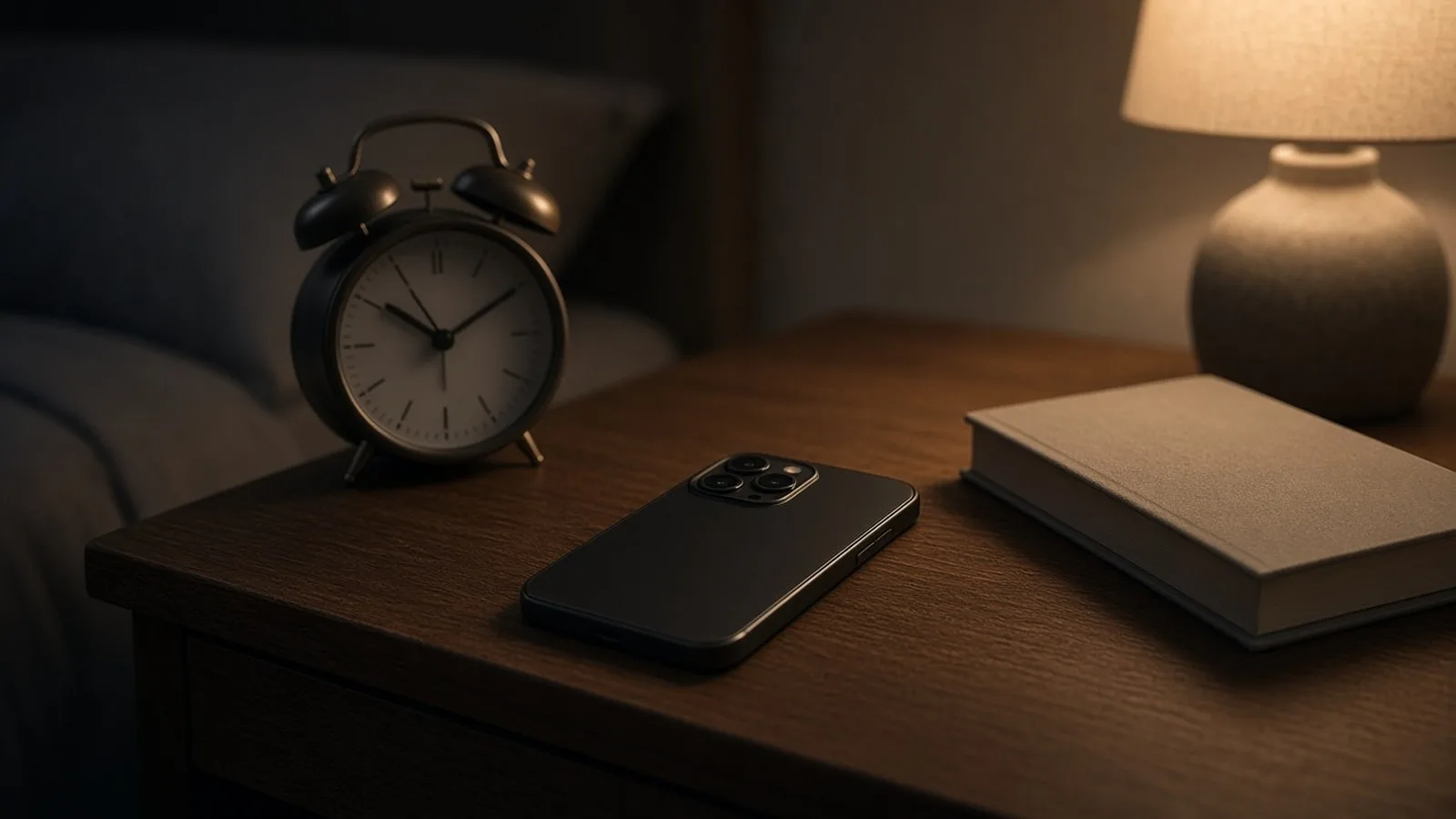
- Charge the phone outside the bedroom, or at least away from the bed.
- Use a simple alarm clock, so the phone is not the first thing you touch in the morning.
- Avoid checking news or work email in bed.
Part F: Try grayscale
Colourful icons and videos are attractive. Turning your screen black and white makes the phone less tempting, and some people find it helps reduce mindless scrolling.
- Android: grayscale is often part of Bedtime mode, or found in Settings > Accessibility > Colour and motion > Colour correction or similar.
- iPhone: Settings > Accessibility > Display & Text Size > Colour Filters > Greyscale. You can set it as an Accessibility Shortcut by triple-clicking the side button.
Part G: Tame notifications
Every notification pulls you back into the phone. Cut them down:
- Long-press a notification and choose Turn off notifications or Silent for apps that do not need your immediate attention, such as shopping, games and news.
- Mute busy WhatsApp groups: open the group, tap its name, and choose Mute notifications, then Always.
- Turn off promotional notifications in shopping and food apps.
- Use notification summaries where available, so non-urgent notifications arrive together at set times.
- Keep alerts only for calls, messages from real people, banking and calendar.
Part H: Habits against doomscrolling
- Move tempting apps off your home screen into a folder on the second page.
- Log out of social media apps, or use them only in a browser, adding friction.
- Turn off autoplay in YouTube and social apps.
- Set phone-free times: meals, the first hour after waking, and family time.
- Replace, not just remove: keep a book, newspaper or crossword nearby for moments when you would normally scroll.
- Follow less, choose better: unfollow accounts that make you feel anxious or angry.
- Use the 20-20-20 rule: every 20 minutes, look at something 20 feet away for 20 seconds.
- Delete apps you regret using. You can always reinstall them later.
Part I: Helping elders and children find balance
Digital wellbeing is not only for young people. Many retired parents spend hours watching videos or forwarding messages, sometimes late into the night. Gently show them the screen time screen, help them mute large forwarding groups, and set a bedtime mode with large, simple clock settings. For children, model the behaviour you want to see: if parents scroll at the dinner table, children will too. Agree on family phone-free times that apply to everyone.
Part J: A simple seven-day reset plan
- Day 1: check your screen time and write down your top three apps.
- Day 2: turn off notifications for shopping, games and news apps.
- Day 3: mute busy WhatsApp groups and turn off autoplay.
- Day 4: set one app timer for your most-used social app.
- Day 5: turn on bedtime mode and charge your phone outside the bedroom.
- Day 6: move tempting apps off the home screen and try grayscale for an evening.
- Day 7: compare your screen time with day 1 and decide which changes to keep.
Small changes add up. Even reclaiming 30 minutes a day gives you more than three hours a week for family, sleep, exercise or hobbies.
Frequently asked questions
How much screen time is too much?
There is no single number for adults. Focus on whether phone use is hurting your sleep, work, health or relationships. If it is, set limits.
Will app timers stop me from getting important messages?
No. Calls and messaging apps can be left without limits. Timers only pause the apps you choose.
Can I set screen time limits for my children?
Yes. Google Family Link and Apple Screen Time with Family Sharing let parents set limits for children's devices. We cover this in the next part.
Is it bad to use my phone as an alarm?
Not by itself, but it tempts you to check messages first thing in the morning and last thing at night. A simple alarm clock helps keep the phone out of the bedroom and makes it easier to start and end the day without scrolling.
What is next
Try this today: check your screen time for the past week, set one app timer for your most-used social app, and mute two busy WhatsApp groups. In the next part of Tech for Beginners, we will cover kids' online safety and parental controls on phones, YouTube and games.