Making a phone call sounds simple, but a smartphone adds many extras: video calls, saved contacts that follow you to a new phone, two SIM cards in one handset, and a steady stream of spam calls offering loans and credit cards. This is Part 7 of our Tech for Beginners series. Today we will learn how to make calls and video calls, send messages, save and back up contacts, set up dual SIM properly, understand eSIM, and block and report spam and fraud calls.
If you are new to your phone, start with Part 1: Smartphone Basics, which explains the SIM tray and buttons. In Part 4 we covered notifications, which is where missed calls and messages show up.
Menu names vary between phone brands and change with updates, so if a step does not match your phone exactly, look for the closest option or search in Settings.
Making and answering calls
On Android
- Open the Phone app (a green or blue handset icon).
- Tap the keypad icon to type a number, or tap Contacts and choose a name.
- Tap the green call button. On a dual-SIM phone, you may be asked which SIM to use.
- During the call, you can tap Speaker, Mute, Keypad (for "press 1 for Hindi" menus) or Add call.
- Tap the red button to end the call.
To answer, swipe or tap the green button. To reject, use the red button. Many phones also offer "Reply with message" to send a quick SMS such as "I will call you back."
On iPhone
- Open the Phone app.
- Tap Keypad to dial, or Contacts or Favourites to choose someone.
- Tap the green call button.
- Use the on-screen buttons for speaker, mute, keypad and adding a call. Tap the red button to hang up.
When the iPhone is locked, an incoming call may show a slider. Swipe it to answer.
Video calls
Video calls need an internet connection (Wi-Fi or mobile data), and use more data than voice calls.
- WhatsApp: open a chat and tap the video camera icon at the top. This works between Android and iPhone.
- Google Meet: available on Android and iPhone; on many Android phones, video calling may also appear directly in the Phone app.
- FaceTime: built into iPhones for calling other Apple users.
Tip for elders: prop the phone against something steady at eye level, sit facing a window for good light, and use earphones in noisy rooms.
Messages: SMS and chat
SMS still matters in India because bank alerts, OTPs and delivery updates arrive by SMS.
- Android: open the Messages app (Google Messages on many phones, or the brand's own app). Tap Start chat or the plus or pencil icon, type a name or number, write your message and tap send.
- iPhone: open Messages, tap the compose (pencil) icon, enter the name or number, type and send. Blue bubbles are iMessages to other Apple users over the internet; green bubbles are SMS or RCS messages.
Never share an OTP with anyone, even if they say they are from your bank, the police or a delivery company. An OTP is like the key to your account.
Contacts: save them so you never lose them
When you save a contact, your phone may ask where to save it: on the SIM, on the phone, or in your Google account (Android) or iCloud (iPhone). Always choose the account. Contacts saved to your account are backed up automatically and appear on your new phone when you sign in. Contacts saved only to the phone or SIM can be lost if the phone breaks.
Save a new contact
- Open the Contacts app, or the Phone app's Contacts tab.
- Tap the plus (+) or Create contact.
- If asked where to save, choose your Google account or iCloud.
- Type the name and number. Adding the area or a label helps, for example "Ravi Plumber Adyar".
- Tap Save or Done.
Check that your contacts are backed up
- Android: open Settings, tap Google, then look for Backup or Contacts sync. On Samsung phones, contacts may be saved to a Samsung account by default; you can change the default storage location in the Contacts app settings.
- iPhone: open Settings, tap your name, then iCloud, and make sure Contacts is switched on.
Dual SIM basics
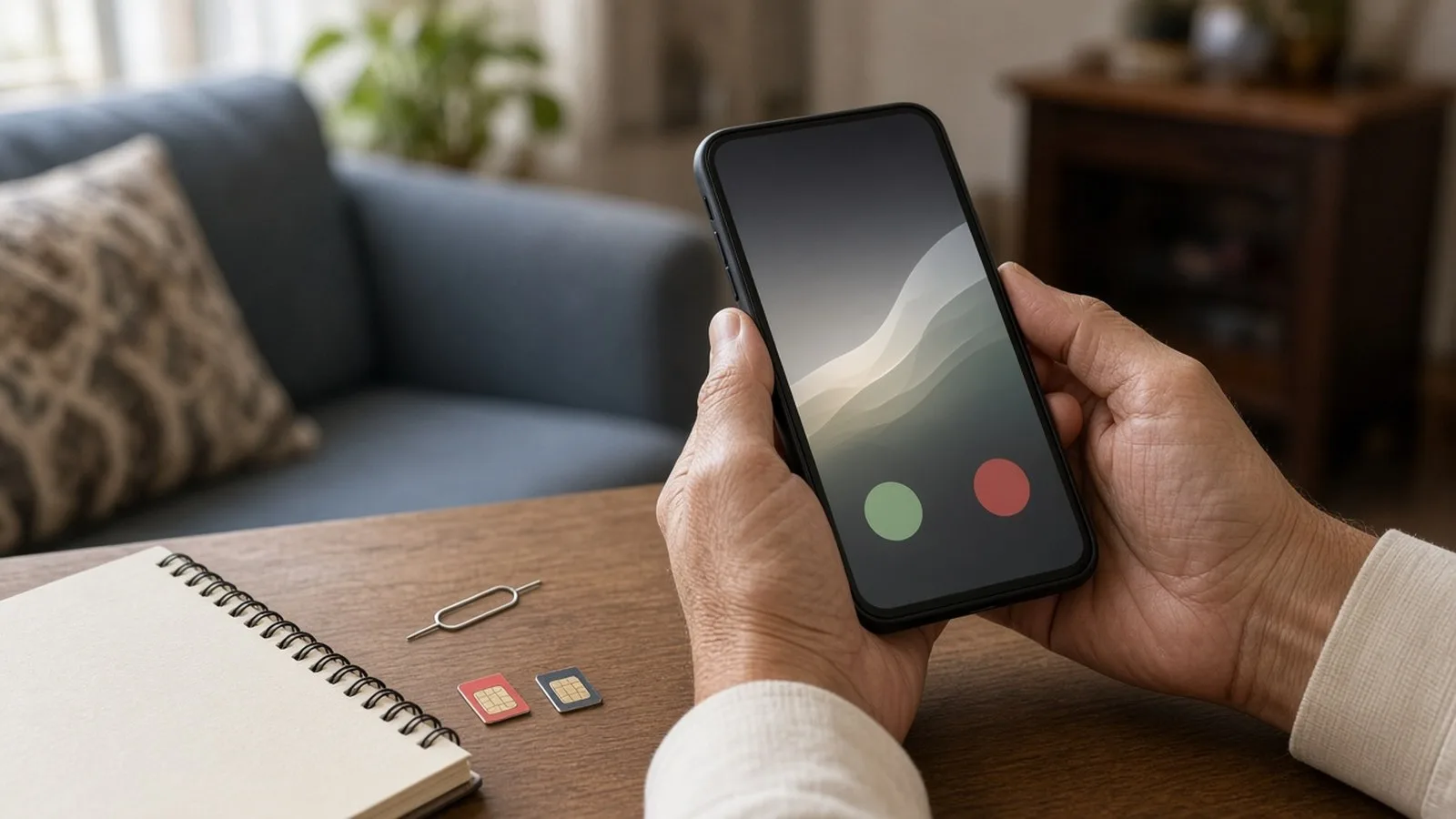
Most phones sold in India take two SIM cards. People often keep one SIM for calls and another for cheaper data, or one for work and one for home.
Set your default SIM on Android
- Open Settings and tap Network & internet or Connections, then SIMs or SIM manager. Names vary.
- Choose the default SIM for Calls. You can also choose "Ask every time".
- Choose the default SIM for SMS.
- Choose the SIM for Mobile data. Only one SIM usually uses data at a time.
- Give each SIM a clear name such as "Jio" or "Work" so it is easy to tell apart.
Set your default line on iPhone
- Open Settings and tap Mobile Service (called Mobile Data on some versions).
- Tap Default Voice Line and choose a line.
- Tap Mobile Data and choose which line uses data.
- Tap each line to give it a label such as "Personal" or "Business".
Things to know about dual SIM
- Keep both SIMs active with at least the minimum recharge your operator requires. Prepaid numbers left without recharge for a long period can be deactivated and later reassigned, as per your operator's terms.
- Calls come in on both SIMs, but on many phones, when you are on a call on one SIM, the other may be unreachable.
- Some phones have a hybrid tray where the second slot is shared with a memory card.
eSIM in brief
An eSIM is a digital SIM built into the phone, with no plastic card to insert. Jio, Airtel and Vi offer eSIM in India for supported phones, and many recent iPhones and higher-end Android phones support it. Advantages: nothing to lose or damage, and it is harder for a thief to remove. Disadvantages: switching to a new phone takes a few extra steps with your operator.
The process to get an eSIM, and whether your plan and phone support it, differs by operator and changes over time, so check your operator's official app or website, or visit their store with your ID. Never share eSIM QR codes or activation details with anyone who calls you, as "eSIM swap" fraud is a known trick.
Blocking and reporting spam and fraud calls
Block a number on your phone
- Android: in the Phone app, open Recents, touch and hold the number (or tap it and then the info icon) and choose Block or Block/report spam. Many phones also have a "Caller ID and spam" or "Block spam calls" setting in the Phone app settings.
- iPhone: in the Phone app, tap Recents, tap the info (i) icon next to the number, scroll down and tap Block Caller. Under Settings, Apps, Phone (or Settings, Phone), you can also turn on Silence Unknown Callers, which sends calls from numbers not in your contacts to voicemail or recents.
Stop promotional calls with DND
TRAI's "Do Not Disturb" (DND) registry lets you block telemarketing calls and SMS completely or only in categories such as banking, real estate or education. To register, call or SMS 1909 from your number, or use the official TRAI DND app. If you still get promotional calls more than seven days after registering, you can complain through 1909 or the DND app.
Report fraud attempts, not just block them
Blocking only hides a number on your own phone. TRAI has urged users to report spam through the TRAI DND app so that offending numbers can be traced and disconnected. For calls or messages that look like fraud, such as fake KYC updates, fake police or "digital arrest" threats, or impersonation of TRAI, DoT or a bank, use Chakshu on the government's Sanchar Saathi portal (sancharsaathi.gov.in) or app. Sanchar Saathi asks you to report suspected fraud within 30 days.
If you have already lost money, call the National Cybercrime Helpline 1930 immediately or file a complaint at cybercrime.gov.in, and inform your bank. Our guide to protecting yourself from UPI and online payment frauds has more tips.
Frequently asked questions
Why do some calls show "Suspected spam"?
Your phone's dialler or your operator may label numbers that many people have reported. It is a helpful warning but not always correct, so use your judgement. A genuine delivery agent may occasionally be flagged.
I changed phones and my contacts are missing. What can I do?
Sign in to the same Google account or Apple Account on the new phone and check that contact sync is on. If the contacts were saved only on the old phone or SIM, you may need to import them from the SIM (in Contacts settings, look for Import) or from the old phone.
Is it safe to answer calls from unknown numbers?
Answering is usually fine. The danger is what happens next. Never share OTPs, PINs, card numbers or Aadhaar details on a call, never install an app because a caller asks you to, and hang up if anyone threatens arrest or demands urgent payment.
Can I use WhatsApp on a different SIM from my calling SIM?
Yes. WhatsApp is linked to the number you verify, not to which SIM uses data. You just need an internet connection from either SIM or Wi-Fi.
What is next
Try this today: check that your contacts are saved to your Google account or iCloud, set your default SIM for calls and data, and register your number on DND through 1909 or the TRAI DND app if you get too many promotional calls. In the next part of Tech for Beginners, we will learn phone camera basics, including better photos, videos and scanning documents to PDF.