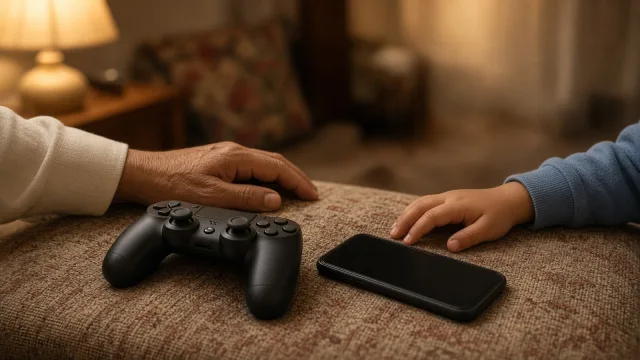
Children in India are getting smartphones earlier than ever, for online classes, homework, cartoons, games and video calls with grandparents. A phone opens up a world of learning, but also exposes children to unsuitable videos, strangers, in-app purchases that empty a parent's bank account, and hours of autoplay. The good news is that both Android and iPhone have free, built-in parental controls, and YouTube and game consoles offer their own. This is Part 58 of our Tech for Beginners series. Today we will learn to set up Google Family Link and Apple Screen Time, use YouTube Kids and supervised YouTube, lock in-app purchases, choose age-appropriate settings, and create shared family rules that children actually follow.
Parental controls build on skills from earlier parts: installing apps safely from Part 5, strong passwords from Part 20, and protecting saved cards and payment methods, covered in Part 24. In Part 57 we looked at screen time for adults; now we will apply similar tools for children.
A note on changes: Google, Apple, YouTube and game platforms regularly change their parental control features, age limits and menu names, and features can differ by country. India's data protection rules on children's data are also being phased in. The steps below are general; check each company's official help pages for current details. No control is perfect, so supervision and conversation remain essential.
Part A: Before you start
- Decide whose phone it is: a child's own phone, or a shared family phone or tablet. Shared devices may need a separate child profile.
- Create a child account: Google and Apple let parents create accounts for children through their family features, with the parent in control.
- Use your own strong passwords: children quickly learn a parent's PIN. Use a PIN or password for parental controls that is different from your phone unlock code.
- Talk first: tell older children what you are setting up and why. Controls work better when children understand them.
Part B: Google Family Link (Android)
Family Link lets parents manage a child's Android phone or Chromebook from the parent's own phone.
Setting up
- On your phone, install the Google Family Link app.
- Create a Google account for your child, or add supervision to an existing child account, by following the app's steps.
- Sign in on the child's phone with that account and accept supervision.
What you can do
- Approve or block apps before they are downloaded from the Play Store.
- Set daily screen time limits and a bedtime when the phone locks.
- Filter content in Google Search, Chrome and the Play Store by age rating.
- See the phone's location, if the child carries it.
- View app activity to see which apps are used most.
- Lock the device remotely for homework or dinner time.
Google's policies allow children to manage their own accounts once they reach a certain age, which varies by country. Family Link will notify you before supervision changes.
Part C: Apple Screen Time and Family Sharing (iPhone and iPad)
- On your iPhone, go to Settings > [your name] > Family (Family Sharing) and add your child, creating a child Apple Account if needed.
- Go to Settings > Screen Time, select the child, and turn on Screen Time.
- Set a Screen Time passcode that your child does not know.
Useful settings
- Downtime: blocks apps at night except those you allow, such as Phone.
- App Limits: daily limits for games, social media or entertainment.
- Communication Limits: control who your child can call and message.
- Content & Privacy Restrictions: limit explicit content, set age ratings for apps, films and TV, and restrict web content.
- Communication Safety: on supported versions, warns children when they receive or try to send images containing nudity.
- Ask to Buy: your child must ask for permission before buying or downloading apps.
Part D: YouTube Kids and supervised YouTube
YouTube Kids (younger children)
YouTube Kids is a separate app with videos filtered for children. Parents can choose content levels such as Preschool, Younger or Older, or allow only channels and videos they approve.
- Turn off search so children only see recommended or approved content.
- Set a timer inside the app.
- Block any video or channel you do not like.
Supervised experience on main YouTube (pre-teens and teens)
For older children, YouTube offers a supervised account linked through Family Link, with content settings for different age groups. Teenagers with their own accounts can also be linked to a parent's account for some supervision, depending on what YouTube offers in your country.
Tips for YouTube
- Turn off autoplay to stop endless viewing.
- Use Restricted Mode on shared TVs and computers.
- Watch together sometimes and talk about what they enjoy.
Part E: Lock in-app purchases
Many Indian parents have discovered large bills from game purchases like gems, skins and passes. Protect your money:
- Play Store: open the Play Store, tap your profile picture, go to Settings > Authentication > Require authentication for purchases and choose For all purchases. Family Link also lets parents approve purchases.
- iPhone: use Ask to Buy, and in Screen Time set iTunes & App Store Purchases > In-app Purchases to Don't Allow.
- Remove saved cards and UPI from children's devices, and do not leave UPI apps logged in on a phone your child uses.
- Use gift cards with a fixed value if you want to allow some spending.
- Game consoles: PlayStation, Xbox and Nintendo have family settings for spending limits, play time and online chat.
Part F: Age-appropriate settings
| Age | Suggested approach |
|---|---|
| Under 6 | Shared device only, with a parent present. YouTube Kids with approved content. Short sessions. |
| 6 to 9 | Shared or supervised device. Approved apps only. Search off. Strict time limits and no purchases. |
| 10 to 12 | Supervised account. App approval on. Limited, well-chosen games. Gradually explain online risks. |
| 13 to 15 | More freedom with agreed limits. Privacy settings on social media. Regular check-ins rather than constant monitoring. |
| 16 to 18 | Build independence and good judgement. Keep conversations open about scams, privacy and wellbeing. |
These are general suggestions, not rules. Most social media platforms set a minimum age of 13 in their terms, and India's data protection rules require platforms to obtain verifiable parental consent for processing children's data, as those rules are phased in. Check each app's age rating before installing.
Part G: Shared family rules
Technology works best alongside a simple family agreement. Write it together with your children and stick it on the fridge:
- Phones stay out of bedrooms at night and charge in the living room.
- No phones at meals.
- Homework first, then games.
- Ask before downloading any new app or game.
- Never share passwords, home address, school name or photos with strangers online.
- Tell a parent immediately if something online feels scary, rude or confusing. You will not be punished for telling.
- Parents follow the rules too.
The last rule matters most. Children copy what adults do, not what they say.
Part H: Safer settings inside popular apps
Beyond phone-level controls, check settings inside the apps your child uses:
- WhatsApp: set profile photo, last seen and about to "My contacts", and limit who can add them to groups.
- Instagram and other social apps: teen accounts are often private by default, with limits on who can message them; check the app's family centre or supervision tools where available.
- Online games: turn off voice and text chat with strangers, or limit it to friends, and disable location sharing.
- Browsers: turn on SafeSearch in Google and use Chrome's supervised settings through Family Link.
- Smart TVs and OTT apps: create a kids profile and set a PIN for adult profiles.
Part I: Review regularly
Children grow quickly, and so do their skills. Every few months, sit down together and review the controls: loosen limits that no longer make sense, and add new ones for new apps. This shows children that rules are fair and grow with them, which makes them more likely to follow them and to come to you when something goes wrong.
Frequently asked questions
My child knows how to get around parental controls. What now?
Change the parental control passcode, check for new accounts or reset attempts, and talk honestly. Older children often bypass controls; trust and conversation matter more as they grow.
Are parental control apps from the Play Store safe?
Prefer the free built-in tools from Google and Apple first. Some third-party "monitoring" apps collect a lot of data or behave like spyware.
Should I read my teenager's messages?
Many experts suggest respecting a teenager's growing privacy while staying involved. Agree on rules together, and step in when there are clear warning signs.
Do parental controls work on a shared family phone?
Partly. Many Android tablets support separate user profiles, and apps like YouTube Kids and OTT services offer child profiles. For full control with Family Link or Screen Time, a separate child account on the device works best.
What is next
Try this today: turn on purchase authentication on every phone your child uses, and set up Family Link or Screen Time with one daily limit and a bedtime. In the next part of Tech for Beginners, we will talk about discussing online risks with kids: cyberbullying, strangers and gaming.