The video call with your daughter keeps freezing. The OTT movie stops to buffer every few minutes. The laptop says "Connected, no internet". Home internet problems are among the most common tech frustrations in India, and the usual response is to call the provider and wait. But in many cases you can find and fix the problem yourself in ten minutes, and even when you cannot, knowing where the problem lies helps you get faster help. This is Part 55 of our Tech for Beginners series. Today we will learn how to work out whether the problem is your device, your router or your internet provider, how to restart a router properly, how to run and read a speed test, what DNS is in simple terms, and how to raise a complaint with your provider.
This part builds on Part 11 on Wi-Fi and routers, Part 14 on broadband and fibre plans and Part 15 on how the internet works. If your mobile data is the issue rather than home Wi-Fi, Part 10 has tips on data plans and settings.
A note on changes: router models, provider apps and complaint procedures differ between providers such as Airtel, Jio, BSNL, ACT, Hathway, Excitel and local cable operators, and they change over time. The steps below are general. Check your provider's app or website for their current support process.
Part A: Find where the problem is
Think of your internet as a chain with three links: your device, your router and Wi-Fi, and your internet provider (ISP). Find the weak link with a few quick questions.
Is it only one device?
Check whether other phones or laptops on the same Wi-Fi are working.
- Only one device has problems: the issue is likely that device. Go to Part B.
- All devices have problems: the issue is the router or the provider. Go to Part C.
Is it only one website or app?
If only one app, like a streaming app or a bank website, is not working while others are fine, the problem may be on that company's side. Try again later, or search "is [app name] down" on mobile data.
Is it only in one room?
If internet works near the router but not in the bedroom, the problem is Wi-Fi coverage, not the internet connection. See Part E.
Part B: Fixing a single device
- Turn Wi-Fi off and on, or toggle Airplane mode on for 10 seconds and then off.
- Restart the device.
- Forget the network and reconnect: in Wi-Fi settings, tap the network name, choose Forget, and connect again with the password.
- Check that VPN apps or "data saver" settings are not blocking the connection. Turn off any VPN for a test.
- Check date and time are set to automatic. Wrong date and time can stop secure websites from loading.
- Update the device's software.
- On a laptop, run the built-in network troubleshooter (Windows: Settings > System > Troubleshoot, or right-click the Wi-Fi icon). As a last resort, Android and iPhone have a Reset network settings option, which forgets all saved Wi-Fi passwords and Bluetooth pairings.
Part C: Restarting your router properly
Restarting the router fixes a large share of home internet problems.
- Switch off the router at the wall socket, or unplug its power adapter. If you have a separate fibre box (ONT) or modem, switch it off too.
- Wait at least 30 seconds.
- Switch on the ONT or modem first, wait a minute, then switch on the router.
- Wait two to three minutes for all lights to settle.
Read the router lights
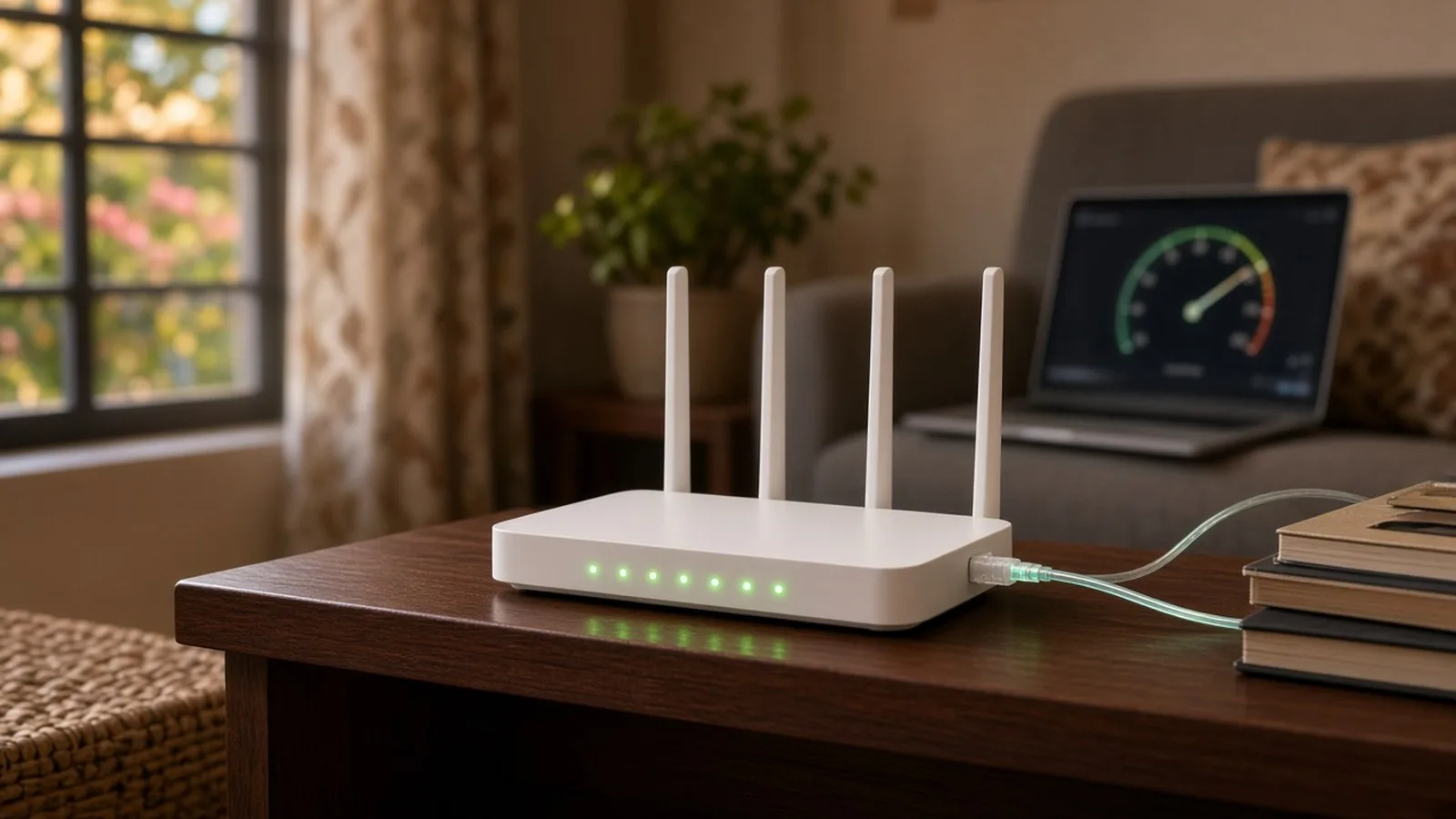
Router lights differ by brand, but these patterns are common:
- Power: should be steady.
- PON or fibre light: steady usually means the fibre line is fine.
- LOS (loss of signal) light, often red: usually means there is a problem with the fibre line, often a cut or loose cable outside. This needs your provider.
- Internet light: off or red usually means no internet from the provider.
- Wi-Fi light: shows whether Wi-Fi is broadcasting.
Take a photo of the lights when things are working normally. It makes comparing much easier when there is a problem.
Check the cables
- Make sure the fibre cable is not bent sharply or pinched by a door or window. Fibre cables are delicate.
- Check that the power adapter and LAN cables are firmly plugged in.
- Look outside for obvious cable damage after construction work, monkeys or storms.
Avoid pressing the tiny reset hole on the router unless your provider asks you to. It erases your Wi-Fi name, password and provider settings.
Part D: Run a speed test
A speed test tells you how fast your connection actually is.
- Use a trusted tool such as Speedtest by Ookla or fast.com, or TRAI's MySpeed app.
- Pause downloads and streaming on other devices.
- Test once standing near the router, and once in the room with problems.
- For the most accurate result, test from a laptop connected to the router with a LAN cable.
Understand the numbers
- Download speed (Mbps): how fast data comes to you. Needed for streaming and browsing.
- Upload speed (Mbps): how fast data goes from you. Needed for video calls and sending large files.
- Ping or latency (ms): the delay. Lower is better for calls and gaming.
Compare the result with your plan. If you pay for 100 Mbps, getting 80 to 95 Mbps on a cable is normal; Wi-Fi speeds are usually lower, especially far from the router. If you get much less on a cable, or speeds drop at the same time every day, raise it with your provider. Save screenshots of your tests as evidence.
Part E: Fixing weak Wi-Fi in some rooms
- Move the router to a central, high, open place, away from the fridge, microwave and thick walls.
- Use the 5 GHz band near the router for speed, and 2.4 GHz for longer range.
- Add a mesh system or extender for larger homes or multiple floors. Many providers offer mesh units on rent.
- Use a LAN cable for the smart TV or work desktop when possible.
- Remove unknown devices from your Wi-Fi through the router app, and change the Wi-Fi password if neighbours are using it.
Part F: DNS in brief
Every website has a numeric address, like a phone number. DNS (Domain Name System) works like a phone directory: it turns names like horizondesk.blog into those numbers. If DNS has problems, websites may not open even though the connection is up.
Your provider gives you a DNS service automatically. Some people switch to public DNS services from companies like Google or Cloudflare for reliability. This is an optional, intermediate step, done in router or device settings; most beginners do not need to change it. If you do try, note the original settings first so you can undo the change.
Part G: Raising a complaint with your provider
- Use the official app or number: open your provider's app (for example Airtel Thanks or MyJio) or call the customer care number printed on your bill or official website. Never use numbers found in random search results.
- Explain clearly: when it started, which lights are on or red, what you have tried, and speed test results.
- Note the complaint or ticket number and the promised resolution time.
- Escalate: if unresolved, ask for the provider's appellate authority or grievance escalation, usually listed on its website.
- Ask for a rebate: for long outages, politely ask whether a credit or extension is possible.
TRAI, the telecom regulator, sets quality rules but generally does not handle individual complaints; it directs consumers to their provider's complaint and appeal process first. Public grievance portals such as CPGRAMS can be used if you still get no response. Beware of fake "technicians" who call asking for remote access or payment links; real visits are booked through your provider.
Part H: Keep a home internet help card
Write these details on a card and stick it near the router, so anyone at home can get help quickly:
- Provider name, customer ID or account number and the official support number.
- Wi-Fi name and where the password is stored.
- A photo or note of the normal router lights.
- The steps: restart device, restart router, check lights, run a speed test, then call the provider.
Elderly parents and children will appreciate having clear steps instead of waiting for someone to come home and fix the internet.
Frequently asked questions
Why does my internet slow down every evening?
Many people use the internet between 8 PM and 11 PM, which can congest the provider's network or your neighbourhood connection. Record speed tests at different times and share them with your provider.
Should I switch off my router at night?
It is not necessary. A weekly restart is enough for most homes. Switching off at night may stop smart devices and scheduled updates from working.
My router is very old. Should I replace it?
If it is more than five years old, does not support 5 GHz, or no longer gets updates, a newer router can help. Ask your provider first, as many supply upgraded routers.
What is next
Try this today: take a photo of your router lights when everything is working, run a speed test near the router and in your farthest room, and save your provider's official support number. In the next part of Tech for Beginners, we will learn what to do if your phone is lost or stolen: how to find, lock, erase and block it.