At home, in the office, at a relative's house or in a cafe, Wi-Fi lets your phone use the internet without spending your mobile data. It is usually faster and cheaper for heavy use like videos, video calls and app updates. But Wi-Fi also brings new words: router, SSID, 2.4 GHz, 5 GHz, password, "connected, no internet". This is Part 11 of our Tech for Beginners series. Today we will learn what Wi-Fi is, how to connect and forget networks, what a home router does, where to keep it, the difference between 2.4 GHz and 5 GHz, and why you should change the router's default password.
In Part 4, we saw the Wi-Fi tile in Quick Settings. If you are curious about the parts of your phone, including its antennas, see Part 1: Smartphone Basics. Part 10 covered mobile data plans; Wi-Fi is the other half of the story.
Wi-Fi vs mobile data: what is the difference?
- Mobile data comes from your SIM card and the operator's towers. It works almost anywhere with coverage, but you pay per GB through your recharge.
- Wi-Fi is a short-range wireless connection to a router. The router is connected to the internet through a broadband line (fibre or cable) or sometimes a SIM. Wi-Fi works only within range, usually inside a home or office.
When your phone is connected to Wi-Fi, it normally uses Wi-Fi instead of mobile data. You will see the Wi-Fi symbol (a fan of curved lines) in the status bar.
How to connect to a Wi-Fi network
On Android
- Open Settings and tap Network & internet (or Connections on Samsung), then Internet or Wi-Fi.
- Make sure Wi-Fi is switched on.
- Tap the network name (also called the SSID) you want to join.
- Type the password carefully. Passwords are case-sensitive, so "Home123" and "home123" are different. Tap the eye icon to see what you typed.
- Tap Connect.
On iPhone
- Open Settings and tap Wi-Fi.
- Turn on Wi-Fi and tap the network name.
- Enter the password and tap Join.
Connect with a QR code
Many phones can share Wi-Fi with a QR code, which saves typing long passwords.
- On an Android phone that is already connected, open the Wi-Fi network's settings (tap the gear next to it) and tap Share. You may need to confirm with your screen lock. A QR code appears.
- On the new phone, open the camera or Google Lens, or tap the QR icon on the Wi-Fi screen, and point it at the code.
- Tap the prompt to join.
On iPhones, if a nearby iPhone that is already connected has you in its contacts, it may show a "Share Password" pop-up when you try to join.
How to forget a network
Forget a network if you no longer use it, if it is a public network you do not want to join again automatically, or if its password changed and the phone keeps failing.
- Android: in Wi-Fi settings, tap the gear next to the network (or touch and hold the name), then tap Forget.
- iPhone: in Settings, Wi-Fi, tap the blue i next to the network, then Forget This Network.
On the same screen, you can also turn off Auto-Join or auto-connect for networks you only want to use occasionally.
What does a home router do?
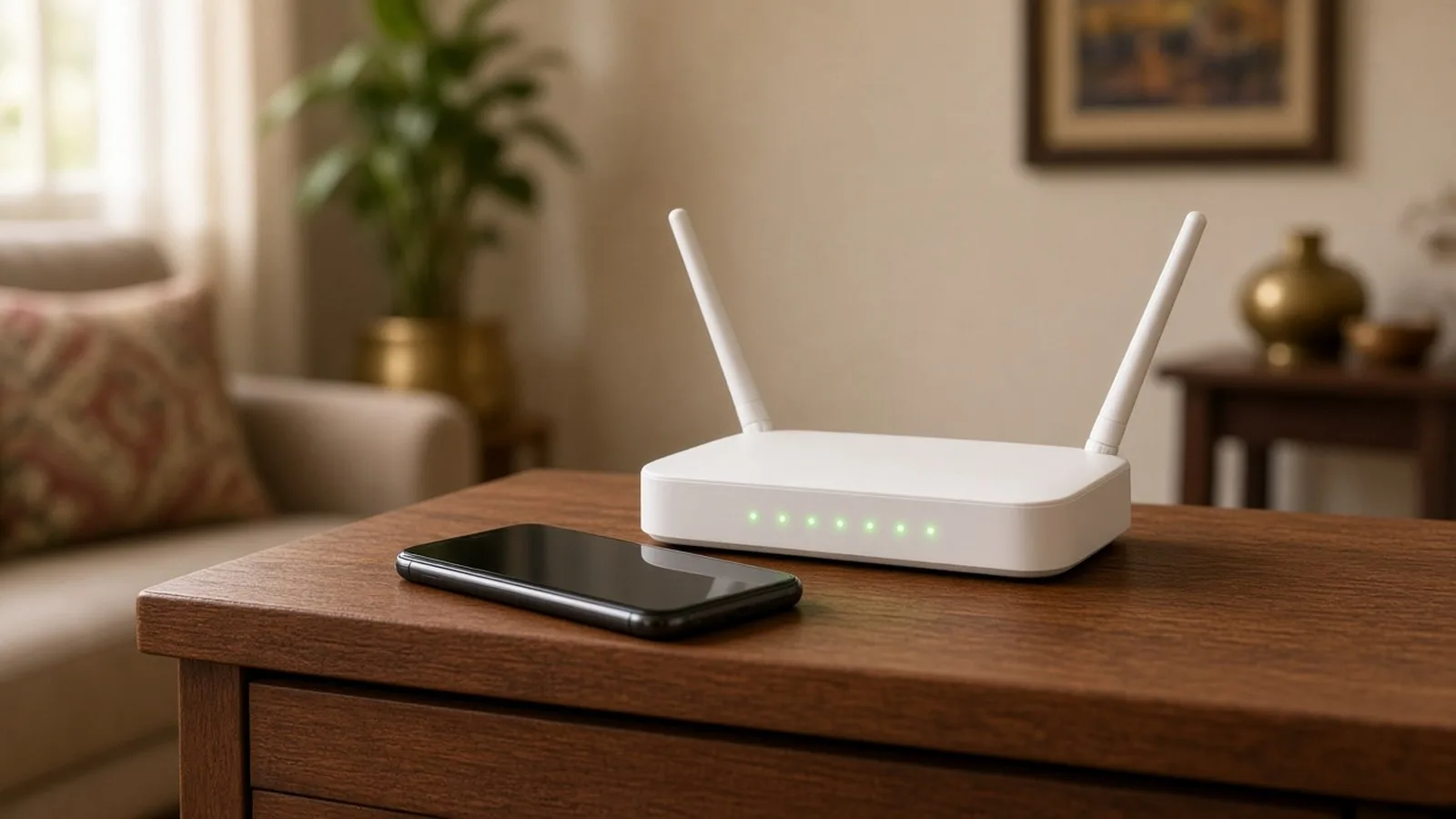
When you get home broadband, the provider installs a box called a router (sometimes combined with a modem or an optical network terminal, called an ONT, for fibre). In simple terms:
- It receives the internet from your provider's line.
- It creates your home Wi-Fi network so phones, laptops, smart TVs and other devices can connect.
- It hands out addresses to each device and directs traffic between them and the internet.
- Most routers also have a few cable ports (Ethernet/LAN) for wired connections to a computer or TV.
The lights on the front tell you its status. A red or blinking warning light, often marked LOS or similar on fibre routers, usually means a problem with the line, and you may need to call your provider. Check the manual or the provider's app for what each light means.
Where to keep your router
Wi-Fi signals weaken with distance and when passing through walls, especially thick concrete walls common in Indian homes, as well as through metal almirahs and water tanks.
- Keep it central and high. A shelf in the middle of the house works better than a corner on the floor.
- Keep it in the open, not inside a cupboard or behind the TV.
- Keep it away from microwave ovens, large metal objects and mirrors, which can interfere.
- Point the antennas (if adjustable) in different directions, for example one up and one sideways.
- For big or multi-floor homes, consider a mesh Wi-Fi system or a Wi-Fi extender. Ask your provider first; some offer them.
2.4 GHz vs 5 GHz
Most modern routers broadcast on two frequency bands. Sometimes they appear as two names, such as "HomeWiFi" and "HomeWiFi_5G". Note that "5G" here means the 5 GHz Wi-Fi band, which is not the same as 5G mobile networks.
- 2.4 GHz: longer range and passes through walls better, but slower and more crowded, because many devices and neighbours use it. Some smart home devices such as plugs and cameras work only on 2.4 GHz.
- 5 GHz: faster with less interference, but shorter range and weaker through walls. Best in the same room as the router or the next one.
Simple rule: use 5 GHz near the router for videos and video calls; use 2.4 GHz in far rooms. Many newer routers use a single name and pick the band automatically ("band steering"). Some newer routers also support a 6 GHz band (Wi-Fi 6E or Wi-Fi 7), which only some newer phones can use.
Change the default Wi-Fi password
Many routers come with a default network name and password printed on a sticker. Sometimes the installer sets a simple password like the phone number. Change it, so neighbours and strangers cannot use your internet or try to access your devices.
- Check whether your provider's app lets you change Wi-Fi settings. Many do, under a section like "Wi-Fi settings" or "Manage router". This is the easiest way.
- If not, connect to the router's Wi-Fi and open a browser. Type the router's address from the sticker on the router (often something like 192.168.1.1 or 192.168.0.1, but check your sticker).
- Log in with the router's admin username and password, also printed on the sticker or given by the installer.
- Look for Wireless, WLAN or Wi-Fi settings.
- Change the Wi-Fi password (sometimes called the pre-shared key or passphrase) to something long: at least 12 characters, mixing words and numbers, not your name or phone number.
- Choose security type WPA2 or WPA3 (or WPA2/WPA3 mixed). Avoid old WEP or "Open".
- Save. All your devices will disconnect, and you will need to join again with the new password.
- If possible, also change the admin password for the router's settings page, so nobody else can change your settings.
Router menus differ widely. If you are unsure, ask your provider's support to help you over the phone, and never share the new password with anyone who calls you unexpectedly claiming to be from the provider.
Fixing common Wi-Fi problems
- "Connected, no internet": the Wi-Fi works but the internet line is down. Check router lights, switch the router off for 30 seconds and on again, and contact your provider if it continues.
- Wrong password: check capital letters and spaces, then forget the network and join again.
- Slow in one room: move closer, switch to 2.4 GHz for range, or reposition the router.
- Phone keeps switching to mobile data: some phones switch when Wi-Fi is weak. This feature may be called "Adaptive connectivity", "Switch to mobile data" or "Wi-Fi Assist" on iPhone. You can turn it off if it uses too much data.
- Restart your phone and toggle Wi-Fi off and on. It solves more problems than you would expect.
Frequently asked questions
Does Wi-Fi use my mobile data?
No. When you are connected to Wi-Fi with internet, your phone uses the Wi-Fi connection. The Wi-Fi data is counted against your home broadband plan, not your SIM.
How many devices can connect to my home Wi-Fi?
Most home routers can handle many devices, often a few dozen. But the more devices that stream or download at the same time, the slower each one becomes.
Should I turn off the router at night?
It is not necessary, and routers are designed to run all the time. Some people switch them off at night by choice. Restarting it occasionally can help if it becomes slow.
Is it safe to use free Wi-Fi at railway stations or cafes?
It can be risky for banking and shopping. We cover public Wi-Fi safety in detail in Part 13.
What is next
Try this today: find your router, check where it is placed, and see whether you can change the Wi-Fi password from your provider's app. In the next part of Tech for Beginners, we will explain 4G vs 5G in India, how to check whether your phone and SIM support 5G, and how to turn it on.