Every day you use the internet to send a WhatsApp message, pay with UPI, watch a video or check a train ticket. But what actually happens when you tap a link or type a website address? You do not need to be an engineer to understand the basics, and knowing them helps you use the internet more confidently and safely. This is Part 15 of our Tech for Beginners series, and the start of a new section on using the web. Today we will explain websites, servers, domains, IP addresses and links using everyday comparisons, and what the HTTPS padlock really means, and what it does not.
In Part 10 we looked at mobile data, in Part 11 at Wi-Fi and home routers, and in Part 14 at home broadband. Those are the roads that connect you. Today we look at what travels on those roads. If you enjoy history, our story of how the internet was invented is a good companion read.
The internet in one sentence
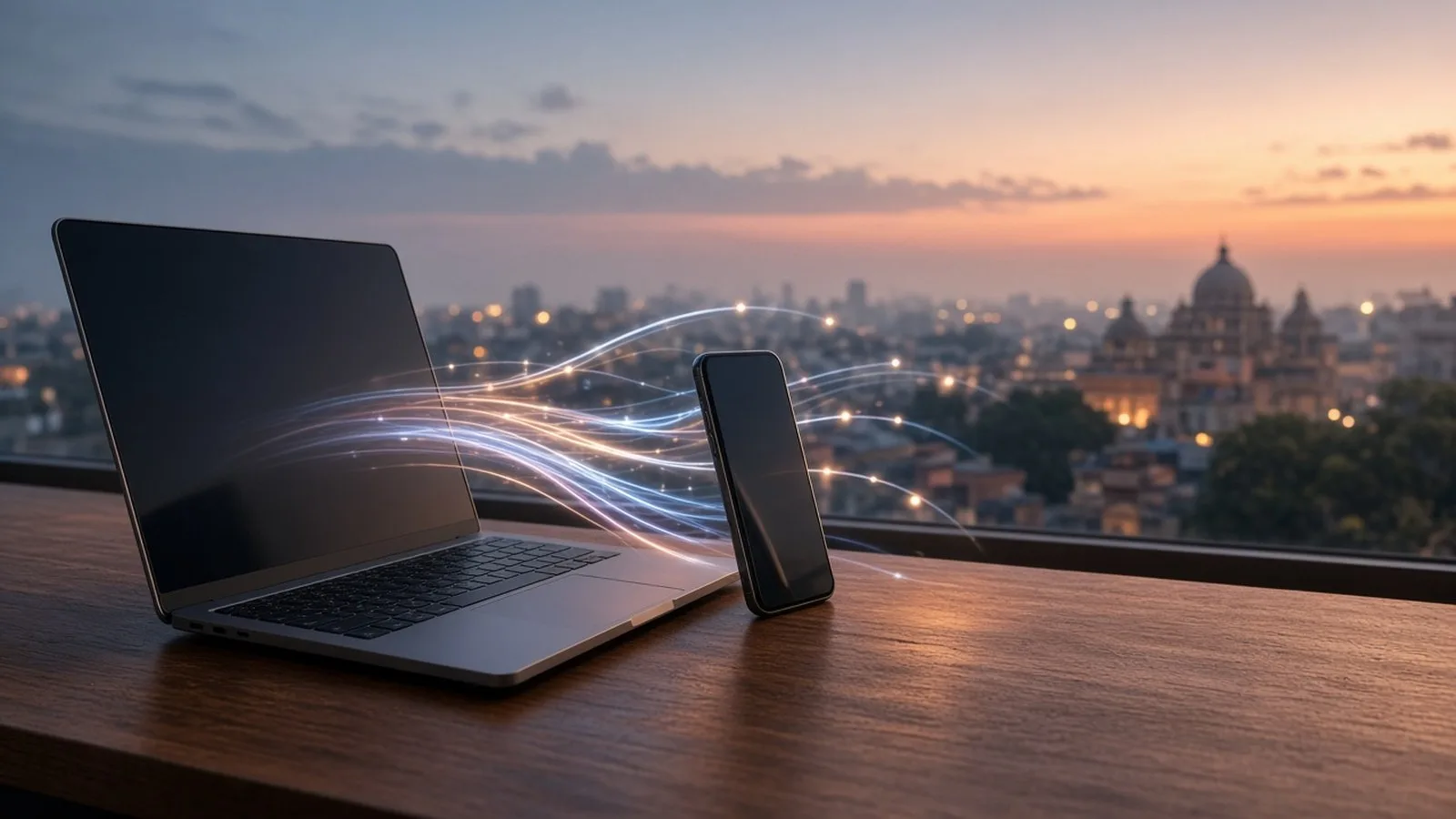
The internet is a giant worldwide network of computers connected to each other, which agree on common rules (called protocols) for sending information back and forth.
Your phone, your laptop, the computers at your bank, the servers that run YouTube and IRCTC: all of them are connected through cables under the sea, fibre lines along roads, mobile towers and home routers. When you use an app or open a website, your device sends a request across this network and gets a reply.
A simple comparison: the internet as a postal system
Think of sending a letter through India Post:
- You write a letter (your request, such as "show me this web page").
- You write an address on the envelope (the website address).
- The post office sorts it and sends it through many sorting centres (routers and networks).
- It reaches the right house (the server), which reads it and sends a reply back to your address.
The internet does this in fractions of a second. Large pieces of information are split into many small "packets", sent separately, sometimes by different routes, and put back together at your end.
Key words explained
Website and web page
A web page is a single page you see in a browser, such as a news article. A website is a collection of related pages under one name, such as a bank's site with its home page, login page and contact page.
Server
A server is a computer, usually in a large data centre, that stores websites, apps, videos or emails and "serves" them to anyone who asks. When you watch a video, a server somewhere sends it to your phone. Big services use thousands of servers in many cities so that you get a quick reply from one near you.
App vs website
Apps on your phone also talk to servers over the internet. A banking app and the bank's website usually connect to the same bank servers, just through a different front door.
IP address
Every device on the internet needs an address so that information reaches the right place. This is the IP address (Internet Protocol address). It looks like a set of numbers, for example 192.0.2.10 (older IPv4 style), or a longer mix of numbers and letters in the newer IPv6 style. Your home router and your mobile operator handle these for you automatically.
Domain name
Numbers are hard to remember, so websites use domain names like example.com. A domain name is like a shop's name on a signboard, while the IP address is like its exact GPS location.
The last part of a domain, such as .com, .in, .org or .gov.in, is called the top-level domain or extension. In India, official government websites typically end in .gov.in or .nic.in. We will learn to use this when checking whether a website is real in Part 17.
DNS: the internet's phone book
When you type a domain name, your device asks a DNS (Domain Name System) server, "What is the IP address of this name?" It is like looking up a name in your phone's contacts to get the number. Once your device has the address, it connects to the right server.
URL and links
A URL is the full address of a specific page. For example: https://www.example.com/help/contact
- https:// is the method used to connect (more on this below).
- www.example.com is the domain (with "www" as a common prefix).
- /help/contact is the path to a particular page on that site.
A link (or hyperlink) is text, a button or an image that takes you to a URL when you tap it. Links can lead anywhere, which is why scammers use them in fake messages.
What happens when you open a website: step by step
- You type a website address in your browser, or tap a link.
- Your phone asks a DNS server for the IP address of that domain.
- Your phone sends a request to the server at that address, through your Wi-Fi or mobile data, your provider's network and the wider internet.
- If the address starts with https, your phone and the server first set up a secure, encrypted connection.
- The server sends back the page: text, images, styles and small programs.
- Your browser puts it all together and shows you the page.
All of this usually takes less than a second or two. If any step fails, you may see an error such as "This site can't be reached" or "Server not found".
Cloud: just someone else's computer
You will often hear about "the cloud", such as Google Drive, iCloud or OneDrive. It simply means your files are stored on servers in a company's data centre instead of only on your phone. You can reach them from any device by signing in. It is convenient and protects against losing your phone, but it also means your account password is very important. We cover passwords in Part 20.
HTTP vs HTTPS and the padlock
Websites are delivered using a set of rules called HTTP. The secure version is HTTPS (the S stands for "secure").
- With HTTPS, information between your device and the website is encrypted, meaning it is scrambled so that others on the same Wi-Fi or network cannot easily read it.
- Browsers show HTTPS with a padlock or a settings-style icon next to the address. Some browsers show a "Not secure" warning for plain HTTP pages.
What the padlock does NOT mean
This is the most important lesson of today:
- The padlock does not mean the website is honest. It only means the connection is encrypted. Scammers can and do get HTTPS for fake websites too.
- A fake bank website can show a padlock. A fake shopping site can show a padlock. What matters is who you are connected to.
- Always check the domain name carefully. Fraudsters use look-alike names with small spelling changes, extra words, or different extensions.
So remember: padlock = private connection, not trustworthy website.
Why websites can be slow or fail
- Weak connection: poor mobile signal or Wi-Fi far from the router.
- Busy servers: for example, when many people try to book tatkal tickets or check exam results at the same time.
- Site problems: the website itself may be down for maintenance.
- Typing mistakes: a wrong letter in the address can lead to a different site or an error.
Simple fixes: check your connection, refresh the page, wait a few minutes, or try the official app instead.
Safety lessons from how the internet works
- Type important addresses yourself, or use the official app, instead of tapping links in SMS, WhatsApp or email.
- Read the domain name before logging in or paying. Look at the part just before .com, .in or .gov.in.
- Do not trust the padlock alone.
- Avoid entering passwords or card details on public Wi-Fi (see Part 13).
Frequently asked questions
Is the internet the same as the web?
Not exactly. The internet is the network itself. The World Wide Web is one service that runs on it: websites you open in a browser. Email, WhatsApp, video calls and UPI also use the internet without being "the web".
Who owns the internet?
No single person or company. It is made of many networks owned by telecom companies, governments, universities and businesses, which agree to connect using common rules.
Does my IP address reveal my home address?
Generally, an IP address can show your internet provider and an approximate area, not your exact house. Your provider knows which customer used an address, and can share it with authorities under the law.
Why do some websites start with www and others do not?
"www" is just a traditional prefix. Many websites work with or without it. What matters is the main domain name.
What is next
Try this today: open any website you use often and look closely at its full address and the padlock icon. Then try to explain to a family member why a padlock does not prove a site is genuine. In the next part of Tech for Beginners, we will learn to use a web browser well: tabs, bookmarks, downloads, history and what incognito mode really hides.