If your family watches videos on a smart TV, children attend online classes, or someone works from home, a home broadband connection can be cheaper and more reliable than everyone using mobile data. But choosing one can be confusing: fibre, AirFiber, DSL, 100 Mbps, FUP, installation charges, routers, long-term plans. This is Part 14 of our Tech for Beginners series and the last part of our section on internet connections. Today we will understand the main types of home broadband in India, what Mbps really means, how much speed you need, and the questions to ask an internet provider before you sign up.
In Part 11 we learned how a home router and Wi-Fi work, and Part 10 covered mobile data. If you are new to the series, start with Part 1: Smartphone Basics. Part 4 covered phone settings you will use to connect to your new Wi-Fi.
A note on prices and offers: broadband plans, speeds, prices and offers from providers such as Jio, Airtel, BSNL, ACT and local operators change often and differ by city. We do not quote prices here. Check the provider's official website or app for current plans in your area.
What is broadband?
Broadband simply means a high-speed internet connection that is always on. In India, the government's definition of broadband was revised in recent years to a minimum download speed of 2 Mbps. Most home connections today offer much more than that, often tens or hundreds of Mbps.
Types of home broadband in India
1. Fibre (FTTH: fibre to the home)
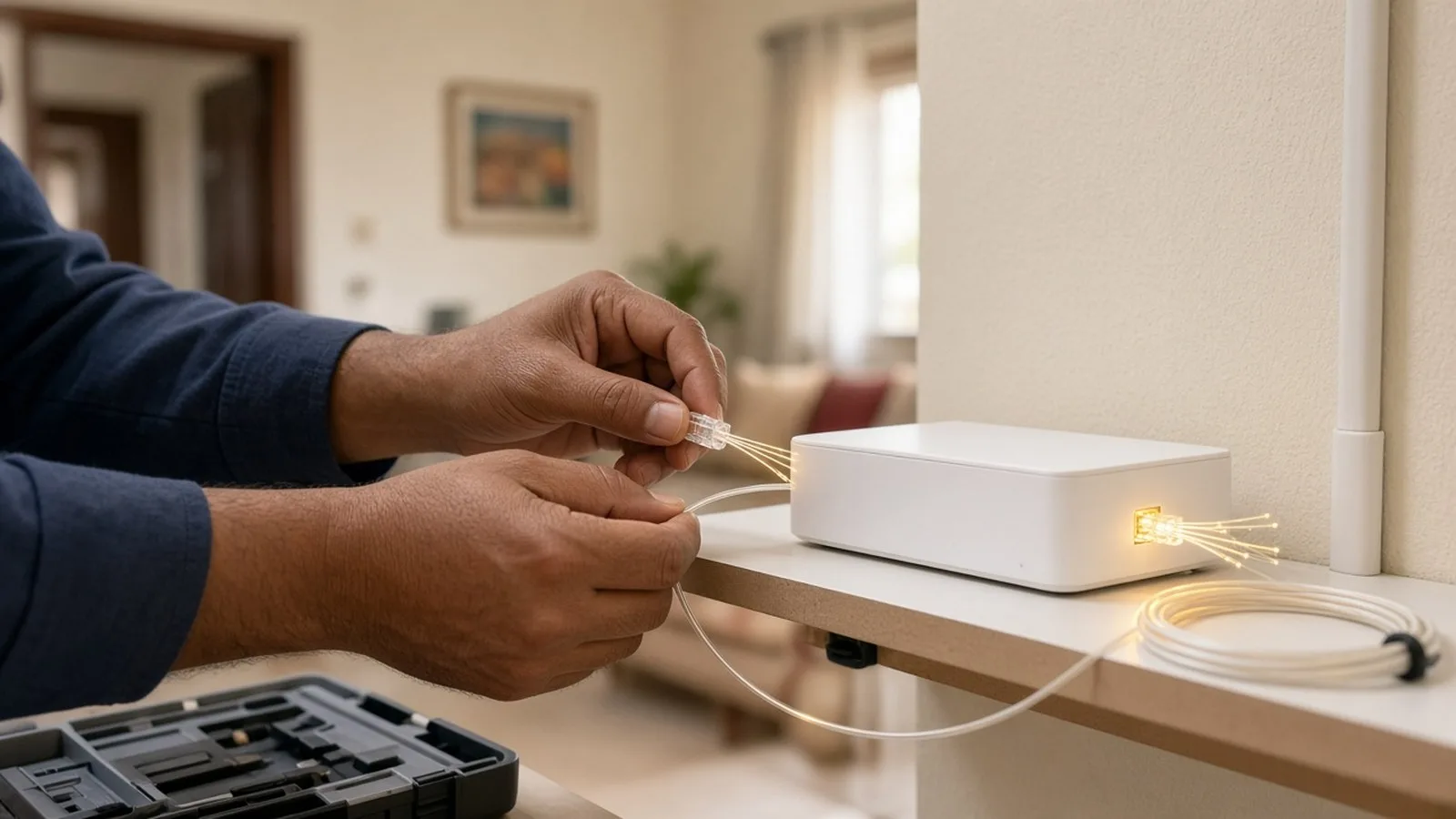
A thin glass optical fibre cable is brought from the provider's network into your home and connected to a router (or a separate box called an ONT).
- Pros: high speeds, stable connection, low delay, good for many users and devices, and the same speed for upload and download on many plans.
- Cons: needs a cable run into your building, so it is not available everywhere. Installation may need drilling and permission from your society or landlord. Fibre can be damaged during construction or road work.
- Examples: large providers such as JioFiber, Airtel Xstream Fiber and BSNL Bharat Fibre, plus many local and regional cable operators and ISPs.
2. Fixed wireless (such as AirFiber)
Instead of a cable, a device at your home receives the internet wirelessly from the operator's nearby mobile tower, usually over 5G, and creates Wi-Fi. Services sold under names such as Jio AirFiber and Airtel Xstream AirFiber are examples.
- Pros: no cable needed through the building, quicker to install in some areas, and an option where fibre has not reached.
- Cons: speed and stability depend on tower distance, signal, weather and how crowded the network is. Placement of the outdoor or indoor unit matters.
3. DSL (over a telephone line)
Older broadband that runs over a copper telephone line, such as older BSNL landline broadband.
- Pros: uses existing phone lines.
- Cons: much slower than fibre, and speed drops with distance from the exchange. Many providers have been moving customers to fibre. If you still use DSL, ask whether fibre is available.
4. Cable broadband and other options
Some areas have broadband through local cable operators using coaxial or other cables, and satellite internet is an option being developed for remote areas. Availability and quality vary a lot.
What does Mbps mean?
Mbps means megabits per second. It measures how fast data can travel through your connection.
- Mbps vs MBps: a small "b" means bits, a capital "B" means bytes. There are 8 bits in a byte. So a 100 Mbps connection can download, at best, about 12.5 megabytes per second. That is why a download in your browser may show a smaller number than your plan speed.
- Download speed: how fast you receive data, such as watching videos or downloading files. This is the number most ads highlight.
- Upload speed: how fast you send data, such as video calls, uploading photos or online classes where you share your camera.
- "Up to" speeds: plans usually say "up to" a speed. Actual speeds can be lower, especially over Wi-Fi in far rooms, at peak hours or on older devices.
How much speed do you need?
These are rough guidelines, not rules:
- One or two people, browsing, WhatsApp, YouTube on phones: a basic plan of a few tens of Mbps is often enough.
- A family with a smart TV, online classes and video calls: consider a mid-range plan, such as 100 Mbps or so.
- Several people streaming in HD or 4K at the same time, work from home, gaming or big downloads: a faster plan may be worth it.
Remember: Wi-Fi in the house often limits speed more than the plan does. A faster plan will not help if the router is in a corner far from where you use the internet.
Wired connections for best speed
If a smart TV, desktop computer or work laptop is near the router, connecting it with an Ethernet (LAN) cable usually gives a faster and more stable connection than Wi-Fi. This leaves more Wi-Fi capacity for phones around the house.
Questions to ask before you sign up
- Is the service available at my exact address? Check on the provider's official website or app with your pin code and address, and ask neighbours which provider works well in your building.
- What speed is promised, for download and upload? Ask whether the upload speed is the same as download.
- Is the data really unlimited? Ask about the FUP (Fair Usage Policy): is there a monthly data limit, and what speed do you get after crossing it?
- What are the installation charges and security deposit? Is the deposit refundable, and on what conditions?
- Is the router included? Is it free, rented or sold? Does it support dual-band Wi-Fi (2.4 GHz and 5 GHz), and newer standards such as Wi-Fi 6? What happens if it fails?
- What is the contract or lock-in period? Are there discounts for 3, 6 or 12 month payments, and are those payments refundable if you cancel or move house?
- Are there extra charges? Ask about GST, which is often added on top of the advertised price, and any charges for a static IP, extra devices or relocation.
- Is there a landline or TV bundle? Do you need it? Bundles can be good value but check the full price.
- How do I get support? Ask about customer care numbers, app support, how long repairs usually take, and whether a technician visits on Sundays.
- What happens if I move? Ask about shifting the connection to a new address and any charges.
Installation day checklist
- Decide where the router will go before the technician arrives: central, high and in the open (see Part 11).
- Ask the technician to show you the router's lights and what they mean.
- Ask them to set a strong Wi-Fi password of your choice, not your phone number, and note the router's admin login.
- Test speed in different rooms using a speed test app or website, on both 2.4 GHz and 5 GHz.
- Keep the installation receipt, customer ID and the provider's support number safe.
- Do not pay cash to anyone without an official receipt, and pay deposits or bills only through the official app, website or authorised staff.
Testing and complaining
- Test speed with a well-known speed test service. For the most accurate result, test near the router or with a cable connection, with other devices paused.
- If speeds are much lower than promised, restart the router first. If the problem continues, raise a complaint through the provider's app or customer care and note the complaint number.
- If a complaint is not resolved, providers have escalation routes such as appellate authorities; details are usually on the provider's website.
- Beware of fake "customer care" numbers found through search results or social media. Use the number in the official app or on your bill.
Frequently asked questions
Is fibre always better than AirFiber?
Fibre is usually more stable and consistent, while fixed wireless can be a good option where fibre is not available or installation is difficult. Ask neighbours about real-world performance in your area.
Why is my Wi-Fi slower than my plan speed?
Distance from the router, walls, the 2.4 GHz band, older phones, and many devices using the internet at once can all reduce Wi-Fi speed. Test near the router to see the real line speed.
Do I need a landline phone with broadband?
Not usually. Some plans include a landline connection, and some providers bundle it automatically. Ask whether it is included and whether it costs extra.
Can I use my own router?
Often yes, but some providers require their own router or a specific setting. Ask before buying one.
What is next
Try this today: if you are thinking of getting broadband, check availability at your address with two providers and write down their answers to the questions above. This completes our section on internet connections. In the next part of Tech for Beginners, Part 15, we will answer a big question in simple words: how the internet works, with a plain-English guide to what happens when you open a website.