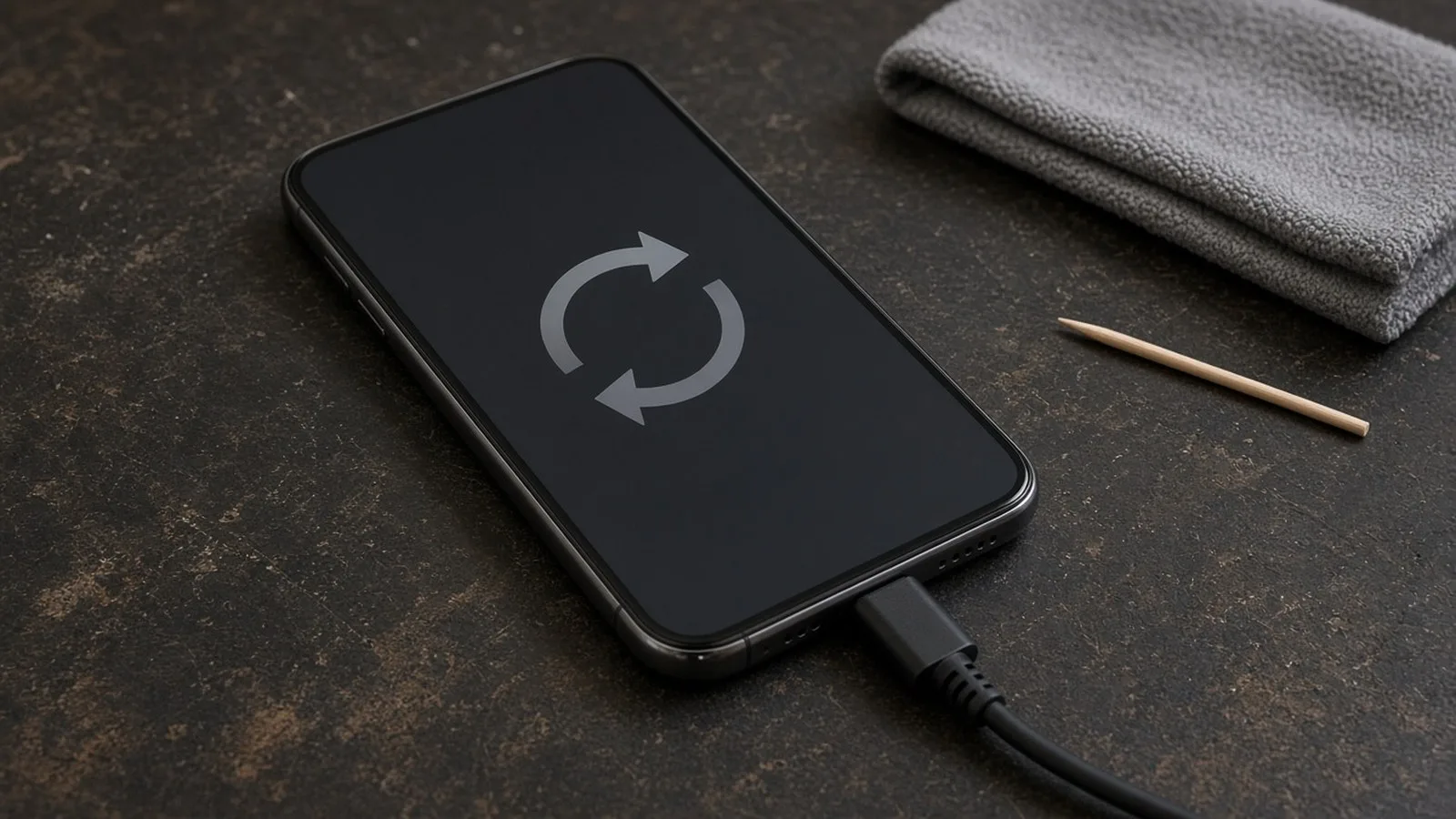
Almost every phone, sooner or later, starts misbehaving. Apps take ages to open, the screen freezes in the middle of a UPI payment, the phone becomes hot in your pocket, or it refuses to charge the night before a trip. The first instinct is often to rush to a repair shop or buy a new phone, but many of these problems can be fixed at home in a few minutes. This is Part 54 of our Tech for Beginners series. Today we will learn a simple troubleshooting routine: restarting, clearing app cache, freeing storage, checking apps in safe mode, caring for the charging port, deciding when a factory reset makes sense, and when to visit an authorised service centre.
Many fixes here build on earlier lessons: storage and battery basics in Part 6, removing unwanted apps in Part 5, and spotting malware in Part 27. Before attempting anything drastic like a reset, make sure your backup from Part 34 is up to date.
A note on changes: menu names differ between Android brands such as Samsung, Xiaomi, Realme, Vivo, Oppo, OnePlus and Motorola, and between Android and iOS versions. The steps below describe the general path. If you cannot find a setting, use the search bar at the top of the Settings app. Repairs and warranty terms vary by brand.
Part A: Step one, always restart
A restart clears temporary glitches, closes stuck background processes and frees memory. It fixes a surprising number of problems.
- Android: press and hold the power button (on some phones, power and volume up together) and tap Restart.
- iPhone: press and hold the side button and a volume button, slide to power off, wait 30 seconds and switch on again.
If the phone is completely frozen
Most phones support a force restart. On many Android phones, hold the power button (sometimes with volume down) for 10 to 20 seconds. On recent iPhones, press and release volume up, press and release volume down, then hold the side button until the Apple logo appears. This does not delete your data.
Make restarting a weekly habit, even when nothing is wrong.
Part B: Phone is slow or hanging
1. Free up storage
A phone that is more than about 90 percent full often becomes slow. Check Settings > Storage (or General > iPhone Storage).
- Delete old WhatsApp videos and forwards from WhatsApp > Settings > Storage and data > Manage storage.
- Back up photos to the cloud, then use "Free up space" in Google Photos.
- Uninstall apps you have not used in months.
- Clear the Downloads folder.
2. Clear an app's cache (Android)
If one app misbehaves, go to Settings > Apps > [app name] > Storage > Clear cache. This removes temporary files without deleting your account or data. Clear data or Clear storage resets the app completely, which may log you out and delete unsynced data, so use it carefully. On an iPhone, you can use Offload App in iPhone Storage, or delete and reinstall the app.
3. Update apps and system
Bugs that cause slowness are often fixed in updates, as we saw in Part 47.
4. Reduce what runs in the background
- Remove live wallpapers and heavy launchers or "booster" apps.
- Avoid "phone cleaner" and "RAM booster" apps. Many show ads, collect data, and some are malicious. Built-in tools like Files by Google or your phone's own Device Care or Phone Manager are enough.
- Turn off auto-play videos in social media apps.
Part C: Check apps with safe mode
If your phone shows strange pop-up ads, crashes repeatedly, or restarts on its own, an app may be the cause. Safe mode on Android starts the phone with only the built-in apps.
- Press and hold the power button until the power menu appears.
- Touch and hold Power off or Restart until you see Reboot to safe mode, then tap OK. (Steps vary by brand.)
- Use the phone for a while. If the problem disappears, a recently installed app is likely the culprit.
- Restart normally, and uninstall recent apps one at a time until the problem stops.
If you see full-screen ads appearing even on the home screen, check Settings > Apps for unknown apps and remove any you do not recognise. Run Google Play Protect from the Play Store menu.
Part D: Phone is overheating
Phones get warm during gaming, video calls, GPS navigation and fast charging, which is normal. In Indian summers, it can get worse. Worry if it becomes too hot to hold, shows a temperature warning, or heats up while idle.
- Remove a thick case while charging or gaming.
- Do not leave the phone in direct sunlight, on a car dashboard, or under a pillow.
- Avoid heavy use while charging.
- Close games and navigation apps when not needed.
- Check Settings > Battery for an app using unusually high battery, which often means it is also causing heat.
- Switch off and let the phone cool down if it shows a warning. Do not put it in a fridge.
Safety warning: if the battery is swollen, the back cover is lifting, or you smell burning, stop using and charging the phone immediately and take it to an authorised service centre.
Part E: Phone is not charging or charging slowly
Check the basics
- Try a different cable and charger, preferably original or certified ones.
- Try a different wall socket.
- Restart the phone.
Clean the charging port carefully
Pocket lint and dust collect in the charging port and stop the cable from fitting properly. Switch off the phone, shine a torch into the port, and gently remove lint with a soft, dry, non-metal tool such as a wooden toothpick. Do not use pins, needles or water. If you are unsure, ask a service centre to clean it.
Other causes
- Some phones pause charging at 80 percent to protect battery health. Look for "adaptive" or "optimised" charging settings.
- Charging is slower when the phone is hot.
- Moisture warnings on some phones stop charging until the port is dry.
- An old battery that drains very fast may need replacement. Check Battery health on iPhone, or your phone's battery or device care section on Android.
Part F: When a factory reset makes sense
A factory reset erases everything and returns the phone to how it was when new. It can fix stubborn software problems and remove hidden malware, but it is a last resort.
Before resetting
- Back up photos, contacts and WhatsApp chats.
- Make sure you know your Google account or Apple Account password. After a reset, the phone will ask for it (this anti-theft protection is called Factory Reset Protection or Activation Lock).
- Note your banking and UPI app details; you will need to register them again with your SIM.
- Charge the phone above 50 percent.
How to reset
- Android: Settings > System > Reset options > Erase all data (factory reset), or General management > Reset on Samsung.
- iPhone: Settings > General > Transfer or Reset iPhone > Erase All Content and Settings.
Part G: When to visit a service centre
Visit an authorised service centre of your phone's brand for:
- Swollen battery, burning smell or physical damage.
- Water damage.
- Broken screen or touch not working.
- Problems that remain after a reset.
- Repairs during warranty.
Tips for a safe repair
- Find the service centre address on the brand's official website, not through a random search result or a phone number from social media.
- Back up and, if possible, remove your SIM and memory card before handing over the phone.
- Ask for a job sheet listing the problem, estimated cost and IMEI number.
- Prefer original parts. Cheap local batteries can be unsafe.
- Log out of sensitive apps if you have to share your screen lock with the technician, and change the lock afterwards.
Part H: A quick troubleshooting checklist
When something goes wrong, work through this order before panicking:
- Restart the phone.
- Check storage and free up space if it is nearly full.
- Update the problem app and the phone's system software.
- Clear the cache of the misbehaving app.
- Uninstall recently installed apps, or test in safe mode.
- Try a different charger, cable and socket for charging issues; clean the port gently.
- Back up and consider a factory reset only if nothing else works.
- Visit an authorised service centre for hardware problems.
Write this list on the back of a card and keep it with an elderly parent's phone. It helps them solve small problems themselves, and they will feel more confident using technology.
Frequently asked questions
Does closing all apps from the recent apps screen make the phone faster?
Not usually. Modern phones manage memory automatically. Closing a misbehaving app helps, but constantly closing everything can make apps reopen slower and use more battery.
Is it safe to charge my phone overnight?
Modern phones stop charging when full and many have optimised charging features. Use a good-quality charger, keep the phone on a hard surface, not under a pillow.
Will a factory reset remove a virus?
In most cases, yes, as long as you do not restore the harmful app from a backup afterwards.
What is next
Try this today: restart your phone, check how full its storage is, and clear the cache of your most-used app. In the next part of Tech for Beginners, we will learn to fix Wi-Fi and internet problems at home.