Many online frauds start with a single tap: a link in an SMS, a "wedding invitation" APK file on WhatsApp, or a fake app that looks just like your bank's. Once you tap, you might land on a fake website that steals your password, or install software that reads your OTPs and messages. This is called phishing and malware, and protecting yourself from them is the heart of basic cybersecurity. This is Part 27 of our Tech for Beginners series. Today we will learn to recognise phishing links and fake websites, avoid malicious APK files and fake apps, use Google Play Protect, keep apps updated, and know exactly what to do if you clicked a bad link.
In Part 5 we learned to install apps safely from the Play Store and App Store. In Part 26 we covered fake KYC and impersonation calls. If you already notice strange behaviour on your phone, see our guide on how to tell if your phone is hacked.
A note on changes: phone menus and security features differ by brand and change with updates. Menu names below are typical; yours may look slightly different.
What is phishing?
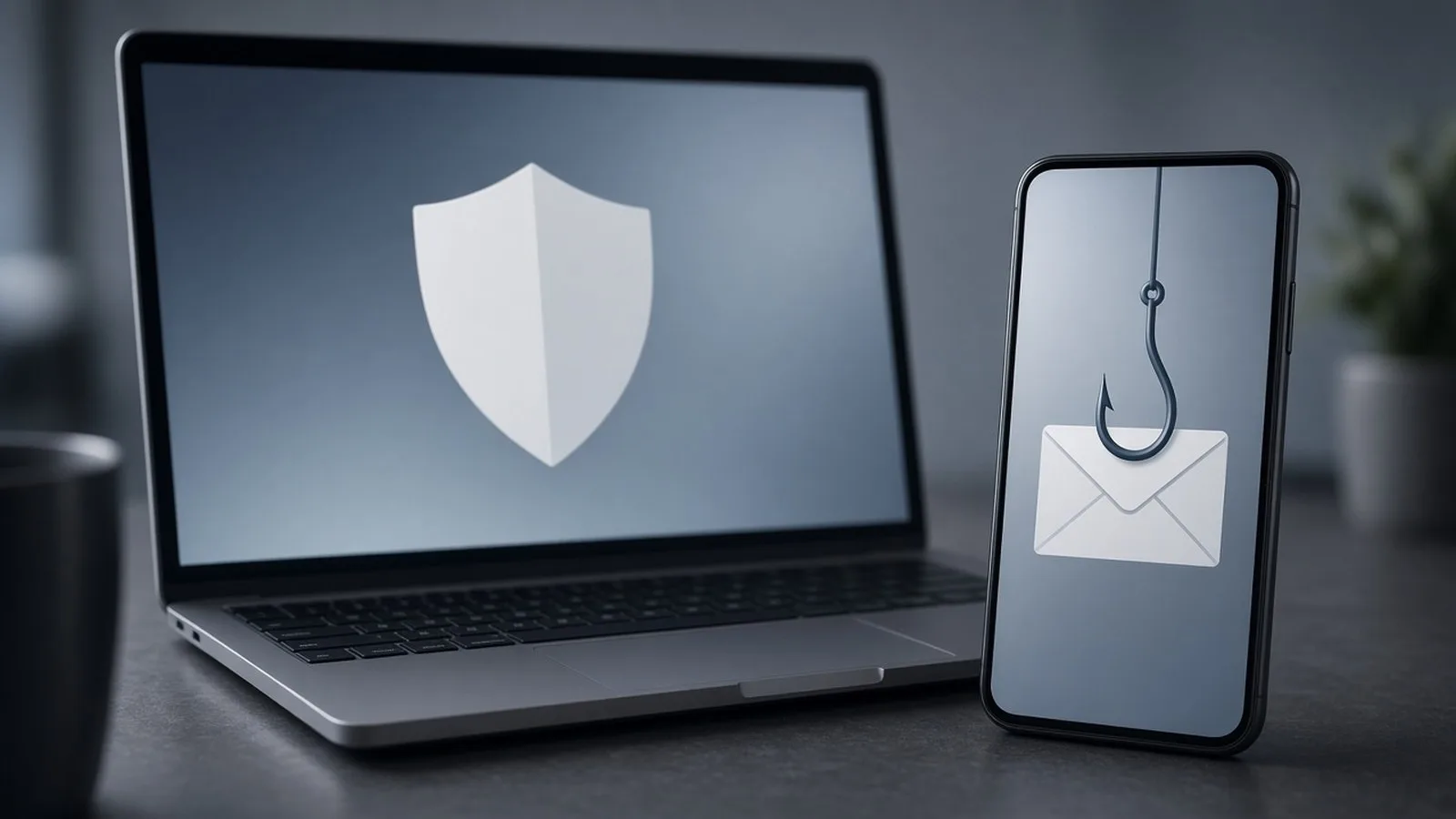
Phishing (pronounced "fishing") is when a fraudster pretends to be someone you trust, such as your bank, a delivery company, a government department or even a friend, to trick you into clicking a link, sharing details or installing something. It can arrive by SMS (sometimes called "smishing"), email, WhatsApp, social media or a phone call.
Common phishing messages in India
- "Your parcel could not be delivered. Update your address here: [link]."
- "Your bank account will be blocked. Complete KYC: [link]."
- "Your electricity bill is pending. Pay now to avoid disconnection."
- "Income tax refund of Rs 15,490 approved. Click to claim."
- "Your traffic challan is pending. Pay here." (often a fake e-challan site)
- "Your reward points expire today. Redeem now."
How to spot a phishing link or fake website
- Look at the sender. Banks and companies send SMS from registered sender names (short codes like "XX-BANKNM"), not from ordinary 10-digit mobile numbers. However, sender names can sometimes be spoofed, so do not rely on this alone.
- Read the web address carefully. Fake sites use look-alike names such as "sbi-kyc-update.com", "hdfcbank.secure-login.in" or extra letters and numbers. The real domain is the part just before the first single slash. Many Indian banks now use addresses ending in ".bank.in".
- Be wary of short links (like bit.ly) in official-looking messages. You cannot see where they lead.
- Look for pressure and threats: "within 24 hours", "account blocked", "last chance".
- Check for poor spelling and grammar, although some phishing messages are well written.
- Ask: did I expect this? If you did not order a parcel or apply for a refund, the message is suspicious.
A padlock or "https" in the address bar only means the connection is encrypted. Fake websites can have padlocks too. It does not prove the site is genuine.
The safest habit
Do not use links in messages to log in or pay. Instead, open the official app or type the website address yourself. If the message is genuine, you will see the same notice there.
Phishing beyond SMS and email
- Social media ads and pages: fake pages offering huge discounts, free gifts or government scheme registrations. Check that the page is verified and the link goes to the official website.
- Search results: fake customer care numbers and look-alike websites can appear in search results. Prefer the address printed on your bill, card or official app.
- QR codes: a QR code can hide a phishing link as easily as a payment request. Before opening a link from a scanned code, read the address shown on the screen.
- Fake "account security" emails: "Someone tried to sign in to your account. Click here to secure it." Instead of clicking, open the app or website yourself and check your recent activity there.
- Hacked friends' accounts: a message from a friend's real account asking for money or an OTP. Call the friend on the phone to confirm before doing anything.
What is malware?
Malware means malicious software: apps or files designed to harm you. On phones in India, the most common types are:
- SMS stealers: apps that read your incoming SMS, including bank OTPs, and send them to fraudsters.
- Remote access tools: apps that let someone see and control your screen. Some are genuine tools (used for IT support) but are misused by fraudsters who ask you to install them.
- Fake banking or government apps: copies that look like real apps and steal your login details.
- Adware: apps that flood your phone with ads and pop-ups.
The danger of APK files
An APK is an Android app installation file. Fraudsters send APKs on WhatsApp disguised as "Wedding_Invitation.apk", "PM_Kisan_Yojana.apk", "Electricity_Bill.apk", "RTO_Challan.apk" or "Bank_KYC.apk". Once installed, the app may ask for SMS, accessibility or notification access, and then quietly steals OTPs and money.
Rules for APKs
- Never install an APK sent on WhatsApp, SMS, Telegram or email, even if it comes from a friend's number. Their phone may already be infected.
- Real wedding invitations are images or PDFs, not apps.
- Install apps only from the Google Play Store or Apple App Store.
- Keep the setting that allows installing unknown apps turned off. On most Android phones: Settings > Apps > Special app access > Install unknown apps, and make sure WhatsApp, your browser and file manager are set to "Not allowed".
Spotting fake apps in the Play Store
Fake apps sometimes get into official stores too. Before installing a banking, payment or government app:
- Check the developer name. Your bank's app should be published by the bank itself.
- Check the number of downloads and reviews. Major bank apps usually have millions of downloads.
- Read some recent reviews for complaints about fraud.
- Better still, use the link on the bank's or department's official website to reach the right app.
- Be suspicious of apps asking for permissions they do not need, such as a torch app asking for SMS access.
Use Google Play Protect
Google Play Protect is built into Android phones with Google Play. It scans apps for harmful behaviour, including apps installed from outside the Play Store, and can warn you or block risky installs.
- Open the Play Store.
- Tap your profile picture at the top right.
- Tap Play Protect.
- Tap the settings gear and make sure Scan apps with Play Protect is turned on.
- Go back and tap Scan to check your phone now.
If Play Protect warns you about an app, uninstall it. Do not ignore the warning because someone told you to.
On iPhone, apps can generally be installed only through the App Store, which reduces this risk, but phishing links and fake websites still work the same way.
Keep everything updated
- Phone updates fix security holes. Check Settings > System > Software update (Android; the menu varies) or Settings > General > Software Update (iPhone).
- App updates from the Play Store or App Store fix problems too. Turn on automatic updates on Wi-Fi.
- Remove apps you no longer use. Fewer apps means fewer risks.
Check app permissions
- On Android, open Settings > Security and privacy > Privacy > Permission manager (names vary).
- Look at SMS, Accessibility, Notifications access and Display over other apps.
- If an app you do not recognise has these permissions, remove the permission and uninstall the app.
What to do if you clicked a bad link or installed a bad app
- Do not enter any more details. Close the page.
- Turn on airplane mode if you installed something suspicious, to cut its connection.
- Uninstall the app. If it refuses, check Settings > Security > Device admin apps, remove its admin rights, then uninstall. Run a Play Protect scan.
- If you entered a password, change it immediately from another trusted device, and turn on two-step verification.
- If you entered bank or card details or an OTP, call your bank's official helpline at once to block your card, UPI or net banking.
- If money was taken, call 1930 or report at cybercrime.gov.in (Part 28 explains how).
- If problems continue, back up your photos and contacts and consider a factory reset, or take the phone to the brand's authorised service centre.
Frequently asked questions
Do I need a paid antivirus app on my phone?
For most people, keeping Play Protect on, installing apps only from official stores and updating regularly gives good protection. If you choose an extra security app, use a well-known one from the official store.
My friend forwarded an APK. Is it safe?
Do not install it. Call your friend to check; their phone may be infected and sending it automatically.
Can a phishing email harm me if I only open it?
Opening a normal email is usually low risk. The danger is in clicking its links, opening unexpected attachments or replying with details.
What is next
Try this today: open the Play Store, run a Play Protect scan, and check that "Install unknown apps" is off for WhatsApp. In the next part of Tech for Beginners, we will explain how to report fraud through 1930, cybercrime.gov.in and Sanchar Saathi.