Look around a typical Indian home today and you may count more internet-connected devices than people: a smart TV, a streaming stick, a Wi-Fi camera watching the front door, a video doorbell, a smart speaker, maybe a robot vacuum. These are often called IoT devices, short for "Internet of Things". They make life easier, but each one is also a small computer connected to the internet, and a poorly protected camera can let strangers peek into your living room. This is Part 52 of our Tech for Beginners series. Today we will cover smart TVs and streaming apps, home Wi-Fi cameras and doorbells, why you must change default passwords, how to update firmware, and how to protect your family's privacy.
Your router is the front gate for all these devices, so the router tips from Part 11 matter even more here. Strong, unique passwords from Part 20 and two-factor authentication from Part 21 protect the apps that control them. In Part 51 we set up smart speakers, plugs and bulbs; now let us secure them.
A note on changes: TV menus, camera apps, subscription prices and security features differ by brand and change with updates. Rules on the sale and certification of CCTV equipment in India have also been evolving. The guidance below is general; for exact steps, check your device's manual or the brand's official support page.
Part A: Smart TVs and streaming devices
A smart TV connects to the internet and runs apps like YouTube, Netflix, Prime Video, JioHotstar, SonyLIV and Zee5. Many TVs in India run Google TV or Android TV, while others run Samsung's Tizen, LG's webOS, or other systems. Older TVs can be made "smart" with a streaming stick or box, such as an Amazon Fire TV stick, a Google TV device, or a set-top box from your DTH or broadband provider.
Setting up safely
- Connect the TV to your home Wi-Fi, or with a LAN cable for a steadier connection.
- Sign in with your Google, Samsung, LG or Amazon account as required. Use a strong password for that account.
- During setup, read privacy choices. Many TVs offer viewing data collection (sometimes called ACR or "viewing information") for ads and recommendations. You can usually turn this off in privacy settings.
- Install apps only from the TV's official app store. Avoid downloading APK files for "free movies" apps, which can carry malware and are often illegal.
- Turn on automatic software updates in the TV's settings.
Managing subscriptions
- Many broadband and mobile plans bundle OTT subscriptions. Check what you already have before paying again.
- Keep track of renewal dates and UPI autopay mandates for each app.
- Sign out of streaming apps on TVs in hotels or relatives' homes after use.
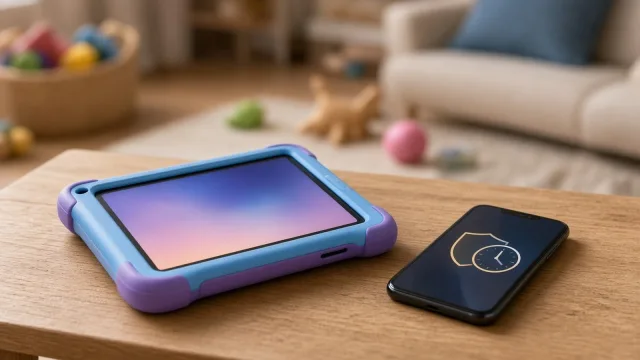
- Use profiles and PIN locks to keep children's viewing age-appropriate.
Remote and voice features
Many TV remotes have a microphone button for voice search. The microphone usually works only when you press it. Some TVs also have built-in, always-listening microphones or cameras; you can typically disable them in settings, or use the physical privacy switch if provided.
Part B: Home Wi-Fi cameras and video doorbells
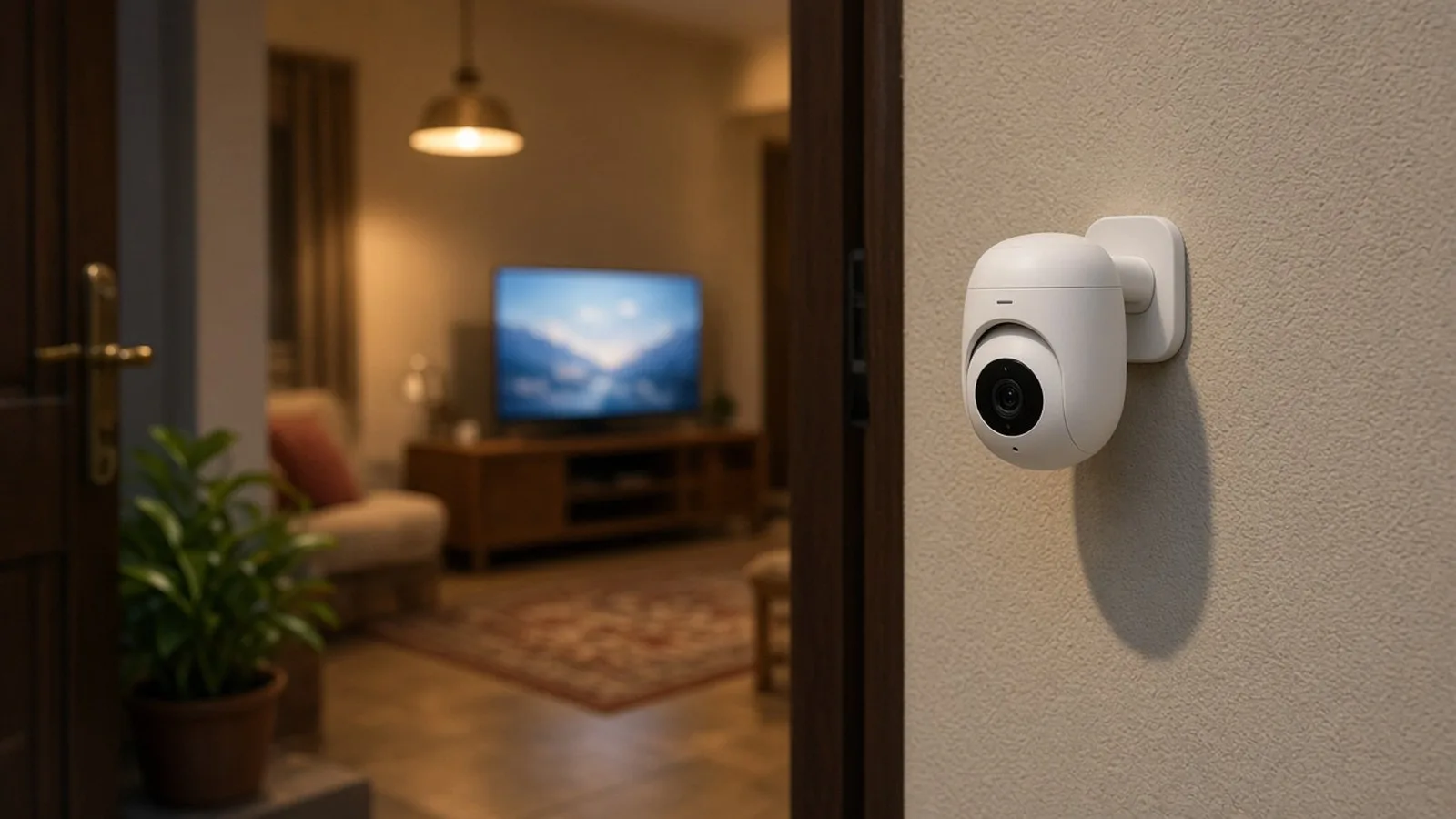
Wi-Fi cameras from brands like CP Plus, Qubo, Mi (Xiaomi), TP-Link Tapo, Godrej, Imou and others are popular for watching the front door, elderly parents, children or pets. Video doorbells show who is at the door on your phone.
Before you buy
- Prefer known brands with regular app and firmware updates and an Indian service network.
- Check whether recordings are stored on a memory card in the camera, in the cloud (often a paid plan), or both.
- Look for features like encryption, two-factor login in the app, and privacy mode.
- Very cheap, unbranded cameras sometimes have weak security and stop getting updates quickly.
Setting up securely
- Install the official app and create an account with a unique, strong password.
- Turn on two-factor authentication in the camera app if available.
- Connect the camera to your Wi-Fi, ideally a strongly protected network.
- Update the camera's firmware straight away.
- Share access with family members through the app's official "share" feature rather than sharing your password.
Where to point cameras
- Point outdoor cameras at your own door or gate, not into a neighbour's home or window. Respecting neighbours' privacy avoids disputes and possible legal trouble.
- Avoid cameras in bedrooms and bathrooms.
- If you have domestic help, it is fair and respectful to tell them where cameras are.
Part C: Change default passwords
Many devices come with a default username and password, such as "admin/admin", printed in the manual or on a sticker. Criminals know these defaults and use automated tools to search the internet for devices that still use them. This is how some cameras and routers around the world have been hijacked.
What to change
- Router admin password: the password for the router's settings page, not just the Wi-Fi password. Check the sticker and your provider's app.
- Wi-Fi password: use a long password with WPA2 or WPA3 security.
- Camera and DVR/NVR passwords: wired CCTV systems with a recorder box often have their own admin password. Ask your installer to set a strong unique password and give it to you, not keep it.
- App accounts for TVs, cameras and smart plugs.
Store these passwords in a password manager, or write them down and keep them somewhere safe at home.
Part D: Update firmware
Firmware is the software built into a device. Updates fix security holes, as we saw in Part 47.
- Smart TV: look for Settings > System > About > Software update or similar, and enable auto-update.
- Cameras and doorbells: open the app, select the device, and look for Firmware or Device info.
- Router: check the router app or admin page, or ask your internet provider.
- DVR/NVR: ask your CCTV installer how updates are done.
If a device has not received an update for years and the brand has stopped supporting it, consider replacing it, especially if it is a camera inside your home.
Part E: Protecting privacy
- Use privacy mode on indoor cameras when family is at home. Many apps can turn cameras off automatically when your phone is home.
- Review who has access to camera feeds in the app and remove old phones and people who no longer need access.
- Check notification previews. Doorbell snapshots appear on your lock screen, which others can see.
- Be careful with cloud recordings. Delete old clips you do not need.
- Do not post camera footage of other people on social media without thinking about their privacy.
- Before selling or giving away a TV, camera or speaker, sign out of all accounts and do a factory reset.
Part F: Consider a guest network
Many routers let you create a guest network, a separate Wi-Fi name and password. You can use it for visitors and, on some routers, for smart devices. This keeps them separate from the laptops and phones you use for banking. Check your router's app or ask your provider whether this is supported.
Part G: Signs a device may be compromised
- A camera moves or its light turns on when nobody is using it.
- You hear unknown voices from a camera or doorbell speaker.
- Your app shows logins from unfamiliar devices or places.
- Settings change by themselves, or the device becomes very slow.
If this happens, change the account password, sign out of all devices, update firmware, and factory reset the device if needed. If you suspect someone is spying on you, report it at cybercrime.gov.in.
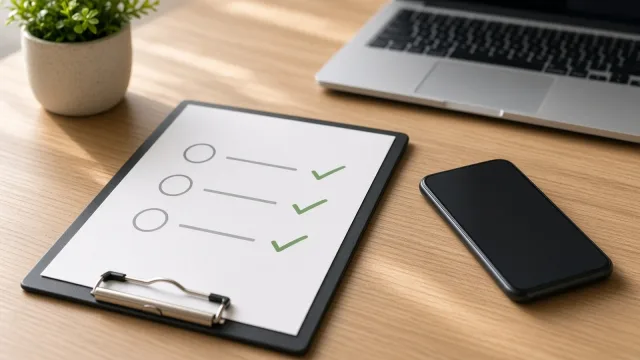
Part H: A home IoT security checklist
Use this short list once, and then repeat it every six months:
- List every connected device in your home: TV, streaming stick, cameras, doorbell, speakers, plugs, bulbs and the router.
- Confirm each one has a changed, unique password or is protected by an app account with a strong password.
- Turn on two-factor authentication for each app that offers it.
- Check for firmware updates on every device.
- Remove devices you no longer use from the apps and the router.
- Review who has shared access to cameras and remove anyone who no longer needs it.
- Check TV privacy settings for viewing data and ad personalisation.
It takes about half an hour and greatly reduces the chance of a stranger getting into your home network.
Frequently asked questions
Can someone hack my smart TV?
It is possible, but the risk is low if you keep the TV updated, install apps only from the official store and avoid unknown APK files.
Is it safe to view my home camera from my office?
Yes, if you use the official app with a strong password and two-factor authentication, and keep the camera updated.
Should I cover my laptop or TV camera?
A small sliding cover is a cheap, simple way to block a camera when you are not using it, and gives peace of mind.
What is a DVR or NVR?
It is a recorder box used with wired CCTV systems. It stores footage from several cameras and has its own password, which should be changed from the default.
What is next
Try this today: change your router's admin password if it is still the default, check for firmware updates on your TV or camera, and review who can view your camera feed. In the next part of Tech for Beginners, we will explore smartwatches and fitness bands for beginners.