A strong password is a good lock. But if a criminal steals or guesses it, the lock is open. Two-factor authentication (2FA) adds a second lock: even with your password, nobody can sign in without a second proof that only you have, such as a code on your phone. In India, most people already use a form of this every day: the OTP you receive for banking and UPI. This is Part 21 of our Tech for Beginners series. Today we will explain how 2FA works, the different types (SMS OTPs, authenticator apps, sign-in prompts and passkeys), how to turn it on for Google, WhatsApp and other accounts, and the golden rule: never share an OTP.
In Part 20 we built strong, unique passwords with a password manager. 2FA is the next layer. Since your email is the master key (see Part 18), start there. And because OTP fraud is so common, keep our guide on protecting yourself from UPI and online payment frauds handy. When you travel or use public Wi-Fi, the tips in Part 13 add another layer of safety.
What is two-factor authentication?
To prove who you are, a service can check things from different categories, called factors:
- Something you know: a password or PIN.
- Something you have: your phone, a SIM card, or a security key.
- Something you are: your fingerprint or face.
2FA (also called 2-Step Verification or multi-factor authentication) uses two of these together. A thief who steals your password from a leaked website still cannot get in without your phone.
Think of it like a bank locker: you need your key and the bank's key together. One alone does not open it.
Types of second factors
1. SMS OTP
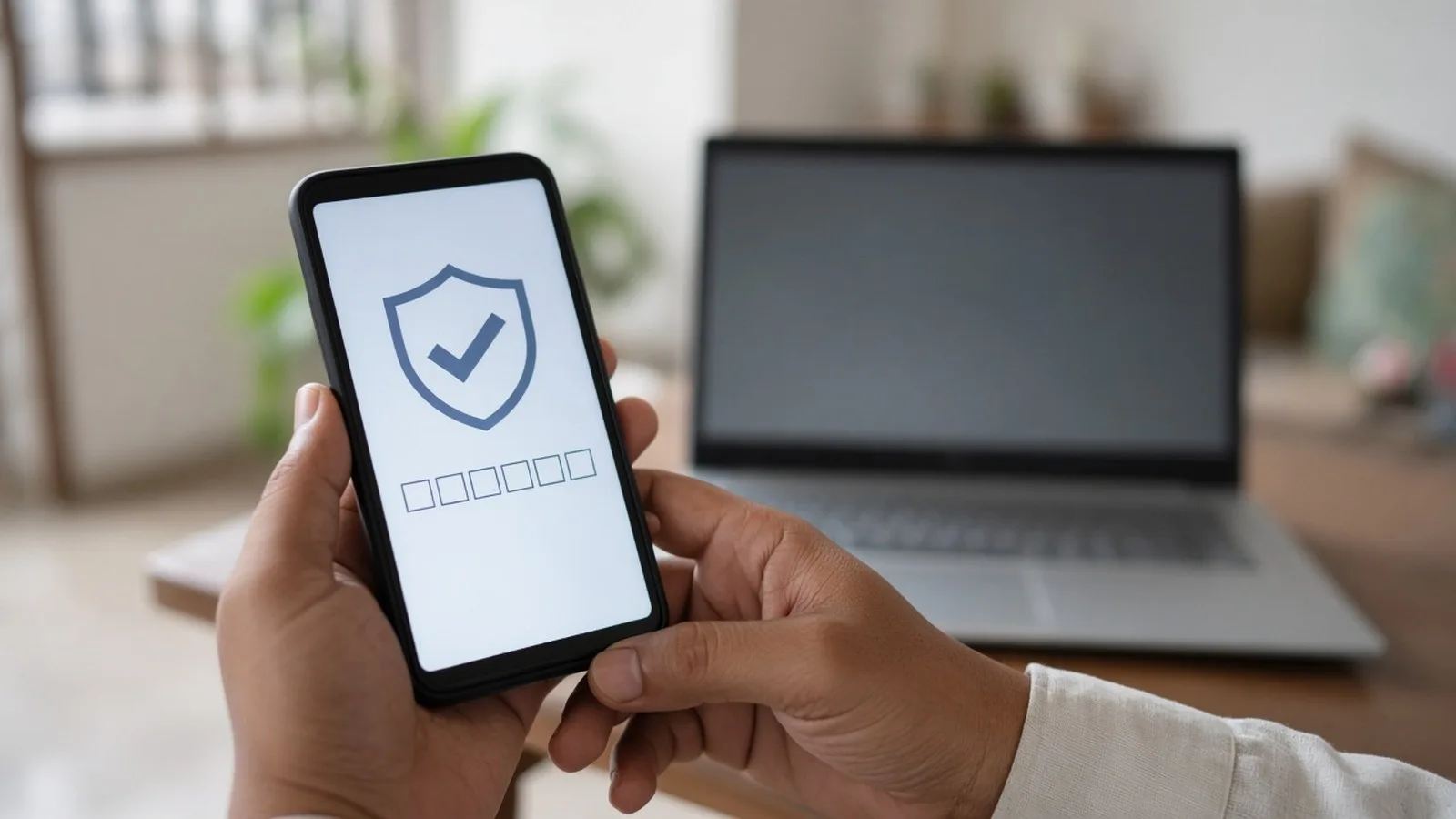
A one-time password (OTP) is a short code, usually 4 to 8 digits, sent by SMS. It works for one sign-in or one payment and expires within minutes.
- Pros: works on any phone, no app needed.
- Cons: SMS can be stolen through SIM swap fraud (where a criminal tricks the operator into issuing a new SIM for your number), and people can be tricked into reading out the OTP on a call.
2. Sign-in prompts on your phone
Google, Microsoft and others can show a pop-up on your phone asking, "Are you trying to sign in?" with details of the device and location. You tap Yes or No. Tap Yes only if you are the one signing in right now.
3. Authenticator apps
Apps such as Google Authenticator and Microsoft Authenticator generate a new six-digit code every 30 seconds, even without internet or mobile signal. They are generally safer than SMS because the codes are not sent over the phone network.
4. Passkeys
A passkey is a newer way to sign in that replaces the password. Your phone stores a secret key, and you sign in by unlocking your phone with your fingerprint, face or screen lock. Passkeys are designed to resist phishing, because they only work on the real website they were created for. Google, Apple, Microsoft and a growing number of services support them.
5. Backup codes
Many services give you a set of one-time backup codes to use if you lose your phone. Print or write them down and keep them somewhere safe at home.
Which accounts to protect first
- Your main email (Google or Microsoft), because it can reset everything else.
- Your phone's account (Google or Apple), which holds your photos, contacts and saved passwords.
- WhatsApp, which fraudsters hijack to ask your contacts for money.
- Social media such as Facebook and Instagram.
- Shopping, investment and government portals that store your address, PAN or payment details.
Turn on 2-Step Verification for your Google Account
- On Android, open Settings, tap Google, then Manage your Google Account. On a computer, go to myaccount.google.com.
- Tap the Security tab (it may be called Security & sign-in).
- Under "How you sign in to Google", tap 2-Step Verification.
- Follow the steps. You will usually confirm your phone number, and Google will send a code to test it.
- Turn it on.
- Then add extra options from the same page: Google prompts, an authenticator app, passkeys, and backup codes.
After this, signing in on a new device will ask for your password plus a second step.
Turn on two-step verification for WhatsApp
WhatsApp accounts are often hijacked by tricking people into sharing the six-digit registration code sent by SMS. Two-step verification adds a PIN that is needed when your number is registered on a new phone.
- Open WhatsApp and go to Settings (three dots on Android, or the Settings tab on iPhone).
- Tap Account, then Two-step verification.
- Tap Turn on (or Enable).
- Enter a six-digit PIN you will remember, and confirm it. Do not use your birth year or 123456.
- Add an email address when asked, so you can reset the PIN if you forget it.
WhatsApp will occasionally ask for this PIN to help you remember it. Never share it, and never share the SMS registration code, with anyone.
Other important accounts
- Microsoft / Outlook: sign in to your Microsoft account, open Security, and turn on two-step verification. The Microsoft Authenticator app can approve sign-ins.
- Apple Account: two-factor authentication is on by default for most accounts. Check in Settings, your name, Sign-In & Security.
- Facebook and Instagram: open Accounts Centre, then Password and security, then Two-factor authentication.
- Shopping, government and investment portals: look in profile or security settings for 2FA, OTP login or authenticator options.
2FA in banking and UPI
In India, the RBI requires an additional factor of authentication for most digital payments. That is why your bank sends OTPs for card payments and net banking, and why UPI asks for your UPI PIN. Banks are also adding other options, such as approvals inside the bank app, device binding (linking your account to your specific phone and SIM) and biometrics. The exact methods vary by bank.
The important thing for you: an OTP or PIN is your signature. Entering it, or telling it to someone, approves a transaction or sign-in.
The golden rule: never share an OTP
No genuine bank, UPI app, telecom operator, courier company, government office or police officer will ever ask you to read out an OTP or PIN on a call, SMS or WhatsApp. Fraudsters use many stories:
- "Your KYC is expiring; tell me the OTP to update it."
- "I sent money to your number by mistake; please share the code to return it."
- "Your parcel is held; confirm the code to release it."
- "This is the cyber police; you are under investigation" (the so-called "digital arrest" scam).
Always read the full OTP message. Most banks state what the OTP is for, the amount and the merchant, and warn you not to share it. If the message says "debit" or "payment" and you are not paying, stop.
Protect your SIM
- Never share your Aadhaar OTP or personal details with callers claiming to be from your operator.
- If your phone suddenly shows "No service" for a long time in an area with normal coverage, contact your operator from another phone immediately; it can be a sign of SIM swap fraud.
- Set a SIM PIN if your phone supports it (Settings, Security, SIM card lock), so a stolen SIM cannot be used easily in another phone.
If you lose your phone
- Block the SIM by calling your operator and request a replacement SIM on the same number.
- Use your backup codes or another sign-in method to access your Google or Apple account from another device.
- Sign out the lost phone from your accounts' security pages, and use Find My Device (Android) or Find My (iPhone) to lock or erase it.
- You can also report a lost or stolen phone on the government's Sanchar Saathi portal to block it.
Frequently asked questions
Is 2FA annoying to use every day?
Usually not. Most services ask for the second step only on a new device or after a long time, not every time you open the app. A few seconds of extra effort is a small price for keeping your accounts safe.
Is SMS OTP still worth using?
Yes. SMS-based 2FA is far better than no 2FA. If a service offers an authenticator app, prompts or passkeys, those are generally stronger.
Someone called saying they sent me an OTP by mistake. What should I do?
Do not share it. It is a common trick to take over your WhatsApp or approve a payment. Hang up. If you lost money, call 1930 or report at cybercrime.gov.in.
What happens if I forget my WhatsApp two-step PIN?
If you added an email, you can reset it through the link WhatsApp sends. Otherwise you may need to wait a set period before you can re-register without the PIN.
What is next
Try this today: turn on 2-Step Verification for your Google account, enable two-step verification in WhatsApp, and save your backup codes somewhere safe. In the next part of Tech for Beginners, we will set up a UPI app and make your first payment, step by step.