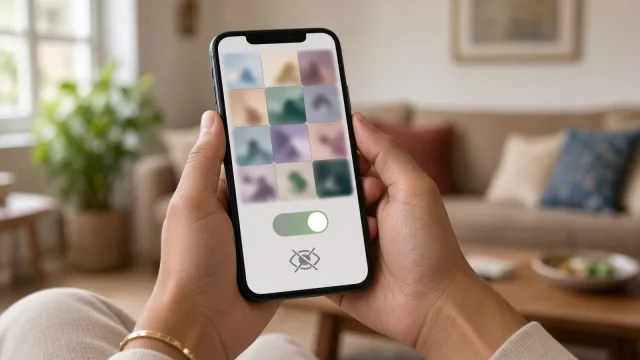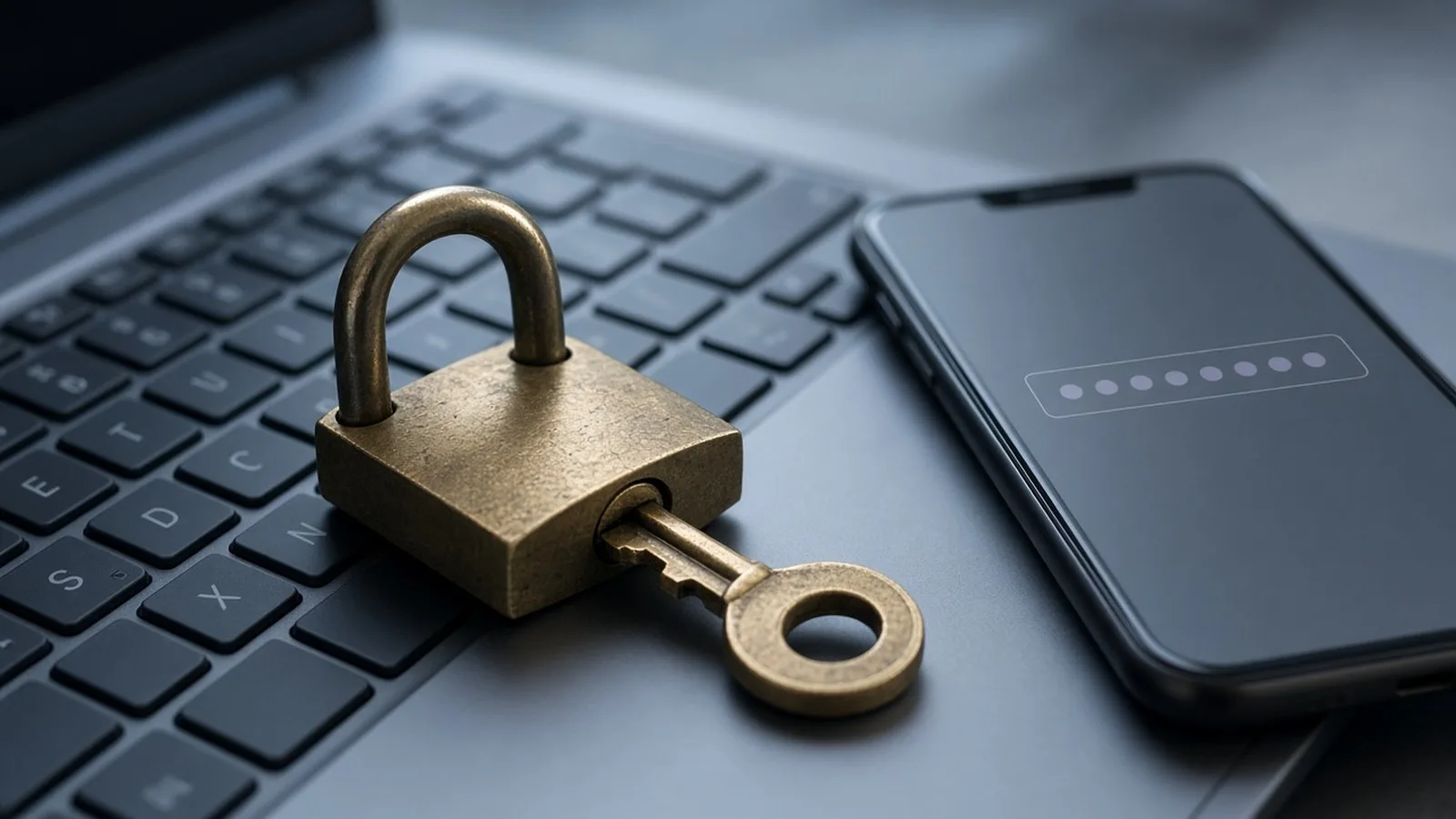
Passwords protect your email, social media, shopping accounts, government portals and much more. Yet many people still use passwords like 123456, their name with a birth year, or the same password everywhere. When one website is hacked, criminals try those leaked passwords on other sites, and every account that shares the password falls like dominoes. This is Part 20 of our Tech for Beginners series, and the start of a new section on staying safe online. Today we will learn what makes a password strong, how to create passphrases you can remember, why reusing passwords is risky, how to use the free password managers built into Android and iPhone, and how to check whether your passwords have leaked.
In Part 18 we saw that your email is the master key to your other accounts, so its password matters most. In Part 16 we mentioned the browser's offer to save passwords; today we explain it. If you suspect someone already has access, read how to tell if your phone is hacked. Your phone's screen lock, which we set up in Part 2, is the first password most of us use every day.
Passwords, PINs and screen locks: what is the difference?
- Password: used for online accounts such as email, Facebook or a shopping site.
- Phone screen lock: a PIN, pattern, password, fingerprint or face unlock that protects the phone itself (set up in Parts 2 and 3).
- Banking PINs: your ATM PIN and UPI PIN. These are secret numbers you never share with anyone, ever. We cover UPI PINs in Parts 22 and 23.
Today's lessons apply mainly to online account passwords, but the "never share, never reuse" rule applies to all of them.
What makes a password weak
Criminals use computer programs that try millions of guesses quickly, starting with the most common passwords and personal details. Weak passwords include:
- Common ones: 123456, password, qwerty, 111111, india123.
- Your name, your child's name, pet's name, or favourite cricketer, with or without a birth year.
- Your phone number, vehicle number or date of birth.
- Short passwords, even with symbols, such as Ra@12.
- Simple swaps that guessing programs know well, like P@ssw0rd.
What makes a password strong
- Length matters most. Aim for at least 12 to 15 characters. Every extra character makes guessing much harder.
- Unpredictable. Not based on personal information others can find on social media.
- Unique. Used for only one account.
- Mix it up where a site requires it: capital and small letters, numbers and symbols.
Passphrases: strong and easy to remember
A passphrase is a password made of several random words. It is long, so it is strong, and it is easier to remember than a jumble like x7#Qp!2z.
- Pick four or five unrelated words. They can be from English, Hindi, Tamil or any language written in English letters, for example: mango, bicycle, monsoon, kettle.
- Join them, and add a number or symbol if the site needs it: Mango-Bicycle-Monsoon-Kettle7.
- Make a picture in your mind to remember it: a mango riding a bicycle in the monsoon, carrying a kettle.
Do not use famous phrases, song lyrics, film dialogues or proverbs; guessing programs include those. And do not use the example above.
Passphrases are ideal for the few passwords you must remember yourself: your phone's account (Google or Apple), your main email, and your password manager if you use a separate one.
Why reusing passwords is dangerous
Suppose you use the same password for a small shopping website and your Gmail. If the shopping website is hacked and its passwords leak, criminals will automatically try your email address and that password on Gmail, banks, social media and more. This is called credential stuffing, and it is one of the most common ways accounts are taken over.
Rule: one account, one password. The only practical way to do this for dozens of accounts is a password manager.
Password managers: a safe notebook for passwords
A password manager stores your passwords in an encrypted vault, fills them in automatically when you sign in, and can create strong random passwords for you. You only need to unlock it, usually with your phone's screen lock or fingerprint.
Google Password Manager (Android and Chrome)
- It is built in. When you sign in to a website or app, Android or Chrome may ask, "Save password?". Tap Save.
- When creating a new account, tap the password field and choose Use suggested password (or similar) to let Google create a strong one.
- To see saved passwords: open Settings, tap Google, then Autofill and Google Password Manager (the path may vary), or open Chrome's three-dot menu, then Password Manager.
- Your passwords sync to your Google Account, so they are available on your other devices when you sign in.
Apple Passwords (iPhone)
- On recent iOS versions, open the Passwords app. On older versions, go to Settings, then Passwords.
- When you sign up for a new account in Safari or an app, the iPhone offers a strong password. Tap to use it; it is saved automatically.
- Passwords sync through iCloud Keychain to your other Apple devices.
Other password managers
Independent password managers also exist, both free and paid. If you choose one, download it only from the official app store, check the developer, and protect it with a strong master passphrase that you never reuse. For most beginners, the built-in Google or Apple manager is the simplest place to start.
Is it safe to store all passwords in one place?
For most people, yes, it is much safer than reusing weak passwords. The key conditions are: your phone must have a screen lock, your Google or Apple account must have a strong password, and you should turn on 2-Step Verification (Part 21).
Check whether your passwords have leaked
Google Password Checkup
- Open Google Password Manager as above.
- Tap Checkup (or Password Checkup) and then check passwords.
- It shows compromised passwords (found in known leaks), reused passwords and weak passwords.
- Tap each one to go to the site and change it.
On iPhone
- Open the Passwords app (or Settings, Passwords) and look for Security or Security Recommendations.
- Make sure Detect Compromised Passwords is on.
- Follow the suggestions to change leaked or reused passwords.
Have I Been Pwned
The well-known free website haveibeenpwned.com lets you type your email address to see whether it appeared in known data breaches. If it did, change the password for that service and any account where you used the same password.
A simple plan to fix your passwords this week
- Day 1: change your main email password to a strong passphrase you have never used elsewhere.
- Day 2: turn on your phone's built-in password manager and let it save passwords as you sign in.
- Day 3: run Password Checkup or Security Recommendations.
- Days 4 to 7: change compromised and reused passwords, starting with banking, shopping and social media.
Helping parents and elders with passwords
Older family members often struggle with passwords and end up writing them everywhere or asking shopkeepers for help. A few gentle steps can keep them safe:
- Set up a strong passphrase together for their main Google or Apple account, and turn on the built-in password manager so they rarely need to type passwords.
- Keep a written copy of that one passphrase and their recovery details in a sealed envelope at home, not in their wallet or phone cover.
- Add yourself as their recovery email or phone only if they agree, so you can help them get back in.
- Teach them one simple rule: "If anyone asks for a password, PIN or OTP, it is a fraud. Hang up and call me."
- Check their accounts with them once in a while, using Password Checkup and the security pages.
Golden rules
- Never share your password with anyone, including people claiming to be from your bank, Google, Microsoft, the police or customer care.
- Do not write passwords on sticky notes stuck to your laptop or phone cover.
- Do not type passwords on links received in SMS, WhatsApp or email. Open the site or app yourself.
- Change a password immediately if you think someone has seen it.
Frequently asked questions
How often should I change my passwords?
You do not need to change strong, unique passwords on a fixed schedule. Change them when there is a reason: a leak, a suspicious sign-in, or if you shared one by mistake.
What if I forget my phone's Google or Apple password?
Use the "Forgot password" option, which sends a code to your recovery phone or email. This is why recovery details (Part 18) are so important.
Should I let my browser save my net banking password?
Many people do, with a phone screen lock and 2-Step Verification on. Some prefer to remember banking passwords themselves. Either way, your bank's OTP and PIN must never be saved or shared.
What is next
Try this today: change your email password to a long passphrase and run a password checkup. In the next part of Tech for Beginners, we will add a second lock to your accounts with two-factor authentication, OTPs, authenticator apps and passkeys.