A phone can do a lot, but some jobs are simply easier on a bigger screen with a proper keyboard: typing a long college assignment, filling government forms, working from home, editing photos, running a small shop's accounts, or attending online classes. If you are thinking of buying your first laptop or desktop, the shop shelves and online listings can be confusing: i5 or Ryzen 5, 8 GB or 16 GB, SSD or HDD, Windows or Chromebook? This is Part 44 of our Tech for Beginners series, and the start of a new section on computers. Today we will compare laptops and desktops, Windows, macOS and Chromebooks, explain what processor, RAM, storage and screen size mean, give budget guidance in broad ranges, and share warranty and service tips.
If you are curious how we got from room-sized machines to slim laptops, read our story of the computer. A laptop's battery follows the same care rules as your phone's, covered in Part 6. You will connect it to your home Wi-Fi from Part 11, and cloud storage from Part 33 can make up for a smaller hard disk.
A note on changes: computer prices, models and specifications change every few months, and festive sales can move prices a lot. The budget ranges below are rough guides only, not quotes. Always compare current prices from several sellers, and check the exact specifications on the manufacturer's website before you buy.
Step 1: Decide what you will use it for
Before looking at any model, write down what you will actually do on the computer. Most people fall into one of these groups:
- Basic use: web browsing, email, YouTube, video calls, online forms, documents and spreadsheets, school work.
- Office and multitasking: many browser tabs, large spreadsheets, office software, video meetings all day.
- Creative work: photo editing, video editing, design.
- Gaming or specialised software such as engineering or programming tools.
Most families need only basic or office use. Do not pay for power you will not use.
Step 2: Laptop or desktop?
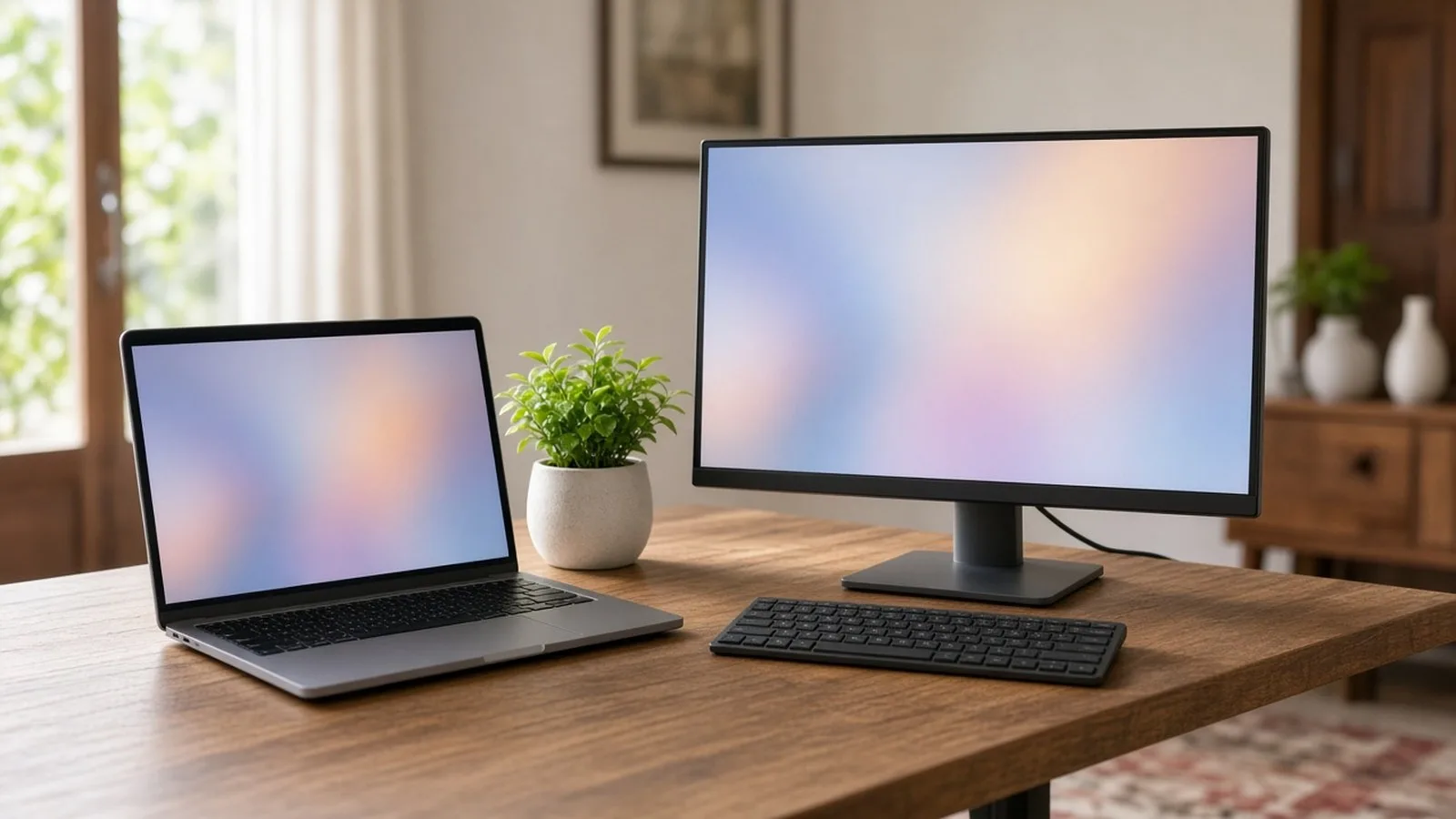
Laptop
- Pros: portable, has a built-in battery (useful during power cuts), screen, keyboard, webcam and speakers in one.
- Cons: costs more for the same power, harder and costlier to repair or upgrade, small screen can strain eyes over long hours.
Desktop
- Pros: more power for the money, bigger screen, easier to repair and upgrade, comfortable for long working hours.
- Cons: not portable, takes up space, needs a UPS (an inverter-style battery backup) to survive power cuts, and you buy the monitor, keyboard and mouse separately unless it is an all-in-one.
An all-in-one desktop puts the computer inside the screen, saving space but making repairs harder. For students and people who move around, a laptop is usually best. For a fixed home office, shop counter or family computer, a desktop can be better value.
Step 3: Windows, macOS or Chromebook?
Windows
The most common choice in India, made by many brands at many price points. It runs most software, including many government utilities, accounting software and exam tools. Good if you are not sure what you need.
macOS (Apple MacBook and iMac)
Made only by Apple. Known for good build quality, long battery life and smooth working with iPhones. Prices start higher, and some Indian business or government software may only run on Windows. Repairs at authorised centres can be expensive.
ChromeOS (Chromebook)
Simple, fast and secure laptops that run mainly on the Chrome browser and web apps, with Google account sign-in. Good for students and basic browsing, and often cheaper. They cannot run regular Windows software, and some work best with internet access. Check that the apps you need work before buying.
Step 4: Understand the key specifications
Processor (CPU): the brain
The processor decides how fast the computer feels. The main makers are Intel (Core i3, i5, i7 and the newer "Core Ultra" names), AMD (Ryzen 3, 5, 7) and Apple's own chips in Macs. Some newer Windows laptops use Snapdragon chips.
- Higher numbers (5, 7) generally mean more power within the same generation.
- Newer generation matters as much as the name: a new Core i3 or Ryzen 3 can beat an old i5.
- For basic and office use, a recent Core i3/i5, Ryzen 3/5 or equivalent is usually enough.
- Avoid very low-end processors such as older Celeron or Athlon models for anything beyond the simplest tasks.
RAM (memory): the work table
RAM is short-term memory used while programs are running. More RAM lets you keep more tabs and apps open smoothly.
- 8 GB: the minimum for a Windows computer today; fine for light use.
- 16 GB: recommended for office work, multitasking and longer life.
- Check whether RAM can be upgraded later; in many thin laptops it is fixed.
Storage: SSD versus HDD
- SSD (solid state drive): much faster. Your computer starts in seconds and apps open quickly. Always choose an SSD for the main drive.
- HDD (hard disk drive): older, slower, cheaper per GB. Fine only as extra storage for files.
- Size: 512 GB SSD is a comfortable choice for most people. 256 GB can work if you use cloud storage and an external drive.
Screen
- Size: 14 inches is portable; 15.6 inches is easier on the eyes and common in budget laptops. Desktop monitors of 22 to 24 inches suit most homes.
- Resolution: look for Full HD (1920 x 1080) at minimum. Avoid HD (1366 x 768) screens; text looks blurry.
- Panel: IPS or OLED panels show better colours and viewing angles than basic TN panels.
- Anti-glare (matte) screens are easier to use near windows.
Other things to check
- Battery life: read real-world reviews, not just the brand's claims.
- Weight: under about 1.5 kg is comfortable to carry daily.
- Ports: USB-A and USB-C ports, HDMI for a TV or projector, a headphone jack, and possibly an SD card slot.
- Webcam and microphone: important for online classes and meetings.
- Keyboard: try it in a shop if you will type a lot; a backlit keyboard helps at night.
- Wi-Fi: newer Wi-Fi standards (Wi-Fi 6 or later) work better with modern routers.
- Software: check whether Windows and Microsoft Office (or Microsoft 365) are included, and whether Office is a lifetime licence or a time-limited trial.
Step 5: Budget guidance in broad ranges
These are rough ranges for new Windows laptops in India; actual prices vary widely with brand, sales and offers:
- Entry level (roughly ₹25,000 to ₹40,000): basic browsing, documents and online classes. Look hard for an SSD, 8 GB RAM and a Full HD screen; some cheaper models cut corners.
- Mid range (roughly ₹40,000 to ₹70,000): the sweet spot for most office workers and college students: recent i5 or Ryzen 5, 16 GB RAM, 512 GB SSD, good screen.
- Upper range (above roughly ₹70,000): premium build, better screens, longer battery life, creative work or gaming.
Chromebooks are often cheaper than Windows laptops with similar build, while MacBooks generally start higher. Student and festive discounts, bank card offers and exchange offers can reduce prices, but compare the final price including any conditions.
Step 6: Warranty, service and buying safely
- Buy from authorised sellers: brand stores, well-known retailers or the brand's official online store. Be careful with very cheap deals from unknown sellers.
- Check the warranty: usually one year. Consider an extended warranty or accidental damage protection from the brand, especially for students.
- Check service centres: make sure the brand has an authorised service centre in or near your town. This matters more than a small price difference.
- Register the product on the brand's website and keep the bill, as you may need it for warranty claims.
- Check on delivery: record an unboxing video, check for physical damage, and confirm the specifications in the system settings match what you paid for.
- Refurbished options: refurbished laptops from reputed sellers with a warranty can save money. Avoid unverified second-hand sales without a bill.
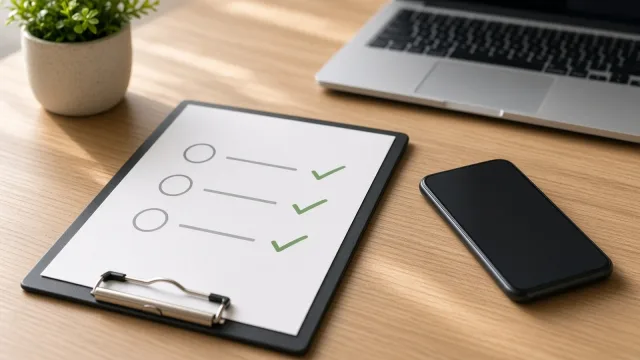
A quick buying checklist
- My main uses are: ________
- Laptop or desktop: ________
- Windows, macOS or Chromebook: ________
- Recent processor (i3/i5, Ryzen 3/5 or equivalent): ________
- RAM: 8 GB minimum, 16 GB preferred
- SSD: 512 GB preferred
- Screen: Full HD, IPS or better
- Warranty and nearby service centre confirmed
- Budget: ________
Frequently asked questions
Is a gaming laptop a good choice for general use?
Usually not. Gaming laptops are heavier, have shorter battery life and cost more. Buy one only if you will play demanding games or use heavy creative software.
Should I buy a laptop with a touch screen?
It is optional. Touch screens can be handy for some people, but they cost more and use more battery. A regular screen is fine for most users.
Do I need antivirus software?
Windows includes built-in security called Microsoft Defender, which is enough for most home users if you keep Windows updated. Avoid buying extra antivirus software just because a salesperson pushes it.
What is next
Try this today: write down the three main things you want to do on a computer and your budget range, then compare two models against our checklist. In the next part of Tech for Beginners, we will learn the basics of Windows and macOS: the desktop, Start menu, Finder and Settings.