"Alexa, switch off the fan." "Hey Google, play old Kishore Kumar songs." Not long ago, talking to your house sounded like science fiction. Today, smart speakers, smart plugs and smart bulbs are sold in every electronics shop and online store in India, often for less than the price of a mixer grinder. They can make daily life easier, especially for elderly family members and people with limited mobility. This is Part 51 of our Tech for Beginners series. Today we will explain what a smart home really is, how to set up an Alexa or Google speaker, how to control smart plugs and bulbs with an app, how to create routines, how to use Hindi and other Indian-language voice commands, and how to choose devices that work together.
Every smart device depends on a stable home network, so it helps to revisit Part 11 on Wi-Fi and your home router and Part 14 on broadband plans. Some devices also pair over Bluetooth during setup, which we covered in Part 13. In the next part, we will look at keeping these devices secure.
A note on changes: smart home apps, assistant features, supported languages and device compatibility change frequently. Amazon and Google are also adding new AI features to their assistants, and the names and abilities of these assistants may differ from what you read here. Prices vary by brand and sale. Always check the product box or listing for compatibility with your assistant and your home Wi-Fi before buying.
Part A: What is a smart home?
A smart home simply means some of your household devices can be controlled from your phone or by voice, and can work automatically on a schedule. It does not require rewiring your house or spending lakhs. You can start with a single smart plug.
The main building blocks are:
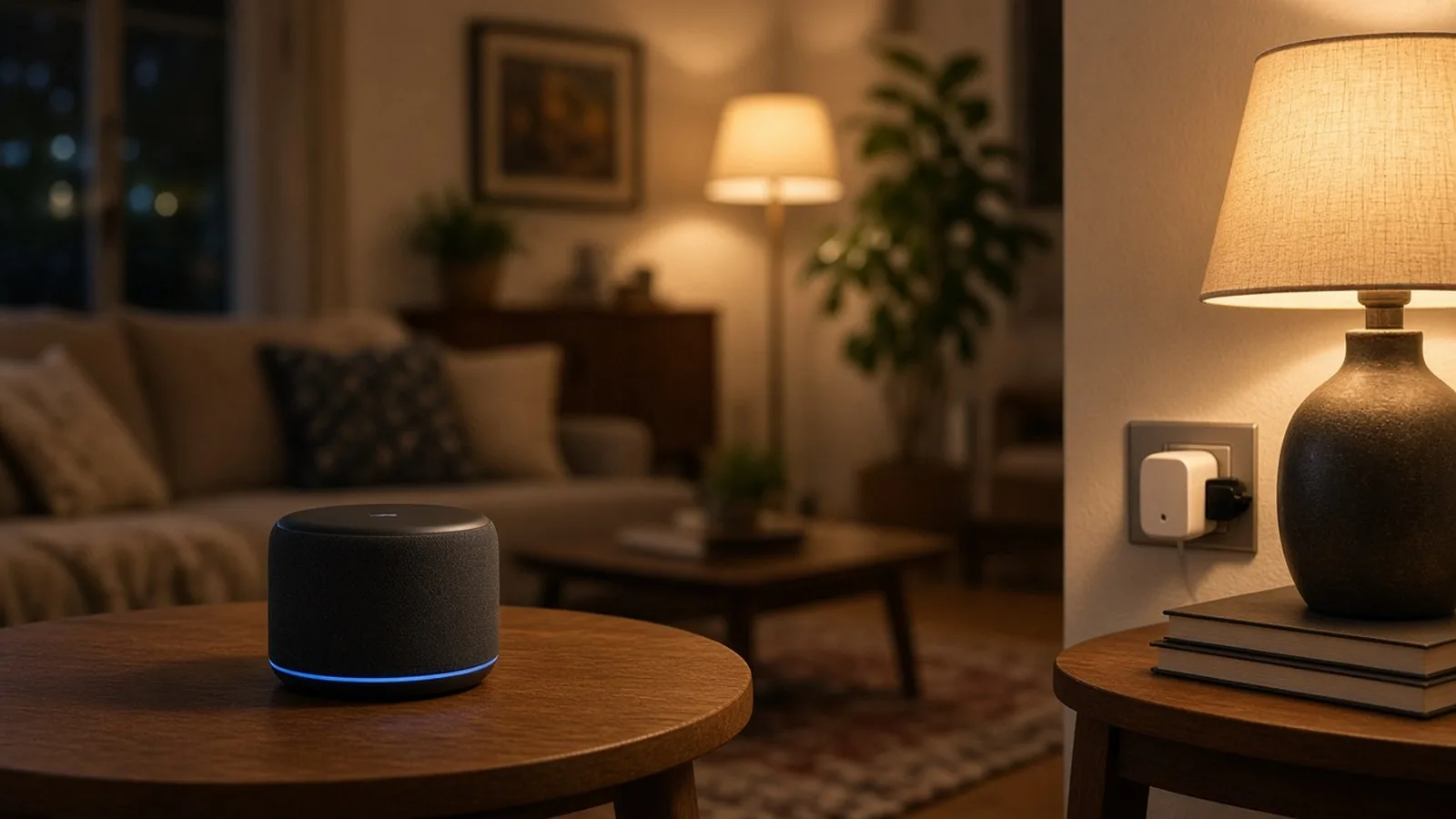
- Smart speakers and displays: devices like the Amazon Echo (with the Alexa assistant) and Google Nest speakers (with Google's assistant). They listen for a "wake word" and respond to voice commands. Displays add a screen for video calls, recipes and cameras.
- Smart plugs: a plug adapter that goes between the wall socket and an appliance, letting you switch it on or off from your phone.
- Smart bulbs: LED bulbs that you can switch, dim and sometimes change colour from an app.
- Other devices: smart switches, ceiling fans, air conditioners, IR remotes, door locks, video doorbells and cameras.
- The app: each brand has an app, and many also connect to the Alexa or Google Home app so you can control everything in one place.
Part B: Why people use smart devices
- Convenience: switch off lights from bed, or turn on the geyser before waking up.
- Elderly care: a parent with knee pain can control the fan or lights by voice. Some speakers can call family members.
- Saving electricity: schedules turn off appliances you forget, like a water heater or a set-top box.
- Music, news and information: ask for bhajans, cricket scores, the weather or a quick unit conversion.
- Reminders: medicines, bill payments and alarms.
Part C: Setting up a smart speaker
Amazon Echo (Alexa)
- Install the Amazon Alexa app from the Play Store or App Store, and sign in with your Amazon account.
- Plug in the Echo speaker. Its light ring usually turns orange when it is ready for setup.
- In the app, tap Devices > + > Add Device, choose Amazon Echo, and follow the steps.
- Connect it to your home Wi-Fi (most speakers prefer a 2.4 GHz or dual-band network).
- Choose your language, for example English, Hindi or Hinglish, depending on what is offered.
Google Nest speaker
- Install the Google Home app and sign in with your Google account.
- Plug in the speaker, open the app and tap + > Device > New device.
- Choose your home, follow the prompts and connect to Wi-Fi.
- Set up Voice Match so the speaker recognises your voice, and set your preferred language.
Where to place the speaker
- In a central spot, away from the TV and kitchen noise.
- Not hidden inside cupboards, which muffles the microphones.
- Within good Wi-Fi range.
Part D: Smart plugs and bulbs
Setting up a smart plug
- Check the plug's current rating. Small plugs (often 10A or 6A) are for lamps, fans, chargers and TVs. Heavy appliances like geysers and ACs need a 16A plug, and you should follow the manufacturer's advice.
- Install the brand's app (for example Wipro, Syska, Philips, TP-Link Tapo and others) and create an account.
- Plug it into the wall socket, and press the setup button if instructed.
- Add the device in the app, connect to your home Wi-Fi, and give it a clear name like "Bedroom Fan" or "Geyser".
- Link the brand's account to Alexa or Google Home in their app (look for "Skills" in Alexa, or "Works with Google" in Google Home).
Setting up a smart bulb
- Fit the bulb into a regular holder (check whether you need a B22 pin type or E27 screw type, common in India).
- Switch on the wall switch, add the bulb in its app, and connect it to Wi-Fi.
- Leave the wall switch on; you will now control the bulb from the app or by voice. If someone switches off the wall switch, the bulb goes offline.
Naming tips
Choose short, unique names that are easy to say, like "hall light" and "puja light". Avoid two devices with similar names, which confuse the assistant.
Part E: Routines and schedules
A routine runs several actions with one command, or at a set time. Examples:
- "Good morning": turn on the kitchen light, read the weather and the news.
- Schedule: switch on the geyser smart plug at 6:00 AM and off at 6:30 AM on weekdays.
- "Good night": switch off all lights, turn the bedroom bulb to warm dim light, set an alarm.
- Away mode: turn lights on and off in the evening when you are travelling, so the house looks occupied.
In the Alexa app, go to More > Routines. In Google Home, look for Automations. Brand apps also offer schedules and timers.
Part F: Using Hindi and Indian-language commands
Alexa supports Hindi and understands many Hinglish commands, such as "Alexa, light band karo" or "Alexa, gaana bajao". Google's assistant also supports Hindi on its speakers. Support for other Indian languages varies by device and changes over time, so check the language settings in the app.
- Speak naturally, at normal speed.
- Use the exact device name you set in the app.
- If a command fails, try a simpler version, like "hall light on".
Part G: Choosing devices that work together
- Look for labels like "Works with Alexa" or "Works with Google Home" on the box or listing.
- Newer devices may support Matter, an industry standard designed to make smart devices from different brands work together. It is still rolling out, so check support for your speaker and app.
- Prefer well-known brands with an Indian service network and a working app with good reviews.
- Avoid devices that need lots of separate apps; try to stick to one or two brands at first.
- Check whether the device works with 2.4 GHz Wi-Fi only, which most do. Dual-band routers usually handle this automatically.
- Compare power ratings for plugs, and buy ISI-marked or certified electrical products.
Part H: Privacy basics for smart speakers
Smart speakers listen for their wake word and generally send audio to the company's servers after hearing it. To stay in control:
- Use the microphone off button when having private conversations.
- Review and delete voice recordings in the Alexa or Google app privacy settings.
- Turn on a voice PIN or confirmation for purchases, so children cannot order things.
- Do not ask the speaker to remember passwords, PINs or bank details.
Part I: Electrical safety
- Do not overload a smart plug beyond its rated current.
- Do not use multi-plug extensions with heavy appliances.
- For smart switches that replace wall switches, use a qualified electrician.
- Schedules for geysers are convenient, but still follow the manufacturer's safety instructions.
Frequently asked questions
Do smart devices work without internet?
Most need Wi-Fi and internet for voice control and app access from outside. If the internet goes down, many smart plugs and bulbs can still be switched manually, and some keep running their schedules.
Is a smart plug better than a smart switch?
Plugs are easier: no wiring, and you can move them. Smart switches look neater and control ceiling lights and fans, but usually need an electrician.
Is the speaker always recording me?
Companies say their speakers listen locally for the wake word and record only after hearing it, though accidental activations can happen. You can review recordings and use the mute button.
Can I control my home when I am out of town?
Yes, through the brand app or Alexa and Google Home apps, as long as your home Wi-Fi and internet are working.
What is next
Try this today: if you have a smart speaker or plug, rename your devices with short, clear names and create one simple routine. In the next part of Tech for Beginners, we will look at smart TVs, CCTV cameras and IoT security at home.