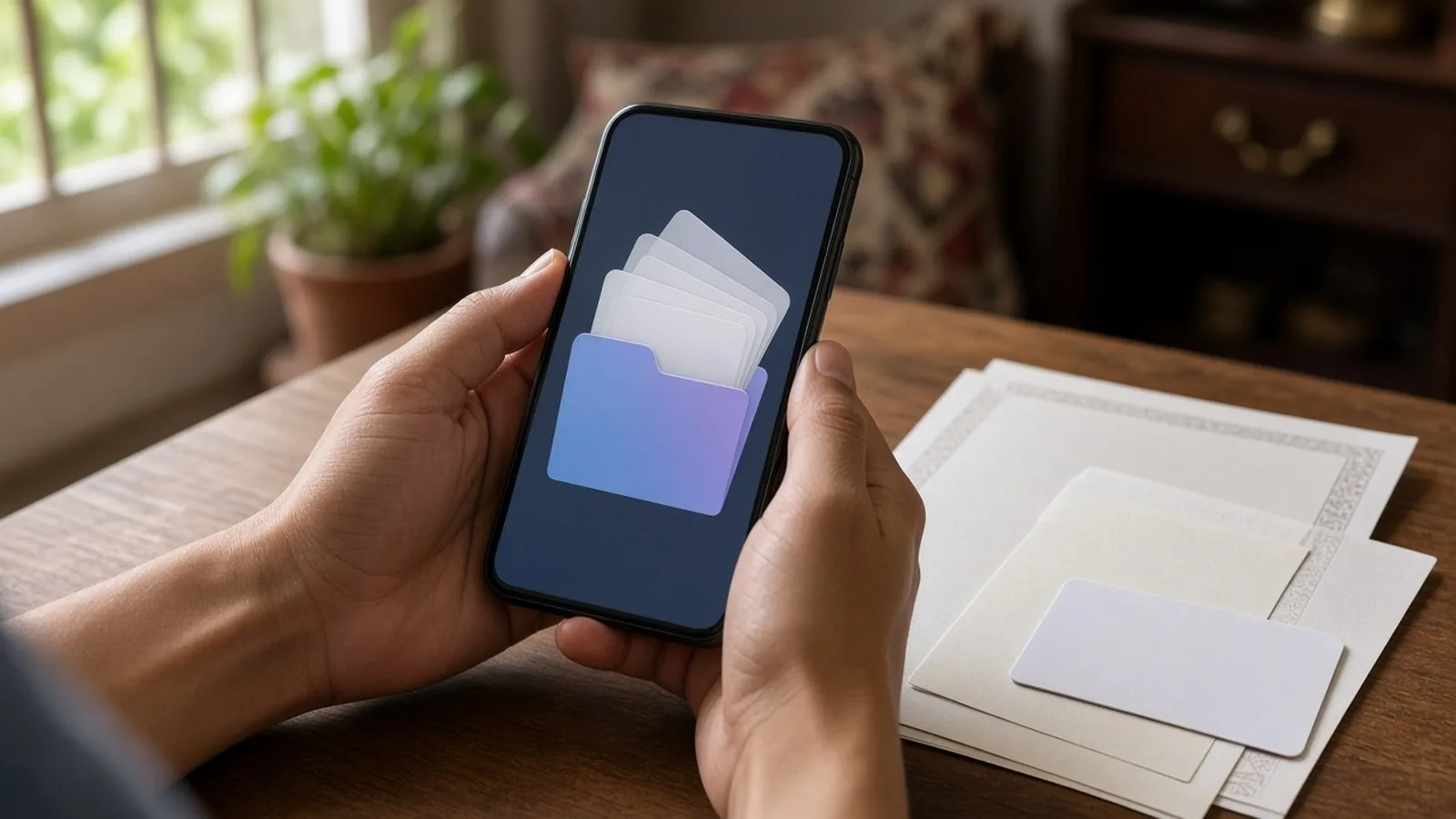
How many times have you searched the house for your PAN card, your Class 10 marksheet, or your vehicle's registration certificate? Or been stopped by traffic police and realised your driving licence was in another wallet? DigiLocker, the Government of India's free digital document wallet, solves much of this. It lets you fetch official copies of documents such as your driving licence, vehicle RC, PAN and marksheets directly from the issuing departments, and keep them ready on your phone. This is Part 31 of our Tech for Beginners series. Today we will sign up for DigiLocker, fetch issued documents, understand where they are accepted, and learn to share them safely.
Install DigiLocker only from the official app store listing, as explained in Part 5. To scan paper documents neatly before uploading, use the tips in Part 8. Protect your account with a strong, unique password or PIN as in Part 20.
A note on changes: the list of available documents and the app's menus change over time, and availability can differ by state, board or department. Check the app for what is available to you.
What is DigiLocker?
DigiLocker is a service under the Digital India programme of the Ministry of Electronics and Information Technology (MeitY). It has two parts:
- Issued Documents: digital documents pulled directly from the original issuer's database, such as the transport department, the Income Tax Department or an education board. These are digitally signed by the issuer.
- Uploaded Documents (Drive): your own scans or photos that you upload for safekeeping. These are like a personal folder; they are not verified by any issuer.
The real value is in Issued Documents. According to DigiLocker, documents in the Issued Documents section are legally treated at par with the original documents when used electronically, under the Information Technology Act.
Sign up for DigiLocker
- Install the official DigiLocker app from the Play Store or App Store (check that the developer is the government's Digital India / MeitY team), or visit digilocker.gov.in.
- Tap Sign up (or Create account).
- Enter your name as per Aadhaar, date of birth, gender and mobile number.
- Set a 6-digit security PIN. Do not use your birth year or 123456.
- Enter the OTP sent to your mobile.
- Choose a username if asked.
- Link your Aadhaar by entering the number and the OTP sent to your Aadhaar-registered mobile. Linking Aadhaar is what allows DigiLocker to find documents in your name.
After signing up, your Aadhaar usually appears automatically in Issued Documents.
Fetch your issued documents
- Open the app and log in with your PIN or fingerprint.
- Tap Search or Search Documents (or browse categories such as Transport, Education, Identity).
- Type the document name, for example "Driving Licence" or "PAN".
- Select the right issuer, for example the transport department of your state or the Income Tax Department.
- Enter the details asked, such as your driving licence number, vehicle registration number, roll number and year, or PAN.
- Tick the consent box and tap Get Document.
- The document appears under Issued Documents.
Popular documents you can usually fetch
- Aadhaar (from UIDAI).
- Driving licence and vehicle registration certificate (RC) (from the Ministry of Road Transport and Highways and state transport departments).
- PAN verification record (from the Income Tax Department).
- Class 10 and 12 marksheets and certificates from CBSE and many state boards, and certificates from several universities.
- Insurance policies from some insurers, and various state certificates such as caste, income or birth certificates in many states.
- Vaccination certificates and other documents, depending on availability.
If a document is not found, check that the details you entered exactly match the original. Older records may not yet be digitised by the issuer.
Where are DigiLocker documents accepted?
- Traffic police and transport departments: the Ministry of Road Transport and Highways has advised states to accept the driving licence and RC shown in DigiLocker or the mParivahan app as valid. Under the Central Motor Vehicles Rules, documents in electronic form can be produced. Showing a photo or PDF in your gallery is not the same; open the document inside the app.
- Education: many universities and employers accept DigiLocker marksheets and certificates, especially from CBSE and boards that issue directly.
- Government services: many departments accept documents shared from DigiLocker, and some services pull them directly with your consent.
- Banks and others: some banks and companies can fetch documents from DigiLocker for KYC with your consent.
Acceptance is still growing. Some offices may ask for originals or photocopies. DigiLocker itself notes that it is working to improve awareness. Carry originals for important appointments until you are sure. A quick call to the office beforehand, asking "Do you accept documents from DigiLocker?", can save you a wasted trip.
Share documents safely
DigiLocker lets you share a document without sending a scan on WhatsApp.
- Open the document in Issued Documents.
- Tap Share (or the three-dot menu, then Share).
- Choose how to share, such as a link or a PDF. Where offered, set a time limit or PIN for the link.
- Send it only to the person or organisation that needs it.
Good sharing habits
- Share only the document needed, not your whole set.
- For Aadhaar, share a masked version where possible (Part 29).
- Prefer official "Fetch from DigiLocker" options on government and bank websites, where you approve access inside DigiLocker, over sending files by chat.
- Check the activity or consent history in DigiLocker occasionally to see which apps have accessed your documents, and revoke access you no longer need.
Upload your own documents
You can also store scans of documents that are not available as issued documents, such as rent agreements, medical reports or old certificates.
- Scan the document clearly (Part 8).
- In DigiLocker, open Drive or Uploaded Documents.
- Tap Upload and choose the file. Give it a clear name, such as "Rent agreement 2026".
Storage space for uploads is limited, so store important papers only. Remember that uploaded documents are just copies; they do not carry the issuer's digital signature.
DigiLocker for students and job seekers
DigiLocker is especially useful for students. Many boards and universities issue marksheets, pass certificates and migration certificates directly to DigiLocker, and India's Academic Bank of Credits for higher education is connected to it.
- After results are declared, search for your board (for example CBSE or your state board) in DigiLocker.
- Enter your roll number and year of passing as printed on your admit card.
- Save the marksheet and certificate in Issued Documents.
- When applying for college admission or a job, check whether the institution accepts DigiLocker documents or offers a "Fetch from DigiLocker" option.
This saves you from repeatedly getting copies attested, and the employer or college can verify that the document came from the board.
Using DigiLocker on a computer
- Open digilocker.gov.in in your browser (type the address yourself).
- Sign in with your mobile number or username, then your PIN and OTP.
- Download documents as PDFs if you need to print or attach them.
- On a shared or cyber cafe computer, delete downloads afterwards and always sign out.
One account per person
Each family member should have their own DigiLocker account, linked to their own Aadhaar and mobile number. Documents are fetched in the name of the account holder, so a parent cannot fetch a grown-up child's documents into their own account. For young children, check the app for any options for minors, or keep their documents in your uploaded folder until they are old enough for their own account.
Keep your DigiLocker account safe
- Never share your DigiLocker PIN or OTP. DigiLocker staff will not ask for it.
- Turn on fingerprint or face unlock in the app if offered, and keep your phone's screen lock on.
- Beware of fake DigiLocker websites and apps. The official website is digilocker.gov.in.
- If you change your mobile number, update it in DigiLocker's profile settings.
- If you lose your phone, sign in on another device and change your PIN, and use Sanchar Saathi to block the phone (Part 28).
Frequently asked questions
Is DigiLocker free?
Yes. Creating an account and fetching issued documents is free.
Do I still need to carry my physical driving licence?
The driving licence in DigiLocker or mParivahan is meant to be accepted by traffic police as valid. Still, keep the app logged in and your phone charged, and carry the original for long trips or if you are unsure.
Can I use DigiLocker without Aadhaar?
You can create an account with your mobile number, but linking Aadhaar is needed to fetch most issued documents in your name.
What if my name is spelled differently in different documents?
Fetching may fail if the details do not match. Correct the record with the issuing department, then try again.
What is next
Try this today: install DigiLocker, link your Aadhaar and fetch one issued document, such as your driving licence or PAN record. In the next part of Tech for Beginners, we will explore other useful government apps such as UMANG, mParivahan and Sanchar Saathi.