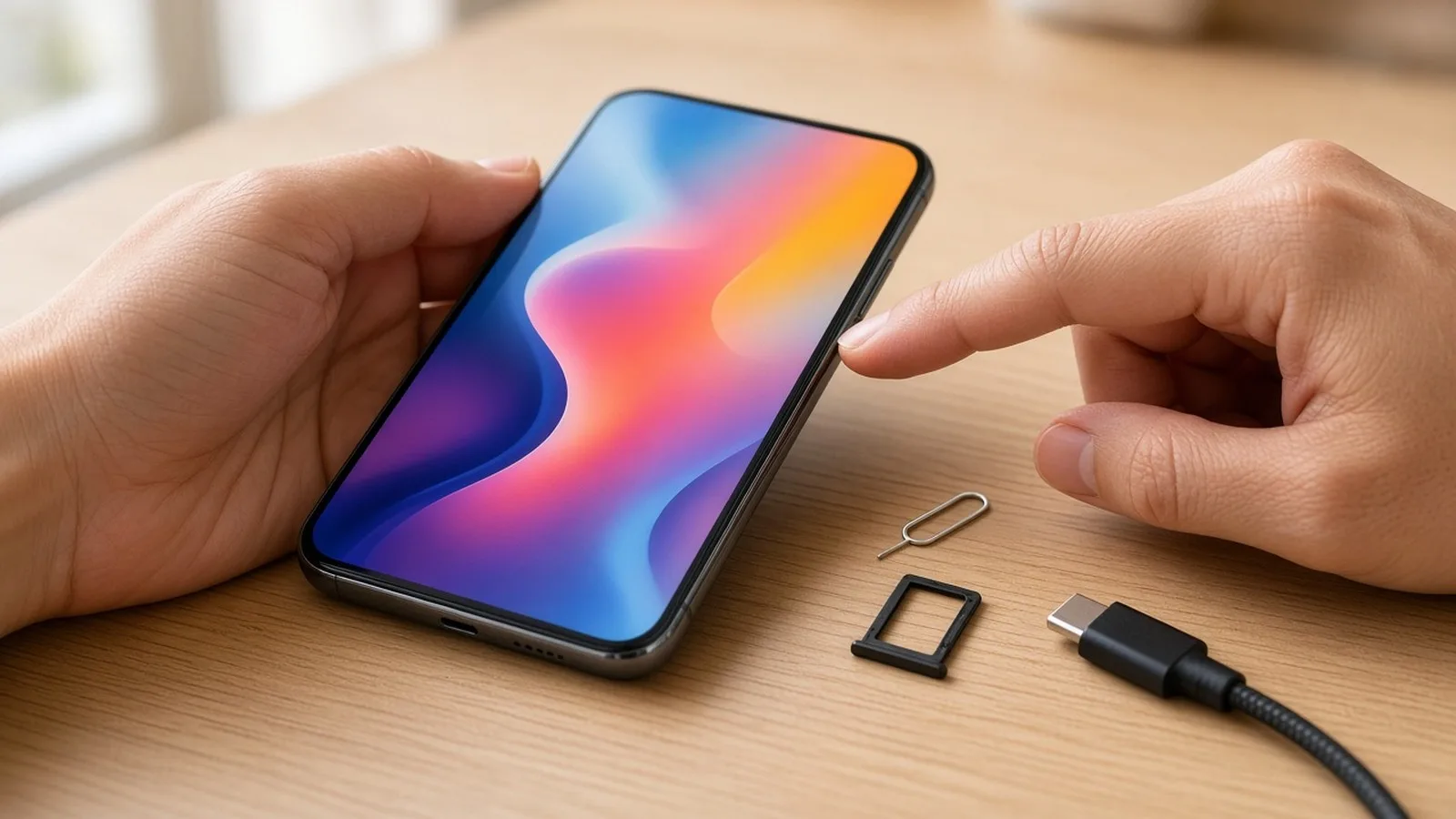
If you have just bought your first smartphone, or someone in the family has handed you their old one, it can feel like a small box full of mysteries. This is Part 1 of our Tech for Beginners series, and it is written for exactly that moment. By the end, you will know the parts of your phone, the basic finger movements that control it, and the handful of words you will see again and again in the rest of this series.
You do not need any background. We will use simple language, Indian examples and step-by-step lists. If a button or menu on your phone is in a different place, don't worry. The ideas are the same.
What is a smartphone, really?
A smartphone is a small, battery-powered computer that can also make phone calls. An older "feature phone" (the kind with physical number keys) is mainly for calls and SMS. A smartphone adds a touchscreen, an internet connection and the ability to install apps, which are small programs that each do one job: WhatsApp for chatting, a UPI app like Google Pay, PhonePe, Paytm or BHIM for payments, YouTube for videos, Maps for directions, and so on.
Almost every smartphone sold in India runs one of two systems:
- Android, made by Google and used by brands such as Samsung, Xiaomi/Redmi, Vivo, Oppo, Realme, OnePlus, Motorola, Lava and Google's own Pixel phones. Most phones in India run Android.
- iOS, made by Apple and used only on the iPhone.
Both do the same everyday jobs.
The outside of your phone: a quick tour
Hold your phone with the screen facing you. Here is what you will usually find.
1. The touchscreen
The big glass front is both the display and the keyboard. You control everything by touching it.
2. The power (side) button
Usually on the right edge. A short press turns the screen on or off (this is called locking the screen, and it saves battery). A long press, or on many newer phones a press together with a volume button, brings up options to power off or restart.
3. Volume buttons
Usually a long button or two short buttons on the side. They raise and lower the sound of calls, music, videos and the ringtone. On most phones, pressing power and volume-down together takes a screenshot, a picture of whatever is on your screen. (Some phones use a different combination or a gesture.)
4. Cameras and flash
The front camera, a small dot or notch at the top of the screen, is for selfies and video calls. The rear cameras on the back take your main photos. Phones often have two, three or more rear lenses (normal, wide and zoom, for example), plus a flash that doubles as a torch.
5. Charging port
At the bottom edge. Most new phones use a USB Type-C port, a small oval socket that works either way up. Many older Android phones use the smaller micro-USB port, and older iPhones use Apple's Lightning port. Use a good-quality charger and cable from the phone maker or a trusted brand. Cheap, unbranded chargers can damage the battery.
6. SIM tray
A tiny slot on the side with a pinhole next to it. This holds your SIM card from Jio, Airtel, Vi or BSNL, and on some phones a memory card. Most phones in India are dual SIM, so they can hold two SIM cards at once.
7. Speaker, microphone and earpiece
The earpiece is the thin slit at the top of the screen that you hold to your ear. The loudspeaker is usually at the bottom, with small holes for the microphone nearby.
8. Fingerprint sensor
Many phones let you unlock with a fingerprint. The sensor may be under the screen, built into the power button or on the back. iPhones from recent years use Face ID instead, and some models use Touch ID in the home button.
How to insert a SIM card, step by step
Switch the phone off first if you can.
- Find the SIM ejector pin. It is a small metal pin, usually stuck on a card inside the phone box. A straightened safety pin works in an emergency.
- Locate the tiny hole next to the SIM tray on the phone's edge.
- Push the pin straight into the hole, gently but firmly, until the tray pops out a little.
- Pull the tray out fully and place it on a flat surface.
- Place the SIM in the slot so the cut corner matches the shape of the slot. Most new phones take the smallest size, called nano SIM. Your operator can give you the right size.
- Slide the tray back in the same way it came out, until it sits flush.
- Switch the phone on. After a minute you should see signal bars and your operator's name near the top of the screen.
Touchscreen gestures you will use every day
Gestures are the finger movements that control a smartphone.
- Tap: touch the screen once, lightly, and lift your finger. This opens an app or presses a button. You do not need to press hard.
- Double-tap: two quick taps. Often used to zoom into a photo or a map.
- Long-press (touch and hold): keep your finger on something for about a second. This usually shows extra options, such as moving or deleting an app icon, or copying text.
- Swipe: slide your finger across the screen. Swipe left or right to move between home screens or photos. Swipe up or down to scroll through a page or a chat.
- Swipe down from the top: opens notifications and quick settings for Wi-Fi, mobile data, the torch and brightness. On iPhones with Face ID, swiping down from the top-right corner opens Control Centre.
- Pinch and spread: place two fingers on the screen and move them apart to zoom in, or together to zoom out.
Going "back" and "home"
Older Android phones have three on-screen buttons at the bottom: back (an arrow or triangle), home (a circle or square) and recent apps (three lines or a square). Most newer phones use gesture navigation instead:
- Home: swipe up from the very bottom edge of the screen.
- Recent apps: swipe up from the bottom and hold for a moment.
- Back (Android): swipe in from the left or right edge of the screen.
On Android you can usually switch between buttons and gestures in Settings, under a menu named something like Display, System or Navigation. Menu names differ between brands. iPhones without a home button use the swipe-up gesture for home.
Key smartphone terms, explained simply
These words appear on phone boxes, in shop advertisements and throughout this series.
Operating system (OS)
The main software that runs the phone, such as Android or iOS. It controls the screen, the buttons and how apps work. Each OS has version numbers or names, for example "Android 16" or "iOS 26", and phone makers often add their own design on top, such as Samsung's One UI or Xiaomi's HyperOS.
App
Short for application, a program you install for a particular task. Get apps only from the official stores: Google Play Store on Android and the App Store on iPhone. Avoid installing app files (APKs) sent through WhatsApp or SMS links, because this is a common way fraudsters take over phones. Our guide to protecting yourself from UPI and online payment frauds explains how these scams work.
RAM (memory)
RAM is the phone's short-term working space. It holds the apps you are using right now. More RAM (4 GB, 6 GB, 8 GB and so on) generally means you can switch between apps more smoothly. RAM is cleared when you restart the phone, and you do not save files in it.
Storage (ROM / internal storage)
Storage is the long-term space where your photos, videos, apps and WhatsApp files are kept, even when the phone is off. Phones come with 64 GB, 128 GB, 256 GB or more. Shops sometimes write a phone as "6/128", which means 6 GB of RAM and 128 GB of storage. If you take lots of photos and videos, more storage saves you headaches later.
GB, MB and KB
These are units of size for data. 1 GB (gigabyte) is roughly 1,000 MB (megabytes), and 1 MB is roughly 1,000 KB (kilobytes). A WhatsApp text is a few KB, a photo is a few MB, and a long HD video can be one GB or more. The same units are used for your mobile data pack, for example "1.5 GB per day".
Mobile data and Wi-Fi
Both connect your phone to the internet. Mobile data comes through your SIM and uses your recharge pack. Wi-Fi comes from a router at home, office or a public hotspot. We cover both in detail later in the series.
Update
An update is a free improvement sent by the phone maker or an app developer. System updates improve the OS and fix security holes. App updates fix bugs and add features. Install updates when you are on Wi-Fi with enough battery, because they protect you from newly discovered security problems. Phones only get system updates for a limited number of years, which differs by brand and model.
Screen lock, PIN and biometrics
A screen lock stops others from using your phone. It can be a PIN (numbers), a pattern, a password, or biometrics such as fingerprint or face unlock. Always set one, because your phone holds your banking and UPI apps.
Account (Google account or Apple Account)
The login that links your phone to your contacts, backups and app stores. Android uses a Google account (a Gmail address), and iPhone uses an Apple Account (earlier called Apple ID). Write down the email and password and keep them safe, because you need them if you lose the phone or buy a new one.
Five healthy habits to start with
- Set a screen lock on day one, and never share your PIN or OTPs with anyone, including callers claiming to be from a bank.
- Put on a screen guard and cover to protect the phone from drops.
- Install apps only from the Play Store or App Store.
- Restart your phone every few days or once a week to clear temporary glitches.
- Take breaks from the screen. Our tips on screen time and digital eye strain are a good place to start.
Frequently asked questions
How much RAM and storage does a beginner need?
For calls, WhatsApp, UPI payments, YouTube and photos, many people find 4 to 6 GB of RAM and at least 128 GB of storage comfortable at the time of writing. Heavy gamers and people who shoot lots of video may want more. Needs change as apps grow, so treat these as rough guides.
My phone shows a caller's name even when the number isn't saved. How?
That may be a caller ID app or, increasingly, a network feature from your operator. We explained one such change in our article on caller name display (CNAP) on Jio, Airtel, Vi and BSNL.
What if a button or menu on my phone looks different from this guide?
That's normal. Brands design their menus differently. Use the search bar at the top of the Settings app and type what you are looking for, such as "screen lock" or "navigation".
What's next in the series
Now that you know your way around the outside of the phone and the basic vocabulary, Part 2 walks you through setting up a new Android phone step by step, and Part 3 does the same for the iPhone. Keep your phone charged, your SIM inserted and your Google or Apple login details handy.