From the vegetable vendor and the auto driver to electricity bills and sending money home, UPI has become the everyday way to pay in India. If you have been relying on others to pay for you, or have been nervous to start, this guide is for you. UPI is simple once set up, and safe if you follow a few clear rules. This is Part 22 of our Tech for Beginners series. Today we will explain what UPI is, how to set up an app such as BHIM, Google Pay, PhonePe or Paytm, how to set your UPI PIN, how to pay by QR code, UPI ID or phone number, and how to check your transaction history.
Before you start, you need a bank account. Our guide to bank accounts and deposit insurance explains the basics. Make sure your phone has a screen lock (Part 2) and review Part 21 on why you must never share an OTP or PIN.
A note on changes: UPI limits, features and app screens change from time to time, and banks can set their own limits. The steps here are general; follow your app's on-screen instructions and check current limits in the app or with your bank.
What is UPI?
UPI (Unified Payments Interface) is a system run by the National Payments Corporation of India (NPCI) that lets you send money directly from your bank account to someone else's, instantly, using your phone, any time of day. It was launched in 2016.
- Money moves from bank account to bank account. Apps like Google Pay or PhonePe are just the front door; your money stays in your bank.
- Every payment you send needs your secret UPI PIN, a 4 or 6 digit number you set.
- You can link more than one bank account to one app.
What you need
- A bank account with your mobile number registered with the bank. If your number is not linked, visit your branch or use your bank's official channels to update it.
- A smartphone with that SIM card inside, with SMS working. UPI apps verify your number by sending an SMS from the phone.
- Your debit card for that account (to set the UPI PIN). Some banks also allow setting the PIN with Aadhaar OTP if your Aadhaar is linked to the account.
- Internet access (mobile data or Wi-Fi).
Choosing a UPI app
Popular choices include BHIM (by NPCI), Google Pay, PhonePe and Paytm, and most banks' own apps also support UPI. All work with each other: a Google Pay user can pay a PhonePe user, and so on. Pick one that you find easy, and install it only from the Play Store or App Store, checking the developer name (see Part 5).
Set up your UPI app step by step
The screens differ by app, but the flow is similar:
- Install and open the app. Choose your language if asked.
- Enter your mobile number, the one registered with your bank. If you have two SIMs, choose the SIM with that number.
- Allow SMS verification. The app sends an SMS from your phone to verify your number. Your plan must allow SMS, and you may see a small SMS charge depending on your plan.
- Enter the OTP if asked, and set an app lock (or use your phone's screen lock or fingerprint).
- Choose your bank from the list. The app finds the accounts linked to your mobile number.
- Select the account you want to use.
- Set your UPI PIN (next section), if you have not set one before for that account.
Setting your UPI PIN
- Tap Set UPI PIN (or Activate) for the bank account.
- Enter the last 6 digits of your debit card and its expiry date. If your bank offers it, you may see an option to use Aadhaar instead.
- Enter the OTP sent by your bank to your registered mobile.
- Choose a new UPI PIN of 4 or 6 digits (as your bank requires) and confirm it.
Choose a PIN that is not easy to guess. Avoid 1234, 0000, your birth year or the last digits of your phone number. Do not use the same number as your ATM PIN. Never write it on your card or phone cover.
Three ways to pay
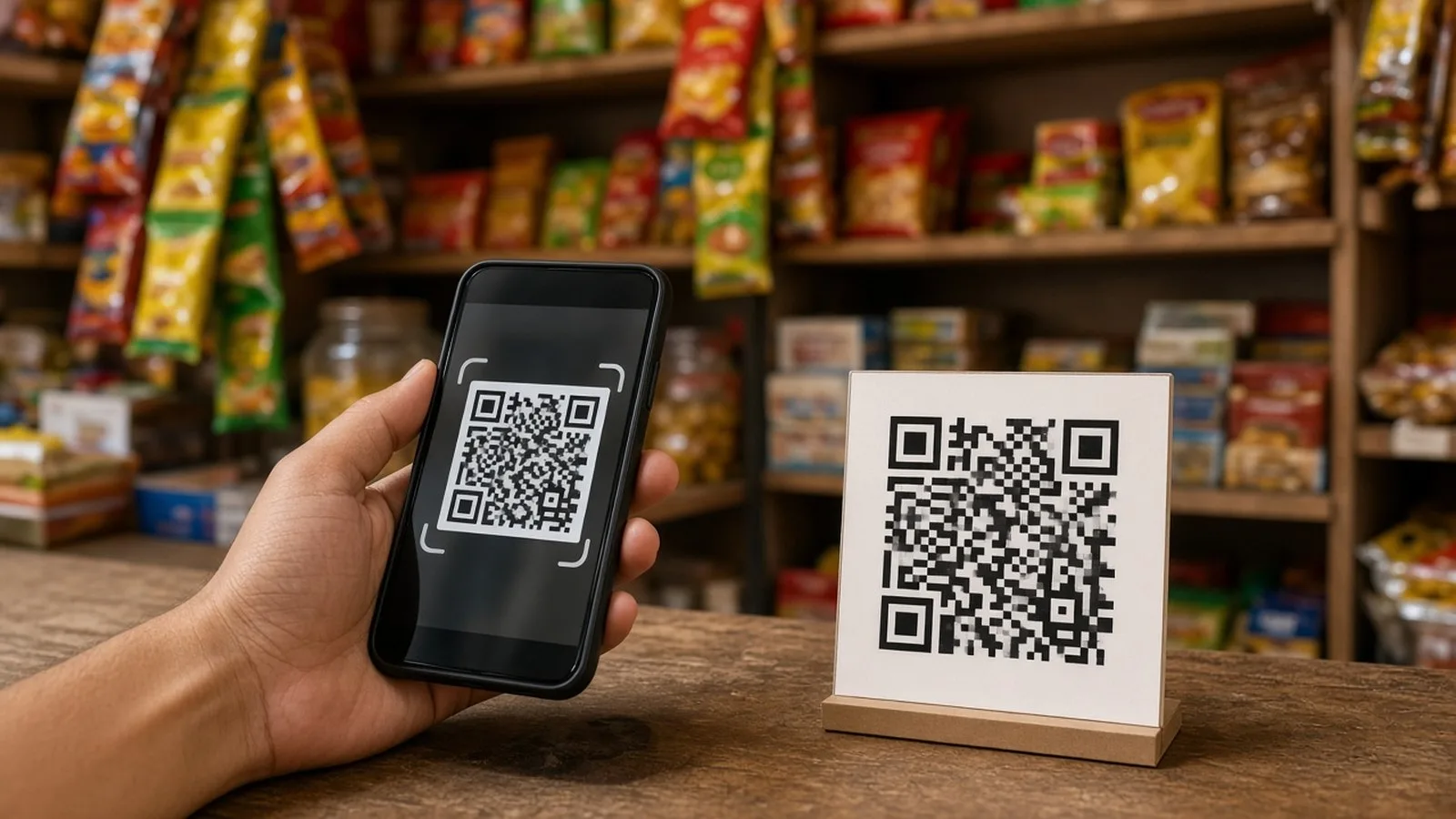
1. Scan a QR code (most common in shops)
- Open your UPI app and tap Scan QR (or Scan & Pay).
- Point the camera at the shop's QR code.
- Check the name shown on your screen. It should match the shop or person you intend to pay.
- Enter the amount (unless the QR already includes it, in which case check it carefully).
- Tap Pay and enter your UPI PIN.
- Wait for the success screen, and show it to the shopkeeper. Many shops also have a speaker that announces payments.
2. Pay to a phone number
- Tap Pay phone number or Pay contacts (names vary).
- Type the number or choose the contact.
- Check the registered name shown by the app. If it does not match the person you expect, stop.
- Enter the amount, add a note if you like ("Rent October"), tap Pay and enter your PIN.
3. Pay to a UPI ID
A UPI ID (also called a VPA) looks like an email address, for example name@bankhandle. You can find your own UPI ID in your app's profile section.
- Tap Pay UPI ID (or Bank transfer, then UPI ID).
- Type the UPI ID carefully and tap Verify. Check the name shown.
- Enter the amount, tap Pay and enter your PIN.
Start small
For your first payment to a new person, send a small amount like Rs 1 and ask them to confirm they received it. Then send the rest.
Receiving money
- Share your QR code (in the app's profile) or your UPI ID or phone number.
- To receive money, you do not need to enter your PIN or scan anything. We will discuss this important safety point in detail in Part 23.
Checking your balance and history
- Check balance: tap your bank account in the app and choose Check balance. You will need your UPI PIN.
- Transaction history: look for History, Transactions or a clock icon. Each payment shows the amount, name, date, time and status (Successful, Pending or Failed).
- Reference number: each transaction has a UPI transaction ID or UTR number. Note it if you ever need to raise a complaint.
- Your bank's SMS alerts and statement also show UPI payments. Always match them.
When a payment is pending or failed
- Do not pay again immediately. First check the status in History.
- If the status is Pending, wait. It often resolves within minutes.
- If money was debited but the payment failed, it is usually reversed automatically. RBI rules set time limits for such reversals, and banks must compensate for delays beyond them.
- If it is not reversed, use the app's Help or Raise a complaint option on that transaction, and contact your bank with the UTR number.
Forgot or want to change your UPI PIN?
- Open the UPI app and tap your profile or bank accounts section.
- Choose the bank account.
- Tap Change UPI PIN if you know the old one, or Forgot UPI PIN (or Reset) if you do not.
- For a reset, enter your debit card details (or use the Aadhaar option if offered) and the bank OTP, then set a new PIN.
Change your PIN immediately if you think anyone has seen it. A new PIN may come with a short cooling period with lower limits, depending on your bank.
Limits and small payments
- UPI has per-transaction and daily limits. For most everyday payments, the general limit is up to Rs 1 lakh per transaction, with higher limits for some categories, but your bank or app may set lower limits, and new users may have lower limits for the first day.
- UPI Lite, available in many apps, lets you load a small balance and make small payments quickly without entering the PIN each time. Check the current limits in your app.
Frequently asked questions
Is UPI free?
For ordinary person-to-person payments and payments from your bank account to shops, users generally do not pay a fee. Some apps may charge small fees on certain services like some bill payments or recharges; check the payment screen.
Can I use UPI without internet?
There is a USSD-based service (*99#) that works on basic phones without internet, though it has fewer features. Most users use UPI apps with mobile data.
What if I change my phone?
Install the app on the new phone with the same SIM and verify again. Your UPI PIN stays the same unless you reset it.
What is next
Try this today: set up a UPI app, check your balance, and pay Rs 1 to a family member to practise. In the next part of Tech for Beginners, we will cover UPI safety: protecting your PIN, payment requests, QR code tricks, fake screenshots and what to do after a wrong payment.