Once you have an email account, the next step is using it with confidence: writing a clear email, replying to the right people, sending a resume or a scanned document, finding old emails, and keeping your inbox free of spam and scams. Emails are also how many offices, colleges and recruiters judge you before they meet you, so a few simple manners help a lot. This is Part 19 of our Tech for Beginners series. Today we will cover writing and replying, CC and BCC, attachments, labels and folders, spam and phishing, and polite email etiquette for job applications and offices.
In Part 18 we created a Gmail or Outlook account. In Part 8 we learned to scan documents to PDF, which you will often attach to emails. The steps below use the Gmail app, with notes for Outlook; menus can look slightly different on your version.
Parts of an email
- To: the main person or people the email is for.
- Cc (carbon copy): people who should know about the email but do not need to act. Everyone can see who is in To and Cc.
- Bcc (blind carbon copy): people who receive a copy without others seeing their address. Useful for sending one email to many people who do not know each other, protecting their privacy.
- Subject: a short title explaining what the email is about.
- Body: your message.
- Attachments: files sent along with the email.
Write and send an email
- Open the Gmail app and tap Compose (the pencil button).
- In To, type the recipient's email address. Check it carefully, letter by letter. Suggestions appear for saved contacts.
- To add Cc or Bcc, tap the small arrow next to the To field.
- Type a clear Subject, such as "Application for Accounts Assistant post - Priya Sharma".
- Write your message in the body.
- Tap the send button (a paper plane icon).
Undo send: Gmail shows an "Undo" option for a few seconds after sending. If you notice a mistake immediately, tap it.
Reply, Reply all and Forward
- Reply: sends your answer only to the person who wrote to you.
- Reply all: sends your answer to everyone in To and Cc. Use it only when everyone really needs your reply. Many embarrassing mistakes happen with Reply all.
- Forward: sends the email, including its attachments, to someone new. Check whether the original sender would be comfortable with that.
In Gmail, these options are at the bottom of an open email, or in the three-dot menu next to the sender's name.
Sending attachments
- While writing an email, tap the paper clip (attachment) icon at the top.
- Choose Attach file to pick from your phone, or Insert from Drive for files in Google Drive.
- Select the file, such as your resume PDF or a scanned certificate.
- Check that the attachment appears at the bottom of your email before sending.
Attachment tips
- Size limits: personal Gmail and Outlook.com accounts allow about 25 MB of attachments per email. For larger files, Gmail offers to share a Google Drive link instead, and Outlook can use OneDrive links.
- Use PDF for resumes and documents. It looks the same on every device. Name the file clearly, such as Priya_Sharma_Resume.pdf, not IMG_20261031.pdf.
- Mention the attachment in your email ("Please find my resume attached"). Gmail may remind you if you mention an attachment but forget to add it.
- Be careful with sensitive documents like Aadhaar, PAN or bank statements. Send them only to verified official addresses.
Opening attachments safely
Do not open attachments from unknown senders, especially files that end in .apk, .exe, .zip or .js, or documents that ask you to "enable content" or "enable macros". Scammers use these to install harmful software.
Organising your inbox
Labels in Gmail
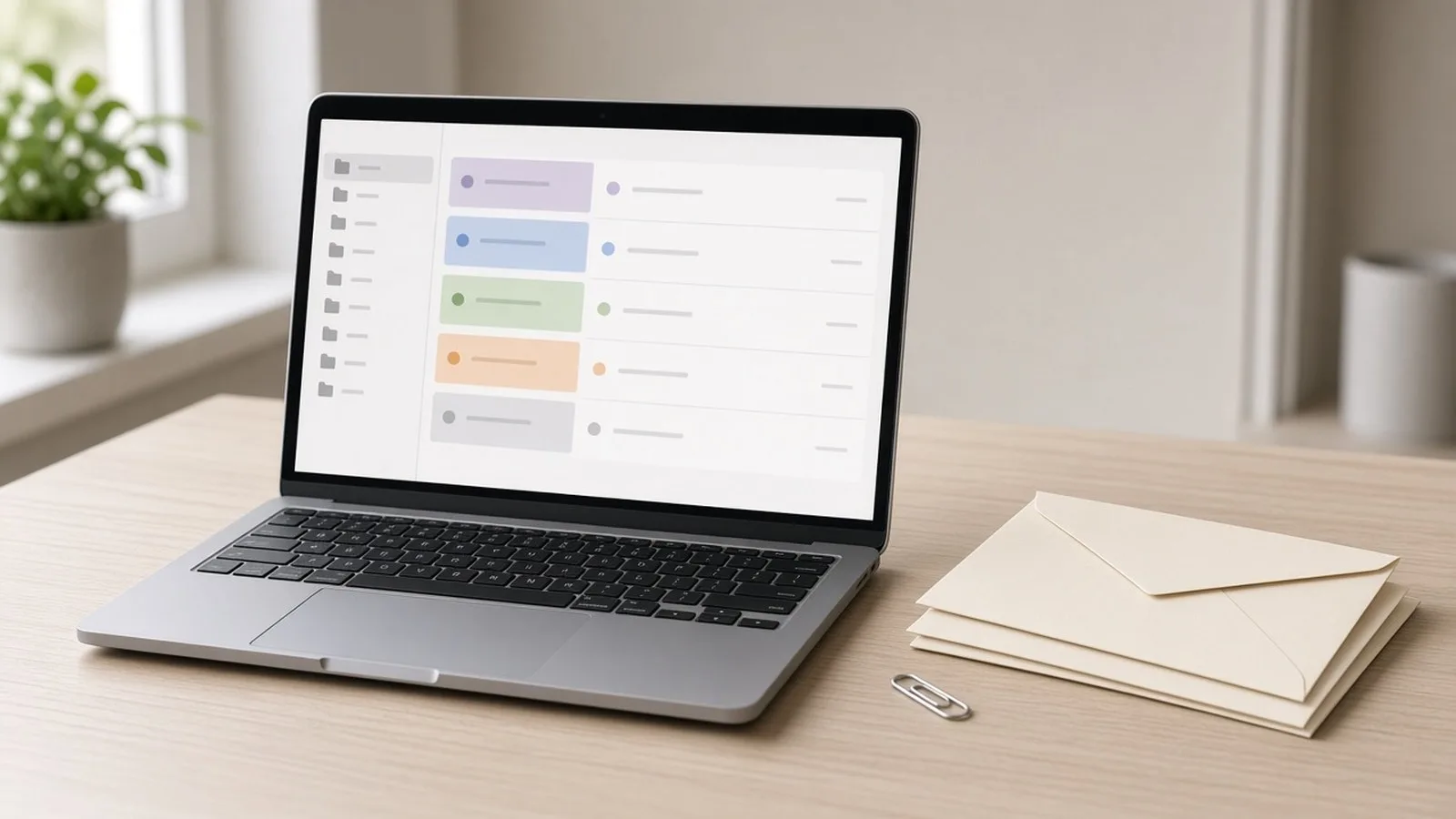
Gmail uses labels, which work like folders but an email can have more than one.
- Open an email.
- Tap the three-dot menu and choose Change labels (or Label as).
- Pick a label, or create a new one, such as "Bank", "Jobs" or "Travel tickets", and tap OK.
Find labelled emails by tapping the menu (three lines) and choosing the label.
Folders in Outlook
In Outlook, tap the three-dot menu on an email and choose Move to move it to a folder. You can create folders from the Outlook website or desktop app.
Archive, delete and star
- Archive removes an email from your inbox but keeps it, so you can find it with search later. Good for emails you may need again.
- Delete moves it to Bin (Trash), where it is usually removed permanently after about 30 days.
- Star (Gmail) or Flag (Outlook) marks important emails to follow up.
Search
Type in the search bar at the top: a person's name, a company, or a word like "ticket" or "statement". Gmail search is powerful, so you rarely need to delete old emails just to find things.
Spam and phishing
Spam is unwanted bulk email. Gmail and Outlook automatically move most of it to the Spam or Junk folder. Phishing is more dangerous: fake emails designed to steal your passwords, card details or money.
Warning signs of phishing emails
- Urgent threats: "Your account will be blocked today", "KYC expired", "Income tax refund pending, click here".
- A sender address that does not match the real organisation, such as a bank email from a free Gmail address or a misspelled domain.
- Links that lead to unfamiliar websites (on a computer, hover over the link to see the real address).
- Requests for OTPs, PINs, passwords, card numbers or remote access apps.
- Prize, lottery or job offers you never applied for, especially ones asking for a "registration fee".
What to do
- Do not click links or open attachments in suspicious emails.
- Mark it as spam or phishing: in Gmail, open the email, tap the three-dot menu and choose Report spam (Report phishing may be available on the web). In Outlook, use Report or Move to Junk.
- If you are unsure, contact the organisation using its official app or number, not details from the email.
- If you clicked and entered a password, change it immediately from the official site and check your recovery settings.
For more on how such tricks work, see our guide to common online scams in India.
Two handy settings: signature and unsubscribe
Add an email signature
A signature is a short block added automatically at the end of every email, with your name and phone number.
- In the Gmail app, tap the menu (three lines), then Settings, and choose your account.
- Tap Mobile signature, type your name and number, and tap OK.
- In Outlook, open Settings, choose your account, and look for Signature.
Unsubscribe from newsletters
Many shopping and newsletter emails are not spam; you signed up for them at some point. To stop them, open one and look for an Unsubscribe link near the sender's name or at the bottom. Use it only for well-known senders. For suspicious emails, report them as spam instead of clicking anything.
Email etiquette for jobs and offices
- Use a professional address, ideally based on your name (Part 18).
- Write a clear subject. "Leave application for 5 November" is better than "Hi".
- Start with a greeting: "Dear Mr Iyer", "Dear Hiring Manager", or "Hello Ma'am".
- Keep it short and polite. Say why you are writing in the first line. Use short paragraphs.
- Avoid all capital letters, which reads like shouting, and too many emojis in formal emails.
- End properly: "Regards", "Thank you" or "Sincerely", then your full name and phone number.
- Check before sending: recipient, spelling, names and attachments.
- Reply in reasonable time, even if only to say you will respond fully later.
Sample job application email
Subject: Application for Customer Support Executive - Ravi Kumar
Dear Hiring Manager,
I am writing to apply for the Customer Support Executive position advertised on your website. I have two years of experience in customer service and speak English, Hindi and Tamil. My resume is attached for your consideration.
Thank you for your time. I look forward to hearing from you.
Regards,
Ravi Kumar
Phone: (your number)
Frequently asked questions
When should I use Bcc?
When emailing a group of people who do not know each other, such as parents of a class or customers, put addresses in Bcc to protect their privacy.
My important email went to spam. What do I do?
Open the Spam folder, open the email and tap Report not spam (or Not junk). Adding the sender to your contacts can also help.
Can I unsend an email after some time?
Only during the short Undo window right after sending. After that, the email has reached the recipient. If needed, send a polite correction.
What is next
Try this today: create two labels or folders, such as "Bank" and "Tickets", move a few emails into them, and send a test email to yourself with a PDF attachment. In the next part of Tech for Beginners, we begin a new section on staying safe online, starting with strong passwords and password managers.