Search engines like Google and Bing can answer almost any question in seconds: train timings, a recipe, the side effects of a medicine, how to apply for a ration card. But the top results are not always the best or the safest. Some are advertisements, some are out of date, and some are deliberately fake, such as false customer care numbers. This is Part 17 of our Tech for Beginners series. Today we will learn how to search smarter with better keywords and simple tricks, how to tell ads from real results, how to find official websites, and how to judge whether a page can be trusted.
In Part 15 we learned how to read a web address, and in Part 16 how to use the browser's address bar, tabs and bookmarks. Both skills come together today. Fake websites and numbers are a common route for fraud, so also read our guide to common online scams in India.
Better keywords, better results
You do not need to type a full sentence. Search engines work best with a few clear, specific words.
- Use the important words only. Instead of "what is the way that I can check the status of my passport application", try passport application status check.
- Be specific. Add a place, year, model or name: Redmi Note battery replacement Chennai or PM Kisan eKYC steps.
- Use the words an expert would use. If you are not sure, search once, notice the terms the good results use, and search again with them.
- Try another way if results are poor: change one or two words, or search in Hindi, Tamil or another language.
- Spelling does not have to be perfect. Search engines usually suggest corrections ("Did you mean...?").
Simple search tricks
These work on Google and on most other search engines.
- Quotation marks for exact phrases: "income certificate" Tamil Nadu finds pages with those exact words together.
- Minus sign to remove words: jaguar -car finds the animal, not the car brand.
- site: to search one website: scholarship site:gov.in shows results only from government websites ending in gov.in. refund site:irctc.co.in searches only IRCTC's site.
- filetype: for documents: application form filetype:pdf looks for PDF files.
Use the filters
- After searching, look at the row of options below the search box: All, Images, News, Videos, Maps, Shopping and more.
- To get recent results, tap Tools (on Google, sometimes under More or a settings icon) and choose a time, such as Past week or Past year. This is useful for rules, prices and news that change.
- Use Maps to find shops, hospitals or offices near you, with directions and opening hours (check hours by calling, as they can be outdated).
Search with your camera and voice
- Google Lens: tap the camera icon in the Google search bar to search by photo: identify a plant, translate a signboard, or find where an image came from.
- Voice search: tap the microphone and speak, including in Indian languages (see Part 9).
Ads vs real results
Search engines show advertisements at the top and bottom of results. Companies pay to appear there.
- On Google, ads are marked with a small label such as Sponsored. Other search engines use labels like "Ad".
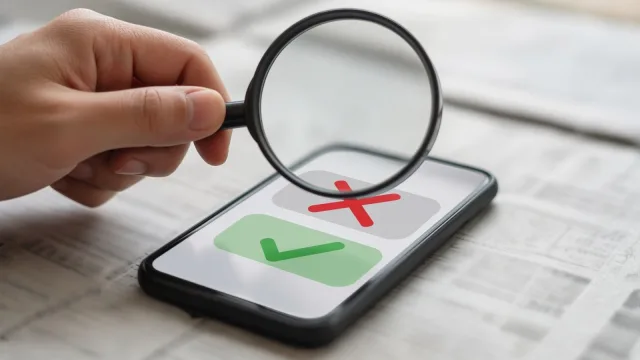
- Ads are not always bad, but they are not chosen because they are the best or most official answer. Some fraudsters have bought ads that look like official sites.
- For official services, scroll past the ads and look for the real official domain.
AI answers and summaries
Some search engines now show an AI-generated summary at the top. These can be helpful but can also be wrong or incomplete. For health, money, legal and government matters, always open and check the original official source.
How to find the official website
- Look at the domain name, not the title or logo. Anyone can copy a logo.
- Government sites in India typically end in .gov.in or .nic.in. Be suspicious of a "government" site ending in .com, .online, .co or similar, unless you can confirm it from an official source.
- Banks: the RBI asked banks in India to move their websites to the .bank.in domain by October 31, 2025, and most major banks have done so. Older addresses may redirect. Get your bank's website from your passbook, bank statement, debit card, official app or branch, not from a search ad.
- Customer care numbers: get them from the official app, website, bill, or the back of your card. Fake numbers are often posted on random websites, maps listings and social media. A fake "agent" may ask you to install a screen-sharing app or share an OTP. Real support will never ask for your OTP or PIN.
- Save it: once you have the correct address, bookmark it (Part 16) and use that bookmark every time.
Is this page trustworthy? A checklist
Before believing or acting on information, ask these questions:
- Who wrote it? Is there an author, organisation name, and contact details? Is it a government body, a known hospital, a recognised news outlet, or an unknown blog?
- When was it written or updated? Rules, prices and deadlines change. Look for a date.
- What is the purpose? Is it informing you, or trying to sell something, or pushing you to click, download or pay quickly?
- Does it cite sources? Good pages tell you where facts come from, and link to official sources.
- Do other reliable sources say the same? Check two or three trusted sites, especially for health or money advice.
- Does it look rushed or alarming? Many spelling mistakes, all-capital headlines, countdown timers, "100% guaranteed", "only today" offers and too-good-to-be-true deals are warning signs.
A worked example: finding an official service safely
Suppose you want to download your e-Aadhaar. Here is a careful way to search:
- Type a short, clear search: download e-Aadhaar.
- Skip any result labelled Sponsored or Ad.
- Look for the result whose address is on the official UIDAI domain, uidai.gov.in, or its official portal linked from there.
- Before opening it, read the address under the title. Ignore sites with names like "aadhaar-update-online" on .com or other domains, which may be private agents charging fees or collecting your data.
- Open the official page, confirm the address in your browser's address bar, and bookmark it.
- Follow the steps on the official site only. Never pay a stranger to "speed up" a government service you can do yourself.
The same method works for PAN, passport, EPFO, railway bookings, electricity bills and exam results. It takes a minute longer, but it can save you from fees, data theft and fraud.
Your search history and privacy
If you are signed in to a Google account, your searches may be saved to your account activity to personalise results. You can review or delete it in your Google Account under Data and privacy, or turn on auto-delete. On a shared phone, use an incognito tab (Part 16) for private searches.
Checking forwarded messages and viral claims
WhatsApp forwards often carry false news, fake job offers and health myths. Before sharing:
- Search the main claim along with words like "fact check".
- Look for reports from recognised news outlets or official fact-checkers. The government's PIB Fact Check unit regularly flags false claims about government schemes and notices on its official channels.
- Use Google Lens or reverse image search to see whether a "new" photo is actually old or from somewhere else.
- If you cannot verify it, do not forward it.
Searching for health and money information
- Health: use the internet to learn and prepare questions, not to diagnose yourself or change medicines. Prefer government health portals and well-known hospitals, and always confirm with a doctor.
- Money: for banking rules, check the RBI or your bank's official site. Be wary of "investment tips", "guaranteed returns" and trading groups found through search or social media.
Frequently asked questions
Is the first result always the most reliable?
No. The first few results may be ads, and ranking depends on many factors. Always check the domain and the source.
Can I trust a website if it has a padlock?
The padlock only means the connection is encrypted. Fake sites can have it too. Check the domain name and the other signs above.
How do I search only government websites?
Add site:gov.in to your search, for example ration card apply site:gov.in. Some state and central sites also use .nic.in.
I found a customer care number online and the person asked me to install an app. What should I do?
Stop and hang up. Do not install anything or share any codes. Get the number from the official app or website and call again. If you lost money, call the cyber crime helpline 1930 or report at cybercrime.gov.in quickly.
What is next
Try this today: search for one government service you need, add site:gov.in, and bookmark the official page you find. Then look at the top of any search and spot the Sponsored results. In the next part of Tech for Beginners, we will create your first email account with Gmail or Outlook, step by step.