A web browser is the app you use to open websites. On most Android phones it is Google Chrome, on iPhones it is Safari, and on Windows laptops it is often Microsoft Edge. Some people use Firefox, Samsung Internet or others. Whichever you use, the basic tools are the same: an address bar, tabs, bookmarks, downloads and history. This is Part 16 of our Tech for Beginners series. Today we will learn to use these tools comfortably, understand what incognito or private mode does and does not hide, and how to clear cache and cookies when a site misbehaves.
In Part 15 we learned how the internet works, including URLs and the HTTPS padlock. Downloads take space, so keep Part 6 on phone storage in mind. And for installing browsers or other apps safely, see Part 5.
Menus differ slightly between browsers and versions. In Chrome and Edge, most options are in the three-dot menu (top right on Android and computers). In Safari on iPhone, look at the bottom toolbar. If a step looks different, look for similar words.
The address bar: where you type
At the top (or bottom, in Safari) is the address bar. In most browsers it does two jobs:
- Type a full website address, such as irctc.co.in, and the browser goes straight there.
- Type words, such as "train status Chennai Express", and it searches with your default search engine.
Safety tip: when you type a website name, check the suggestions carefully. The first suggestion may be an advertisement or a search result, not the official site. For banking and government sites, type the exact address or use a saved bookmark.
Tabs: many pages at once
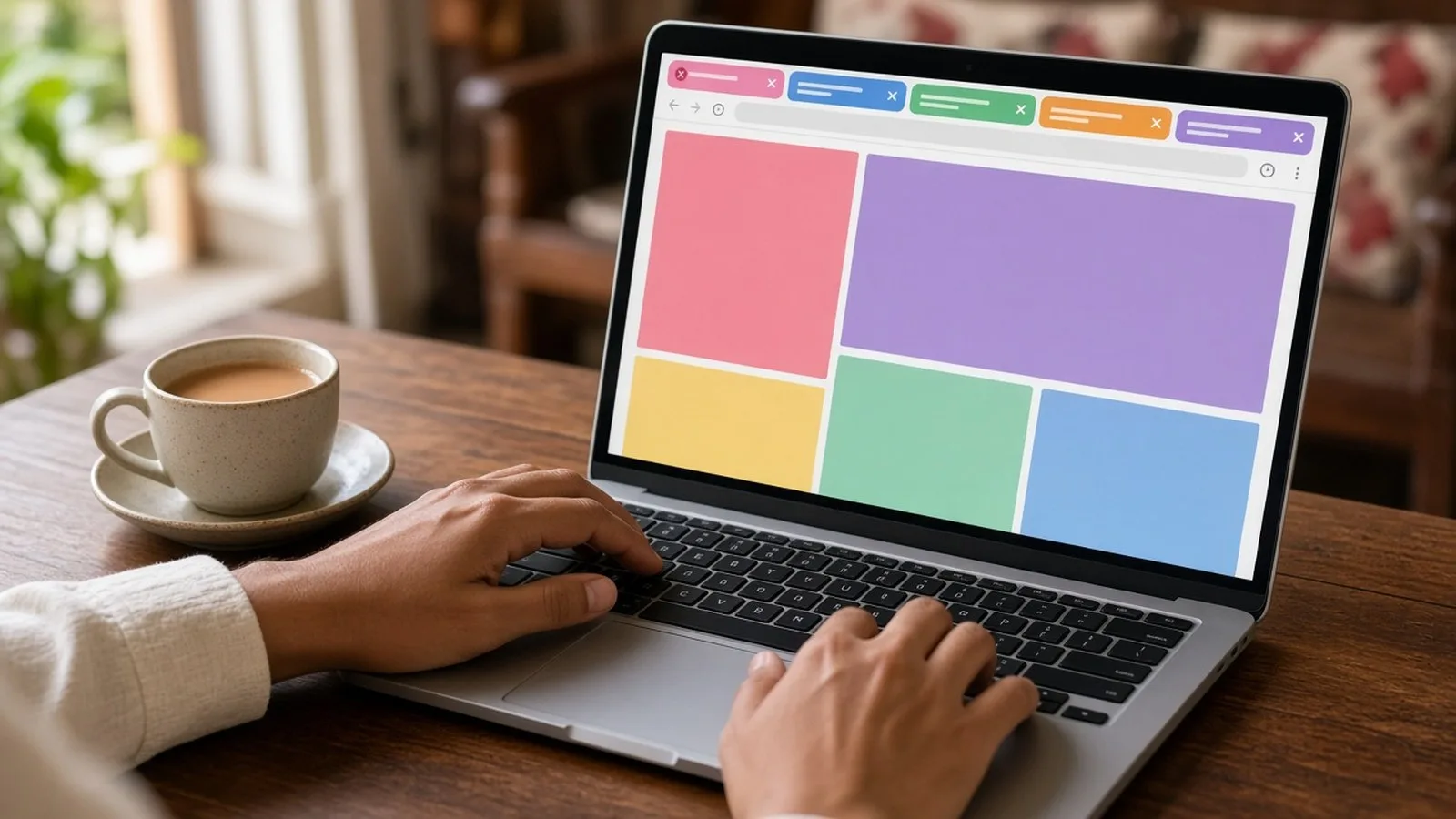
Tabs let you keep several web pages open, like having several books open on a table.
- Open a new tab: tap the tabs button (a square with a number in Chrome, or two overlapping squares in Safari) and then the + button.
- Switch tabs: tap the tabs button and choose the page you want.
- Close a tab: tap the X on the tab, or swipe it away.
- Open a link in a new tab: touch and hold the link, then choose "Open in new tab".
Many people end up with dozens of open tabs. Close old ones once in a while; too many tabs can slow a phone and use memory. In Chrome, the tabs screen menu has an option to Close all tabs.
Bookmarks: save your favourite sites
A bookmark saves a website so you can open it with one tap, without typing or searching. This is one of the best safety habits for banking and government websites, because you always go to the same correct address.
In Chrome (Android)
- Open the website you want to save.
- Tap the three-dot menu.
- Tap the star icon. The page is saved to your bookmarks.
- To open bookmarks later, tap the three-dot menu, then Bookmarks.
In Safari (iPhone)
- Open the website.
- Tap the Share button (a square with an arrow).
- Tap Add Bookmark (or Add to Favourites), then Save.
- To open it later, tap the book icon.
Add to Home Screen
You can also put a website on your home screen like an app. In Chrome, tap the three-dot menu and choose Add to Home screen. In Safari, tap Share and choose Add to Home Screen. This is handy for elders who visit one or two sites often.
Downloads: files you save from the web
When you download a PDF, a photo or a document such as a ticket, e-Aadhaar or marksheet, the browser saves it to your phone.
- Chrome (Android): tap the three-dot menu, then Downloads. Files are usually saved in the Download folder, which you can also see in the Files app.
- Safari (iPhone): downloads go to the Downloads folder in the Files app, under iCloud Drive or On My iPhone depending on your settings. A download arrow icon may appear in Safari while a download is in progress.
Download safety
- Download files only from official, trusted websites.
- Never download and install APK files (Android app files) sent through WhatsApp, SMS or unknown websites. Many scams use fake APKs to take control of phones. Install apps only from the Play Store or App Store.
- Be careful with files that ask you to "enable" something or install something to view them.
- Delete downloads you no longer need to free up space.
History: pages you visited
The browser keeps a list of websites you visited, so you can find a page again.
- Chrome: three-dot menu, then History. You can search the list, delete single items, or tap Delete browsing data (or Clear browsing data).
- Safari: tap the book icon, then the clock tab to see history. To clear it, go to Settings, Apps, Safari (or Settings, Safari on older versions) and tap Clear History and Website Data.
Incognito and private mode: what it really does
Every major browser has a private mode: Incognito in Chrome, Private Browsing in Safari, InPrivate in Edge and Private Window in Firefox.
How to open it
- Chrome: three-dot menu, then New Incognito tab.
- Safari: tap the tabs button, then switch to Private.
What private mode does
- It does not save the pages you visit in your browser's history on that device.
- It deletes cookies and site data from that private session when you close all private tabs.
- It does not keep information you type into forms in that session.
This is useful on a shared or family phone, for example if you check your email on a relative's device, or when you are buying a surprise gift.
What private mode does NOT do
- It does not make you invisible on the internet.
- Websites you visit can still see your visit. If you sign in to an account, that website knows it is you.
- Your internet provider, and your school or office network if you use one, can still see which sites you connect to.
- It does not protect you from viruses, fake websites or scams.
- Files you download and bookmarks you create in private mode stay on the device.
Google's own Incognito screen makes this clear: your activity may still be visible to websites, your employer or school, and your internet provider.
Cache and cookies: what they are and when to clear them
- Cache: copies of parts of websites (images, styles) stored on your phone so pages load faster next time.
- Cookies: small files websites store to remember you, such as keeping you signed in, saving items in a shopping cart, or remembering your language.
Sometimes old cached files or cookies cause problems: a page that will not load properly, a login loop, or a form that keeps showing errors. Clearing them can fix this.
Clear cache and cookies in Chrome (Android)
- Tap the three-dot menu, then Delete browsing data (or History, then Clear browsing data).
- Choose a time range, such as Last hour or All time.
- Tick Cookies and site data and Cached images and files. Leave Saved passwords unticked unless you are sure.
- Tap Delete data (or Clear data).
Clear in Safari (iPhone)
- Open Settings, then Safari (under Apps on newer iOS versions).
- Tap Clear History and Website Data and confirm.
Note: clearing cookies signs you out of websites, so keep your passwords handy. You can also clear data for just one website from the site settings in Chrome, or from Advanced, Website Data in Safari settings.
Make web pages easier to read
- Zoom: spread two fingers apart on the page to zoom in, and pinch to zoom out.
- Text size: in Chrome, open Settings, then Accessibility, and adjust Text scaling. In Safari, tap the page menu button (AA or a similar icon) in the address bar and use the smaller and larger A buttons.
- Reader view: Safari's Show Reader and similar simplified views in other browsers remove clutter from articles, where supported.
- Translate: Chrome can offer to translate a page into Hindi, Tamil or another language from the three-dot menu.
Keep your browser updated
Browsers receive frequent security updates. On Android, update Chrome from the Play Store. On iPhone, Safari updates with iOS. Out-of-date browsers are easier targets for attacks.
Frequently asked questions
Which browser is best for beginners?
The one that came with your phone is fine: Chrome on most Android phones and Safari on iPhone. They are regularly updated and work with most websites.
Should I let websites send me notifications?
Usually no. Many websites ask to "Allow notifications", and some use it to send spam or scary fake virus warnings. Tap "Block" unless you really want updates from a trusted site.
Is it safe to let the browser save my passwords?
Using the built-in password manager in Chrome or on iPhone is generally safer than reusing simple passwords, as long as your phone has a screen lock. We explain this in Part 20.
A site says "Your connection is not private". What should I do?
Do not continue to enter any passwords or payment details. Check the address, try again later, or use the official app. On public Wi-Fi, switch to mobile data.
What is next
Try this today: bookmark your bank's official website and one government site you use, close any old tabs, and open an incognito tab to see the message it shows. In the next part of Tech for Beginners, we will learn to search smarter online and to tell reliable websites from fake ones and advertisements.